FPP Connect
FPP Connect, found under xLights' Tools menu, is the best and most efficient way to upload your sequences and media files to all of the FPP devices that need them. It can also configure most of the settings in FPP for your port outputs. You can upload to one, all, or selected FPP devices in a single step, which greatly simplifies keeping show data up to date.
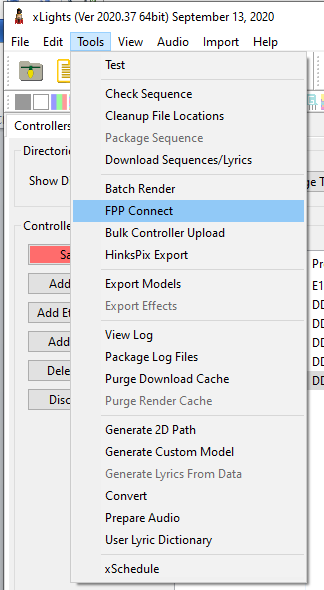
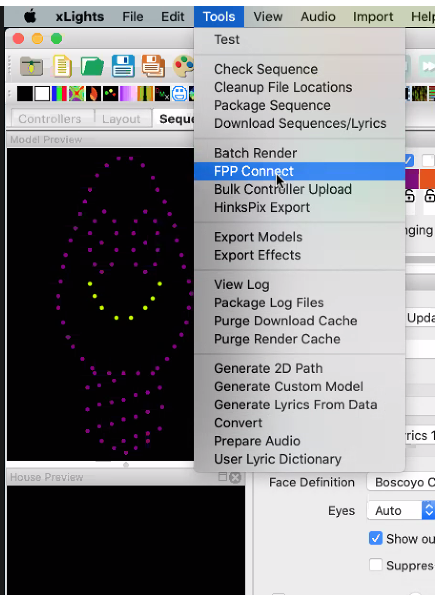
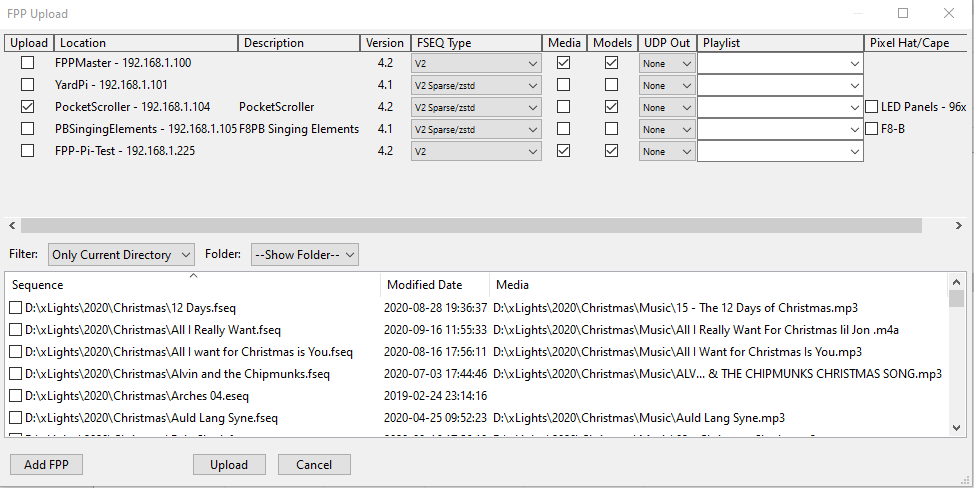
Once opened, FPP Connect discovers all of the FPP devices on your network.
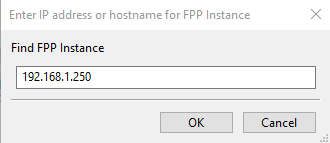
If one of your FPP devices does not show up in the list, add it manually with Add FPP and enter its address.
Note
A device often fails to be discovered because another device
shares the same Host Name (e.g. both left at the default FPP), or because
of a network configuration issue. All FPP host names must be unique.
Options
Each row is one discovered FPP device, with columns controlling what happens to it:
- Upload – tick which FPP devices to act on. Your choices in the other columns apply to every device ticked here.
- Location – the device's Host Name and IP address (informational only).
- Description – the description you entered in FPP, for additional context (informational only).
- Version – the FPP version the device is running (informational only).
- FSEQ Type – the format of the FSEQ file to upload:
- V1 – an older, considerably larger format; typically only used by old FPP versions.
- V2 – a compressed format, more efficient than V1, containing all of the sequence's channel data.
- V2 Sparse/zstd – a compressed format customised to the device, containing only the channels that device needs — saves a lot of space.
- V2 Sparse/zstd Uncompressed – the same per‑device customisation as above, but left uncompressed for controllers that cannot handle compression (uncommon).
- Media – when ticked, uploads the media file (.mp3/.mp4) associated with the sequence, as set in the Media column of the file list below, to that device.
- Models – when ticked, uploads your show layout's model data (channels, positions, configuration, etc.) as Pixel Overlay Models on that device. Useful for testing controllers by model, and required for a Virtual Display or HTTP Virtual Display.
- UDP Out – configures and enables the E1.31/DDP outputs:
- None – for devices that do not need to output E1.31/DDP data, such as cape/hat controllers or an FPP device running in Player mode.
- All – uploads and enables every E1.31/DDP output channel configured in xLights. A main player outputting to a switch connected to all your controllers typically needs this. You may need to delete or deactivate channels a given device does not need.
- Proxied – uploads and enables only the E1.31/DDP channels for the controller attached to this FPP device, provided the FPP device is configured as a Proxy Host for that controller.
- Playlist – to add the uploaded sequences to an existing playlist on that device, select it here.
Note: This always adds the sequence(s) to the playlist — if a sequence is already in the playlist, it will end up there twice.
- Pixel Hat/Cape – shown only when the FPP device has a hat/cape configured for local pixel ports; when ticked, uploads the pixel port configuration to it.