Display Testing
The Display Testing page tests your channel outputs and lets you quickly test stored sequences without defining playlists — a very useful troubleshooting tool. Open Status/Control → Display Testing.
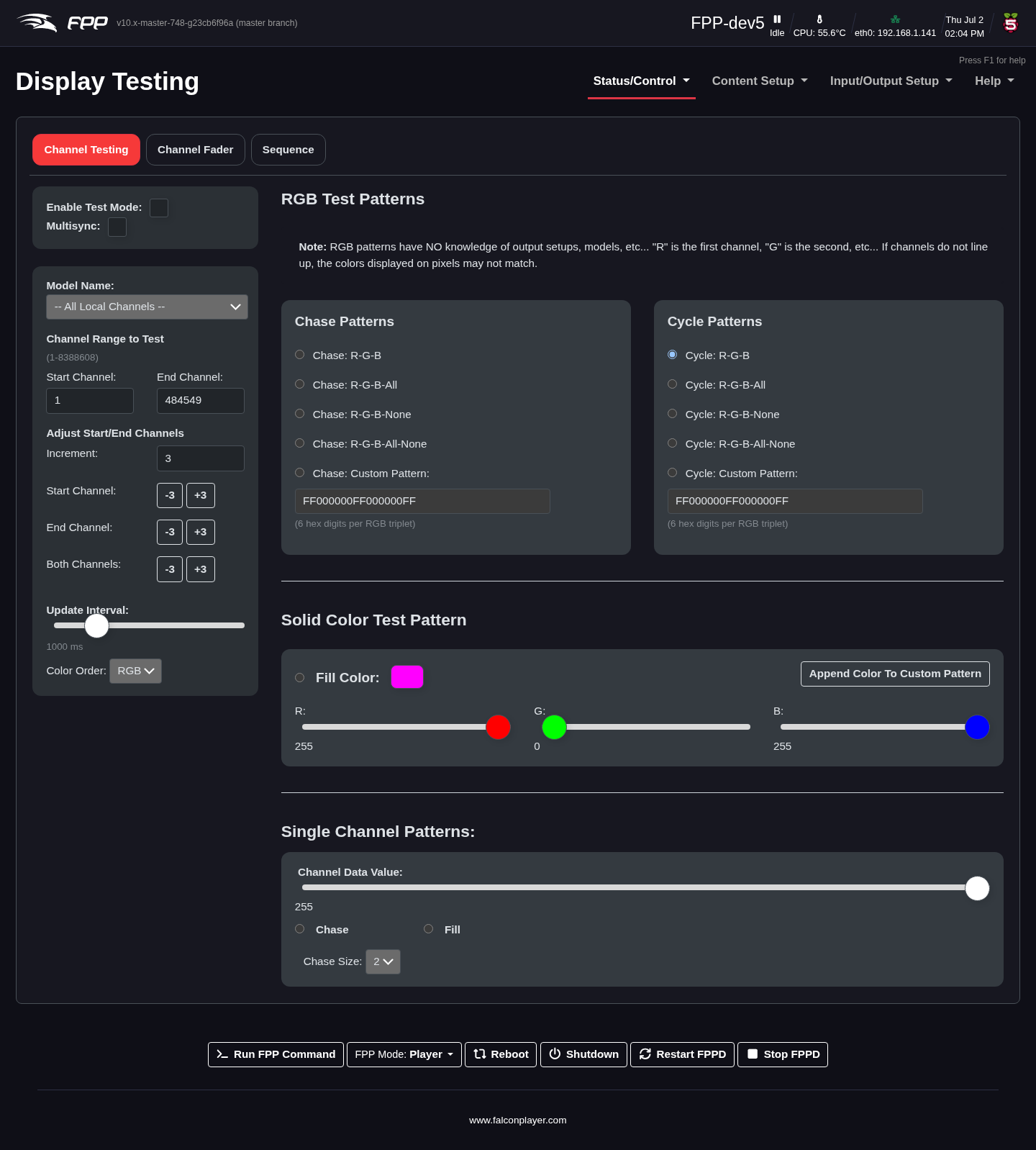
The page has three tabs — Channel Testing, Channel Fader and Sequence — with the test controls common to all of them across the top.
Test controls
- Enable Test Mode – tick to start the test pattern. Untick it when you are done, or you will get unexpected results once a show tries to run.
- Multisync – also send the test pattern to other FPP devices set to remote mode.
- Update Interval – how quickly the pattern changes, in milliseconds.
Note
Test mode takes over the outputs. In FPP 10 FPP tracks which browser or client owns the test, and warns you if another session is about to take it over — so two people testing the same device no longer silently fight over it.
Channel Testing
Model Testing lets you pick a Model Name from your Pixel Overlay models instead of working in raw channels; the channel range is filled in for you.
Channel Testing sets the range by hand:
- Channel Range – Start and End channels. By default FPP loads this device's configured channels, and shows the valid range beneath the heading.
- Channels per Pixel – 1 — Single Color, 3 — RGB or 4 — RGBW. This sets the pixel size the patterns and the solid‑colour fill work in.
- Adjust Channels – shift the range by the Increment value using the −/+ buttons for Start, End or Both. With an increment of 3 (one RGB pixel) this is the quickest way to find the exact start or end of a string.
Note
Selecting a Pixel Overlay Model fills in its channel range and automatically selects RGB or RGBW to match the model's pixels. Outputs configured in FPP apply the physical wire colour order themselves, so test patterns show true colours on those pixels — use the R‑G‑B‑W patterns for 4‑channel RGBW pixels. The manual channel‑range path is for hardware FPP does not reorder colours for.
RGB Test Patterns
Test patterns light the string in colours you choose. They come in two families, each offering 3‑Channel (RGB), 4‑Channel (RGBW) and Custom variants.
Note
RGB Chase patterns do not take output settings into account, so colours may not display as true Red/Green/Blue — use a Cycle pattern instead in that case.
Chase Patterns light a repeating colour pattern that then shifts along the string:
- 3‑Channel: Chase R‑G‑B, R‑G‑B‑All, R‑G‑B‑None, R‑G‑B‑All‑None.
- 4‑Channel: Chase R‑G‑B‑W, R‑G‑B‑W‑All, R‑G‑B‑W‑None, R‑G‑B‑W‑All‑None — the same idea with the white element included.
Cycle Patterns light the whole string one colour, then cycle to the next, with the same 3‑ and 4‑channel variants (Cycle R‑G‑B … Cycle R‑G‑B‑W‑All‑None).
Custom – Chase: Custom Pattern and Cycle: Custom Pattern take a list of colours in hex: 6 hex digits per RGB pixel, 8 per RGBW pixel. Use the colour box and Add Color to append the selected colour to the pattern, or Clear to start again.
Solid Color Fill
Illuminate the whole range with one colour, set on the sliders or with the colour picker.
Single Channel
Tests a prop by channel value, where the Channel Data Value is the intensity. The fill option sends the test value to all configured channels. Selecting a Chase Size sends a packet of that size with the first channel at the test value and the rest at 0, then repeats.
Channel Fader
The Channel Fader tab gives you a grid of sliders — one per channel, each 0–255 — so you can drive individual channels by hand. It is the tool to reach for when troubleshooting moving heads, dumb RGB fixtures, fog machines, pixels and other devices where you need to work out what a particular channel actually does.
Channel numbers are absolute FPP channel numbers, counting from the configured Start Channel. Fixtures you have defined under Input/Output Setup → Pixel Overlay Models are highlighted with a coloured bar and labelled with the fixture name and the channel's position within it (for example Ch 3 / 16), so you can tell at a glance which function a given absolute channel maps to.
Note
FPPD runs one test at a time, so a test left running on the Channel Fader tab and one on the Channel Testing tab will interrupt each other — FPP warns you when this is about to happen. Very large channel counts (matrices and similar props) are skipped rather than drawn as thousands of sliders.
Sequence
The Sequence tab tests a stored sequence.
Note
Only the sequence data is output on the local system — audio and video are not played. Network and channel configuration must be defined before testing, and this is only available in Player mode.