Command Presets
Command Presets replace the earlier Events feature (greatly enhanced). A preset is a saved way to run an FPP Command. Because FPP Commands can now be used directly in playlists and on GPIO inputs, you no longer need to create a preset first — but if you will use the same command in more than one place, a preset makes it easier to reuse. Open Status/Control → Command Presets.
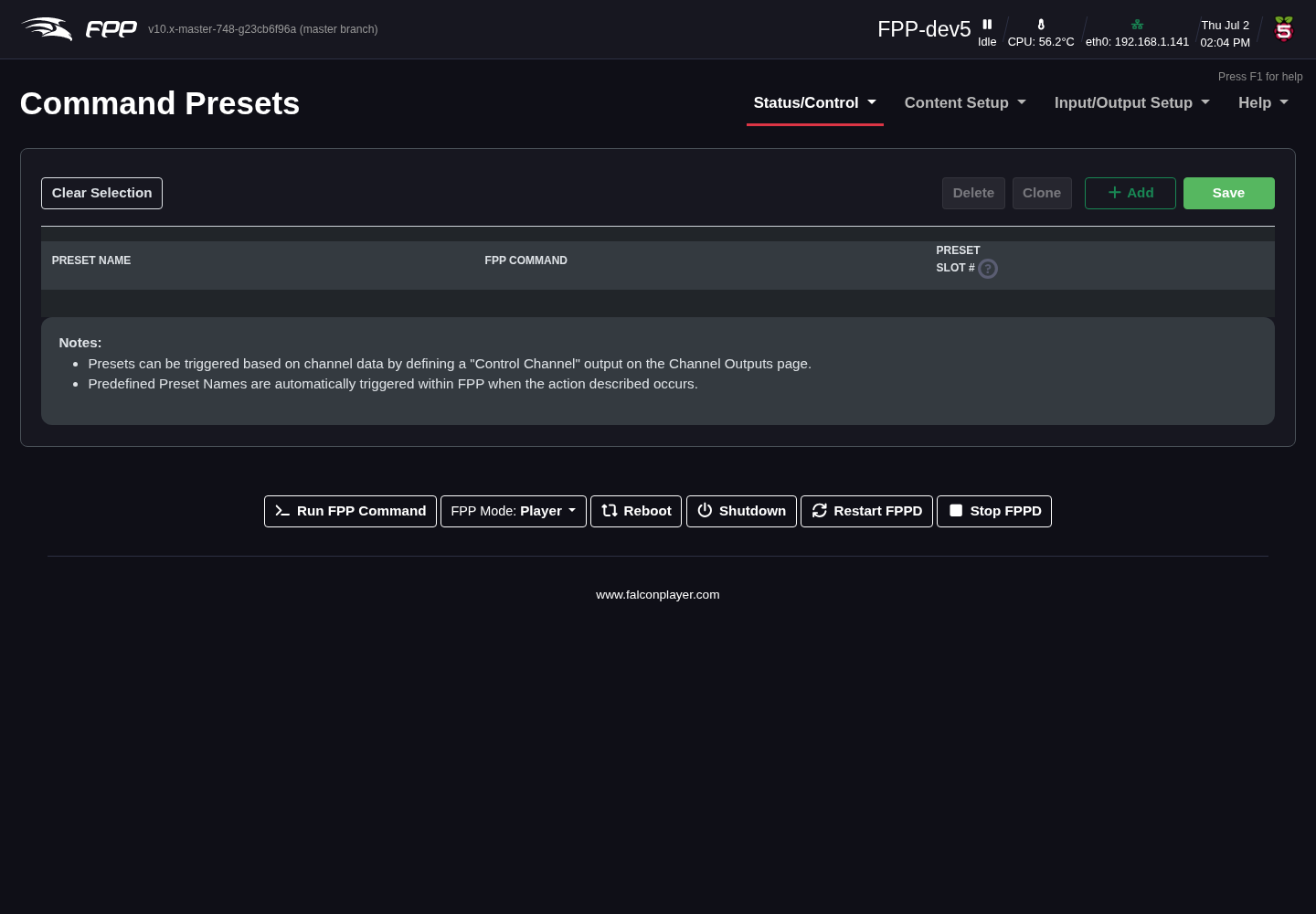
How presets are triggered
A Command Preset can be triggered in four ways:
- Playlist – as a playlist entry (e.g. a Lead In item that switches on a relay for a radio or prop at the start of the show, and off at the end).
- Sequence – in the middle of a sequence (e.g. triggering a countdown on a matrix at set points).
- GPIO Input – from a GPIO pin (e.g. a push button that starts your show).
- Manual Trigger – from the Command Presets page itself (useful for testing).
Creating a preset
- Preset Name – use a clear name that describes what it does, e.g.
StartMainPlaylistorStartOvernightPlaylist. - FPP Command – choose from the many built‑in commands (plugins can add more).
How commands are organized
FPP 10 groups the command list into categories, and ties each command to a UI Level, so the list you see matches how much of FPP you have chosen to expose (see FPP Settings → UI). The categories are:
| Category | What it covers |
|---|---|
| Audio | Volume control, per‑slot volume, and audio routing |
| Effects | Start/stop effects and FSEQ‑as‑effect, All Lights Off |
| Events | Presets, scripts, URLs, and the If / Set Variable commands |
| Media | Play and stop media files, and per‑slot media control |
| Outputs | Test mode, GPIO output and MQTT publishing |
| Pixel Overlay | Fill, clear, text and effects on overlay models |
| Playlist | Start, stop, pause, insert and navigate playlists |
| Plugins | Commands created by installed Plugins |
| System | Reboot, shutdown, and switching between Player and Remote mode |
At the Basic level you see the everyday commands — starting and stopping playlists, effects and media, and volume. Raising the level to Advanced unlocks the rest, including If, Set Variable, the preset‑slot and remote triggers, GPIO and MQTT commands, testing, pixel‑overlay commands, and the Reboot and Shutdown commands.
Tip
Each command argument now has its own help tooltip, so you can hover a field in the FPP Command Editor to find out what it expects — including the newer ifNotRunning and MultiSync arguments.
Available FPP Commands (selection)
The command list is extensive; commonly used commands include:
- All Lights Off – turn all lights off.
- Effect Start / Effect Stop / Effects Stop – start a saved effect, stop one, or stop all.
- Extend Schedule – extend (or, with a negative number, shorten) the currently playing scheduled playlist by a number of minutes.
- FSEQ Effect Start / Stop – start or stop any stored
.fseqfile; can loop, and can run in the Background (resuming after a playlist finishes). An ifNotRunning option starts it only if that sequence is not already playing, and it can restart an already‑running effect in place instead of starting a duplicate. - GPIO – set GPIO pins on or off.
- If – run one set of commands when a condition is true and another when it is false. See Variables.
- Insert Playlist After Current – queue a playlist to run after the current one finishes (with optional start/stop items), then resume.
- Insert Playlist Immediate – start a playlist immediately, stopping the current one, then resume it afterwards.
- Insert Random Item From Playlist – insert a random item (immediately or after the current song).
- Next / Prev / Restart Playlist Item – navigate within a playing playlist.
- Outputs On / Off – turn outputs on/off (on capable devices).
- Overlay Model Clear / Fill / State – clear an overlay model, fill it with a colour, or set its state (Enabled, Disabled, Transparent, Transparent RGB).
- Overlay Model Effect – apply an effect to an overlay model: Bars, Blink, Color Fade, Text, Images (draw or scroll an image across the model — new in FPP 10), WLED Effects (some sound‑reactive, marked with a musical note), or Stop Effects. WLED effects include Copy Segment, which mirrors another model into this one with optional hue, saturation and brightness adjustment, and can be laid out radially or angularly (see Polar Buffers). The Text effect has optional Color Effects: a Color Mode (Single, Gradient, Per Letter / Word / Line, Random Letter / Word, Sparkle or Chase), a Palette (Custom colours, Rainbow or a ready‑made set) and a Color Speed for moving colours (Sparkle and Chase need it above 0).
- Pause / Resume Playlist – pause or resume the current playlist.
- Play Media – play a media file (optionally onto an overlay model). It can also target a specific video output, so a non‑primary slot can drive a second display.
- Reboot / Shutdown – restart or power down the device from a command, so a schedule entry or GPIO button can do it (Advanced UI level).
- Restart FPPD – restart the FPP daemon without rebooting the device (Advanced UI level).
- Run Script – run a script stored on this device.
- Set Playlist Repeat – turn repeat on or off for the running playlist. Nothing is started, stopped or restarted; the new setting takes effect when the playlist reaches the end of its current loop.
- Set Variable – store a value (fixed, counter, random or calculated) in a named variable for other commands to read. See Variables.
- Start Playlist – start a stored playlist (also available directly in playlist entries and GPIO inputs).
Note
The separate Remote … commands of older versions (Remote Playlist Start, Remote Run Script, Remote Trigger Command Preset and so on) no longer exist. To run a command on another device, use the plain command with its Multisync option and pick the host(s). Playlists, schedules, presets and GPIO actions saved with the old commands are converted automatically each time FPPD starts.
FPP System Event Commands
FPP has some built-in commands that are triggered by system events. These commands are available in the drop down list before you enter any text.
- FPPD_STARTED- This will trigger any time FPPD is started.
- FPPD_STOPPED- This will trigger any time FPPD is stopped.
- PLAYLIST_STARTED- This will trigger each time a playlist is started.
- PLAYLIST_STOPPED- This will trigger each time a playlist is stopped.
- PLAYLIST_START_TMINUS_xxx- This will trigger xxx seconds before a playlist is started.
- SEQUENCE_STARTED- This will trigger each time a sequence is started.
- SEQUENCE_STOPPED- This will trigger each time a sequence is stopped.
- MEDIA_STARTED- This will trigger each time a media file is started.
- MEDIA_STOPPED- This will trigger each time a media file is stopped.
- Outputs Enabled-If your FPP device has the ability to turn on the outputs, then you can use this command to trigger an action when the Outputs get enabled.
- Outputs Disabled-If your FPP device has the ability to turn off the outputs, then you can use this command to trigger an action when the Outputs get disabled.
The FPP Command Editor
Wherever FPP lets you choose a command — a preset, a playlist entry, a GPIO trigger, a scheduler entry — it opens the same FPP Command Editor dialog.
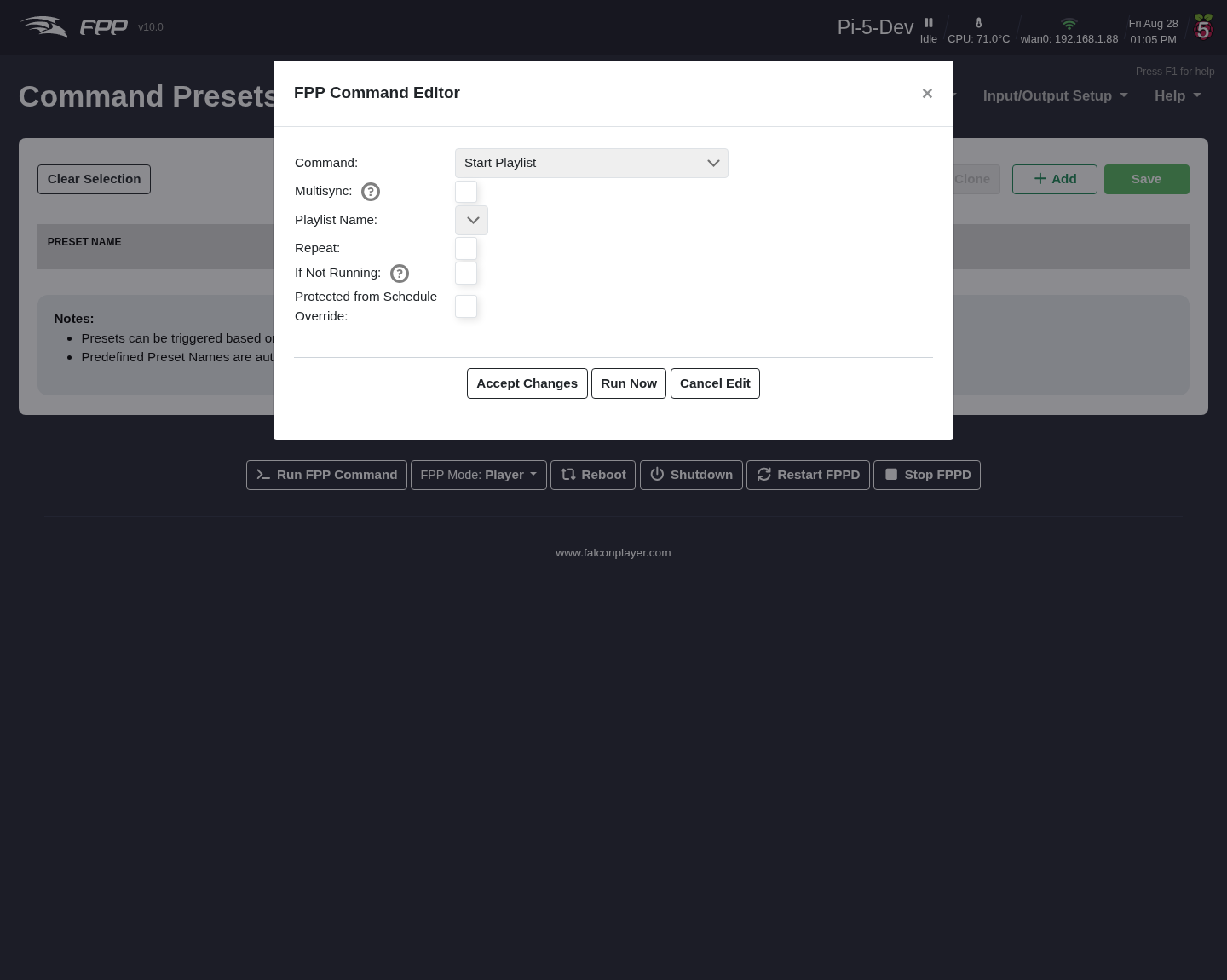
Pick the Command at the top and the dialog rebuilds itself to show just that command's arguments — in the example above, Start Playlist offers Playlist Name, Repeat, If Not Running and Protected from Schedule Override. Hover the ? beside any argument for help on what it expects.
- Multisync – also send this command to your remotes rather than running it only here. It appears on commands that can be multisynced.
- Accept Changes – keep the command and close the dialog.
- Run Now – execute it immediately without leaving the dialog, which is the quickest way to check a command does what you expect before saving it.
- Cancel Edit – discard and close.
Tip
The bottom bar's Run FPP Command button opens a cut‑down version of this dialog on any page, for firing a command by hand.
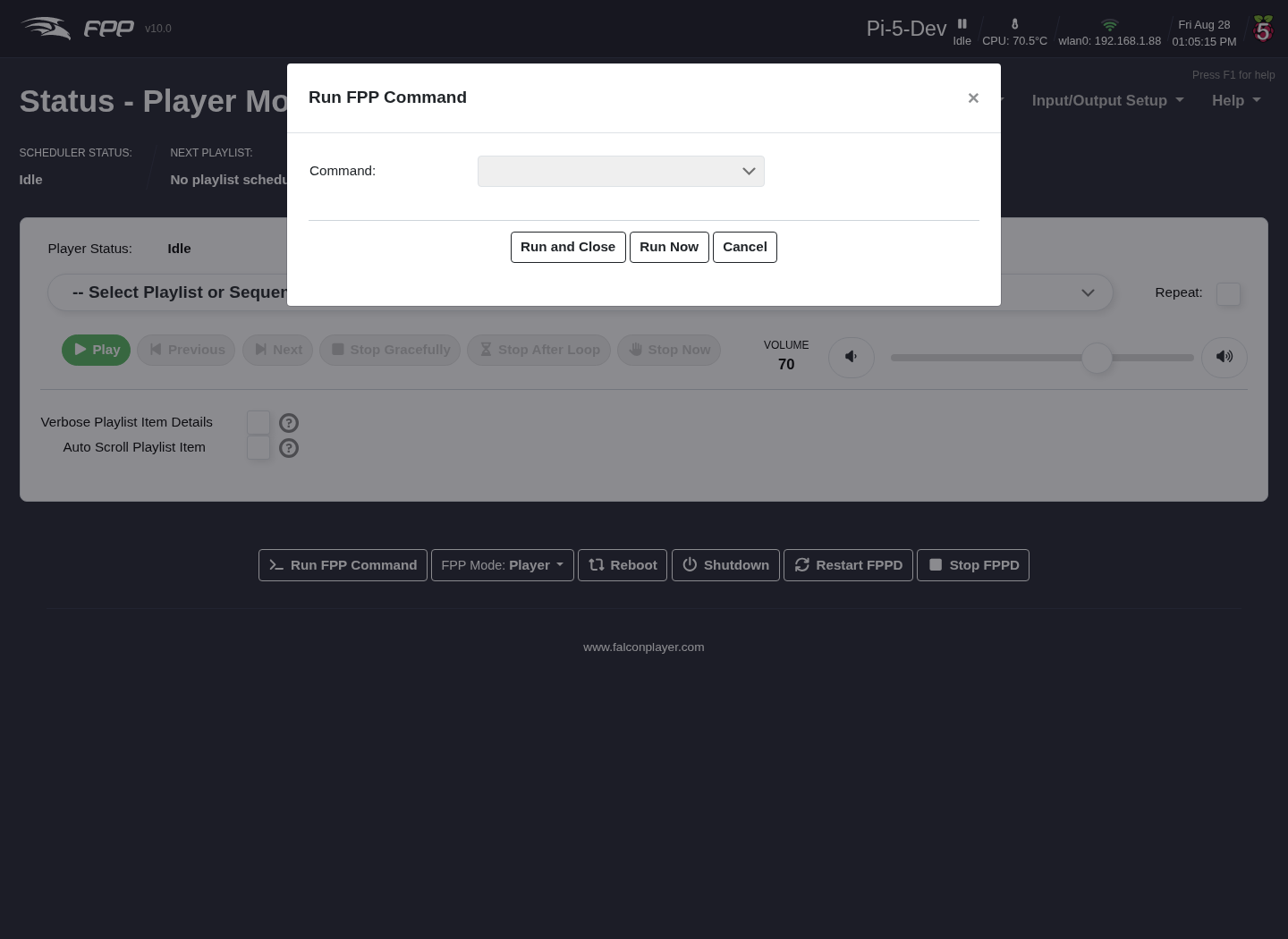
Choose a Command and the same argument fields appear beneath it. Run Now runs it and leaves the popup open, Run and Close runs it and closes.
Preset Slot – a number from 1–255 that identifies the preset, so it can be triggered by slot (from GPIO, a remote, the API, etc.).
Example — a push button that starts a playlist
To make a GPIO button start a "Thank You" playlist:
- On the Command Presets page click + Add to add a new preset.
- Give it a Preset Name (e.g. Start Thank You Playlist).
- Choose the Start Playlist command; in the FPP Command Editor select the Thank You playlist and click Accept Changes.
- Enter a Preset Slot (1–255) — say 5.
- Go to Input/Output Setup → GPIO Inputs and click + Add GPIO Trigger.
- In the dialog, choose the GPIO Pin you are using (check a pinout chart for valid pins), tick Enabled, and give it a Description.
- Set Pull Up / Down to match your wiring — Pull Down for a button wired to 3.3 V, Pull Up for one wired to ground, or None / External Pull if you fit your own resistor.
- Under Rising Edge Commands (or Falling Edge Commands, depending on your wiring) click Add Command, choose Trigger Command Preset slot, and select slot 5.
- Click Apply, then Save on the page, then Restart FPPD when prompted.
Note
Because Start Playlist is itself an FPP Command, you could also enter it directly on the GPIO Inputs page and skip creating a preset — the preset is worth it when you reuse the same command in several places.