Playlists
A playlist can be far more than a list of songs — it is one of FPP's most versatile features. A playlist is an organised group of sequences, commands, scripts, videos and more, played in a particular order, and it is where you combine everything to create your light show. You can keep several playlists for different time frames or days, and you can even nest a playlist within a playlist. Open Content Setup → Playlists.
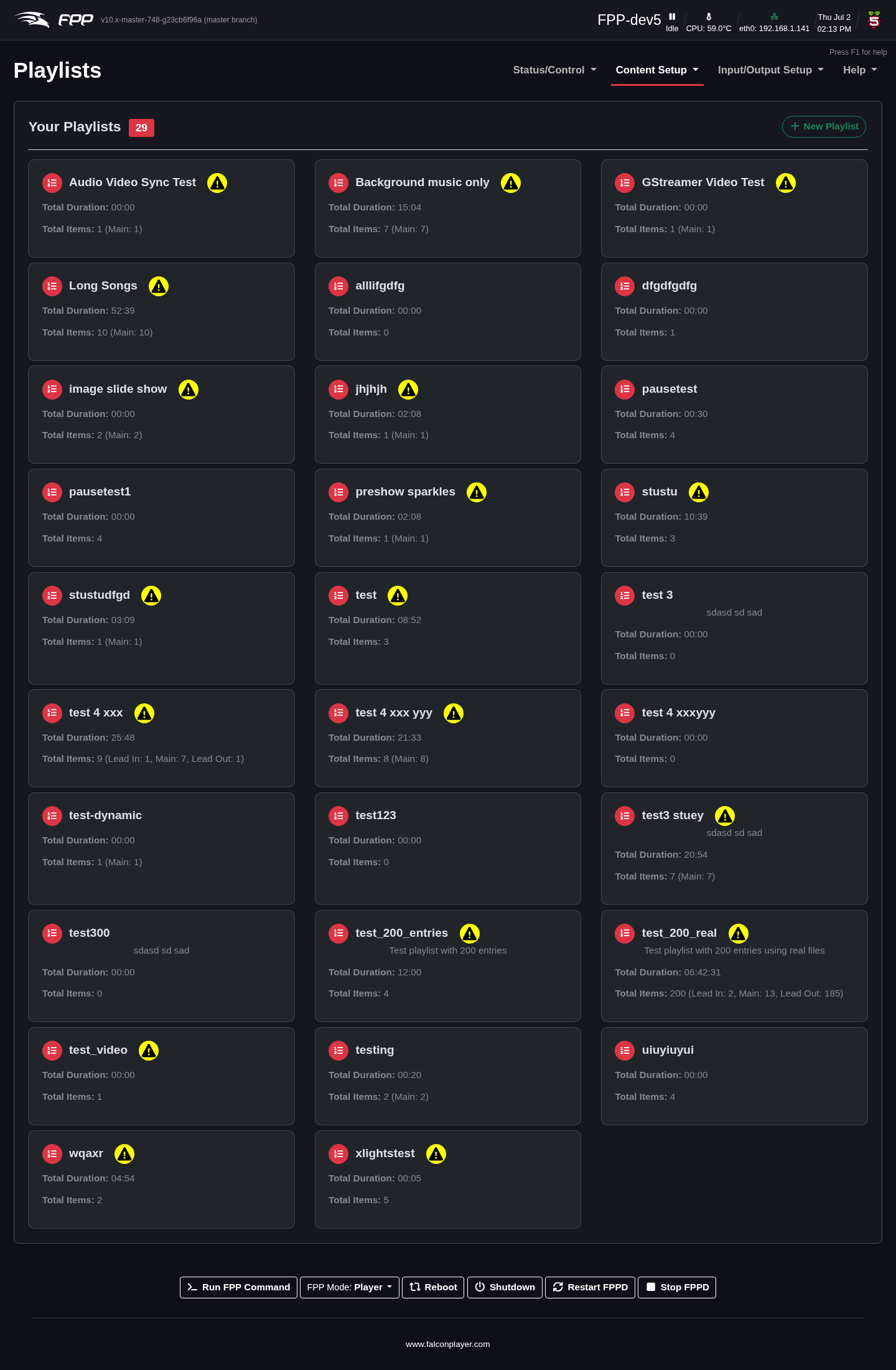
Hover over a playlist to edit or delete it; click it to open the editor. Click New Playlist to create one, entering a name and an optional description.
Note
A warning icon on a card indicates the playlist references media or sequences that are missing from this device.
Playlist options
Once a playlist is open, hover over its name for an Edit button, and use the options at the top right:
- Settings – edit saved settings such as the description, Verbose details,
and Randomize:
- Off – play in the configured order.
- Once Per Load – randomise each time the playlist begins.
- Every Iteration – randomise after each song (with logic to prevent the same song playing back‑to‑back).
- Playlist Actions – Copy Playlist, Rename Playlist, Randomize Playlist (reorder now), Reset Playlist (revert to the saved version), and Delete Playlist.
The three sections
A playlist has three sections, each showing its item count and total duration:
- Lead In – plays once when the playlist starts (e.g. to activate items before the show, or a one‑time announcement). It does not repeat even when Repeat is selected.
- Main Playlist – your main items; this section repeats when Repeat is selected in the Scheduler or on the Status page.
- Lead Out – plays once when the playlist ends (e.g. to switch things off, or a closing announcement).
Adding entries
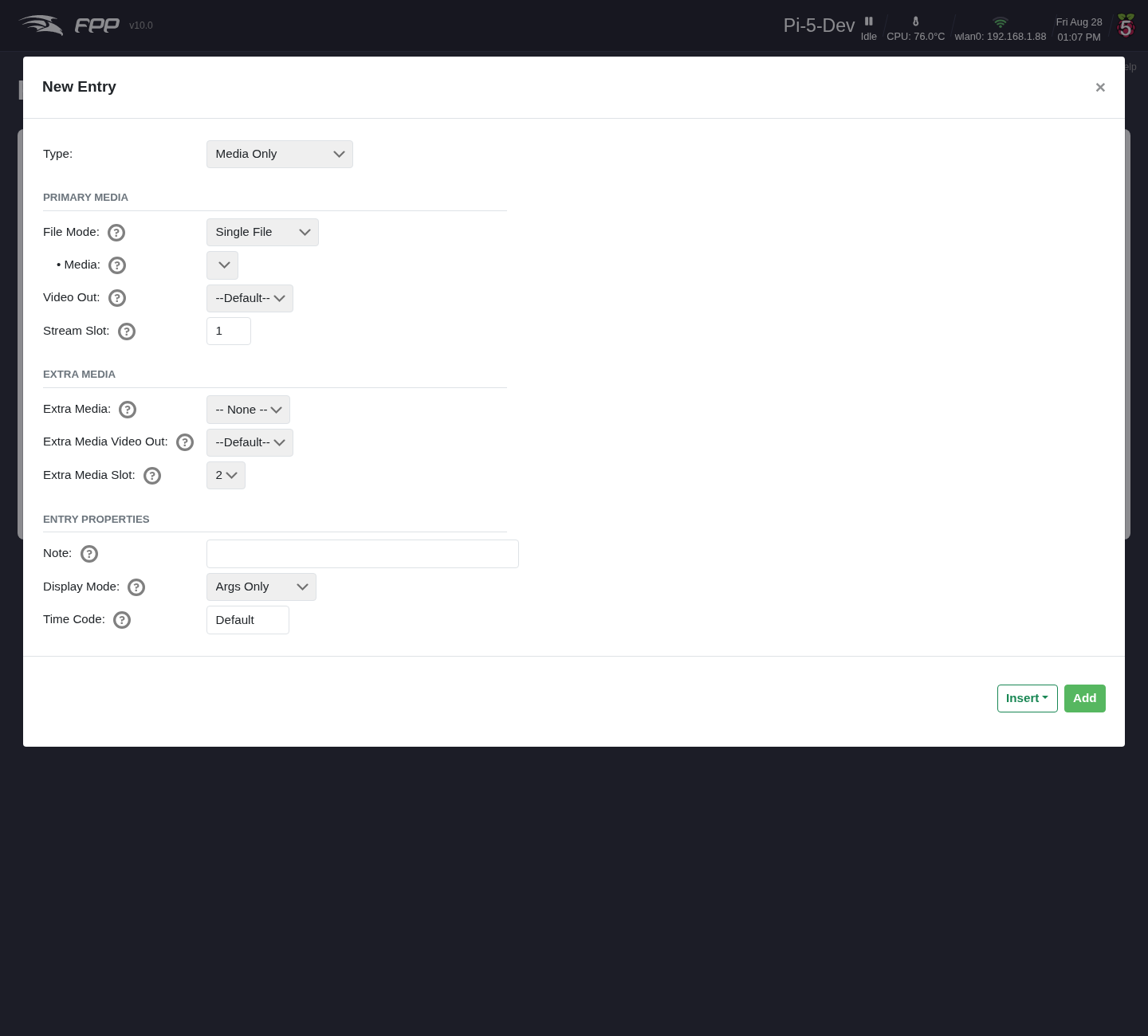
Adding to any section is the same: click Add a Sequence/Entry, which opens the entry dialog. FPP 10 redesigned it: instead of one long list of fields, the options are grouped into labelled sections, and individual fields carry help tooltips — hover the ? beside a field to read it.
Two options at the top make building a playlist quicker:
- Auto‑Select Matching Media/Sequence – when you pick a sequence, FPP selects the media file with a matching name for you (and vice versa).
- Hide sequences already in playlist – filter out anything already added, so you can see what is left.
The sections shown depend on the Type you choose. For a Sequence and Media entry they are Sequence, Primary Media, Extra Media and Entry Properties:
- Sequence – the
.fseqto play. - Primary Media – the Media file, the Video Out it should use, and its Stream Slot.
- Extra Media – companion media that plays alongside the primary (see below).
- Entry Properties – a free‑text Note, the Display Mode used when showing the entry in lists, and an optional Time Code.
Add appends the entry to the section; the Insert drop‑down beside it places it at a chosen position instead.
The available types are:
- Sequence and Media – the most common entry: an
.fseqplus its associated audio and/or video (with a Video Out option). - Branch – change the playlist while it runs, branching to another position based on test conditions (e.g. lowering the volume at a certain time of day). Several test conditions and settings are available.
- Dynamic – items created on the fly by an outside script, plugin or process.
- FPP Command – run any FPP Command as a playlist item (see Command Presets).
- Image – display images through the HDMI port (a virtual "picture frame").
Enter
/home/fpp/media/imagesto use all images (played in random order), or an individual file name; choose a transition, and add a Pause entry for how long each image shows. - Media Only – play media with no lights controlled (e.g. pictures on a matrix or TV).
- Pause – wait for a set time.
- Playlist – embed a playlist within a playlist (e.g. a shared Lead In playlist reused by several daily playlists).
- Remap – remap channels to another range, handy if you move a prop to a different port and cannot rebuild the sequence.
- Script – run a script from the File Manager's Scripts tab (see Plugins, Packages and Scripts).
- Sequence Only – sequence data with no media (e.g. an animation).
- URL – send URL commands to outside programs (e.g. switch a smart power strip, or post the current song to a website).
Drag items to reorder them, including between sections. Hover over an item for Edit and delete options. Save the playlist when done; it is then available on the Status page and to the Scheduler. FPP checks every entry the way it will play it — files exist where FPP looks for them, sub‑playlists exist and are valid themselves (with loops and over‑deep nesting reported), and command entries name a command that still exists with arguments that point at real playlists, files or presets — and flags any entry with a problem.
Note
If you leave the playlist editor with unsaved changes — by its back button, the FPP menu or any other link — an Unsaved Changes dialog offers Save, Discard Changes or Cancel. Closing or reloading the browser tab gets the browser's own "leave page?" warning instead.
Companion media
New in FPP 10, a media entry can carry companion media — extra audio or video that starts and stops with it, on its own stream slot. You configure it in the Extra Media section of the entry dialog:
- Extra Media – the additional media file to play, or -- None --.
- Extra Media Video Out – which video output it should use, so a second video can drive a second display.
- Extra Media Slot – the stream slot it plays on (the primary media uses slot 1, so a companion defaults to 2).
A playlist item carrying one shows an extra‑media badge in the entry list.
The usual reasons to want this are a second audio feed — an alternate‑language soundtrack, or a feed for a lobby or indoor speaker — or a second display running alongside the main show.
Before FPP 10 you could approximate this by firing a Play Media command from a start‑of‑entry hook and a matching Stop Media Slot from a stop hook — but anything that ended the entry another way (the media finishing by itself, Stop Now, a playlist change, or a pause) left the companion still playing. Declaring the companion on the entry gives it exactly the entry's lifetime instead: it stops when the entry stops however that happens, and it is restarted at the right offset when the entry is paused and resumed.