Help and Troubleshooting
The Help menu gathers FPP's information, upgrade, support and diagnostic tools.
System Upgrade (About)
The About page (Help → System Upgrade) shows the current FPP and OS versions and is where you update FPP or upgrade the operating system.
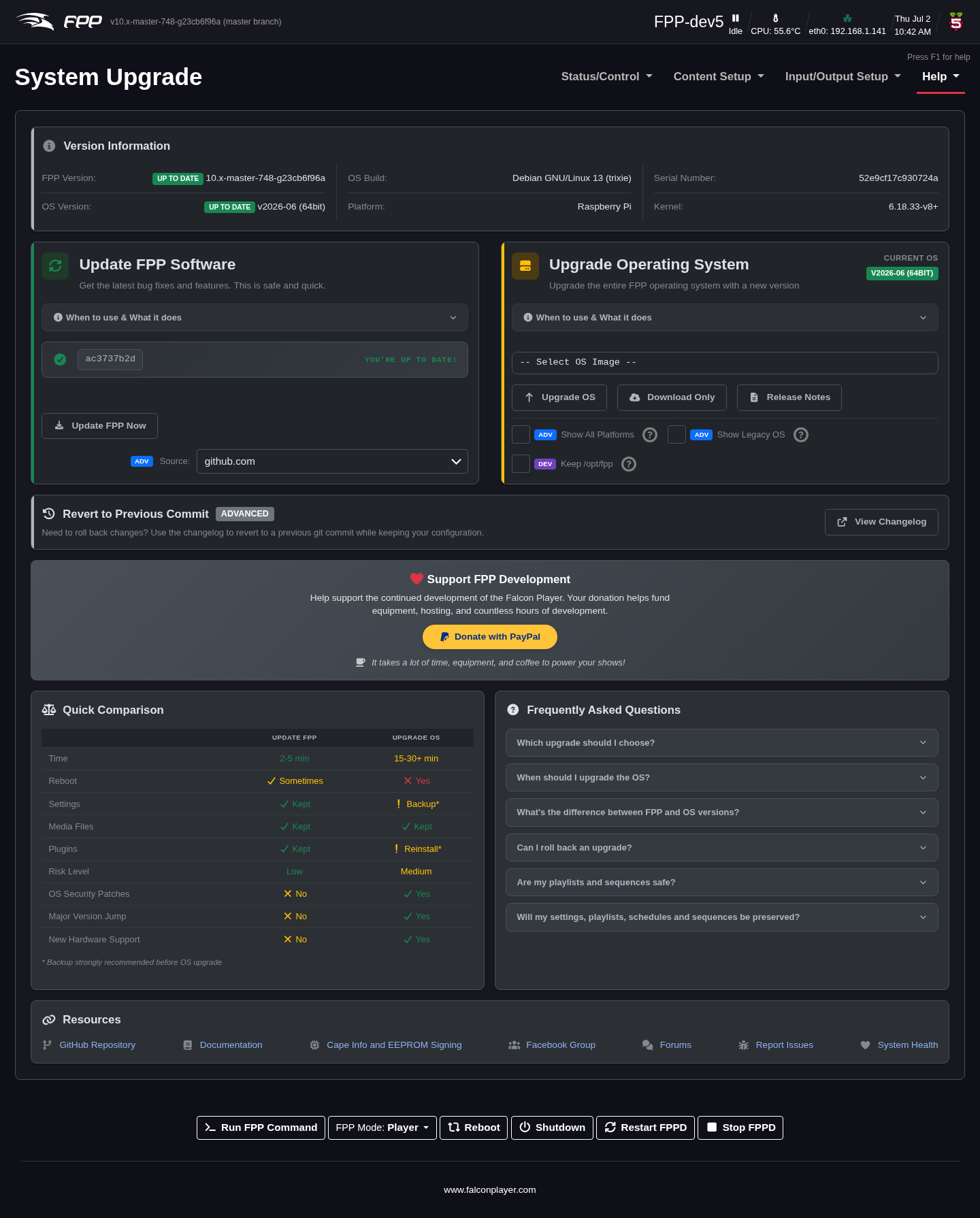
Version Information
The top panel shows the FPP Version and OS Version, each with a status dot (Up to Date, Upgrade Available, OS Upgrade Required / Rebuild Required, or unknown when the check could not run), plus the OS Build, Platform, Serial Number and Kernel.
Update FPP Software
The left card keeps FPP itself current, without touching the operating system. Its subtitle says what is available (for example "FPP 10.2 is available") and its button changes to suit:
- Update FPP Now – install the latest fixes on your current branch.
- Upgrade to … – move to a newer FPP release (the release notes open first).
- Update to latest current version – shown beside the upgrade button when a newer release is offered and your current version has new fixes of its own. It updates you in place without moving to the new release, so you can stay on, say, v10.1 and still pick up its latest fixes — including when the newer release is a major version that needs an OS upgrade.
- Rebuild FPP – shown only when the installed build is missing or damaged.
- Source (Advanced) – upgrade from GitHub or from another of your FPP devices (useful when some devices have no internet); the chosen source is also used for upgrades launched from the MultiSync page.
Upgrade Operating System
The right card handles FPPOS images, which upgrade both FPP and the
operating system in place without re‑imaging. Pick an image from Select OS
Image (it lists only images for this device, plus any .fppos files you have
uploaded), then Upgrade OS, Download Only, Backup First or Release
Notes. Show All Platforms (Advanced) lists images for other platforms, e.g.
to act as an upgrade source for Pi and BeagleBone devices, and Show Legacy
OS (Advanced) shows older images. An OS upgrade reboots the device.
When both an FPP update and an OS upgrade are available, a banner recommends Upgrade OS First — the OS image already contains a fresh FPP — and the recommended card is outlined in amber. On a version that has reached end of life, an OS upgrade is the only path.
Revert to Previous Commit (Advanced) opens the changelog so you can roll back to an earlier git commit while keeping your configuration.
Update progress
While any FPP, branch or OS update runs, every page — in any browser, on any device — shows an update banner with View progress (reopens the live log) and Dismiss (hides the banner in that browser only; the update keeps running). Each progress window also has a Hide button so you can keep using the UI and come back to it. While an update runs, the other kind of update is refused, and the header's update badges are hidden. When it finishes, the banner shows the outcome (complete or failed, with a link to the final log) and a notification reports it; the version in the header refreshes by itself.
Warning
Always take an FPP Backup before upgrading, and especially before a major upgrade — the upgrade banner links straight to the backup page.
Cape Info
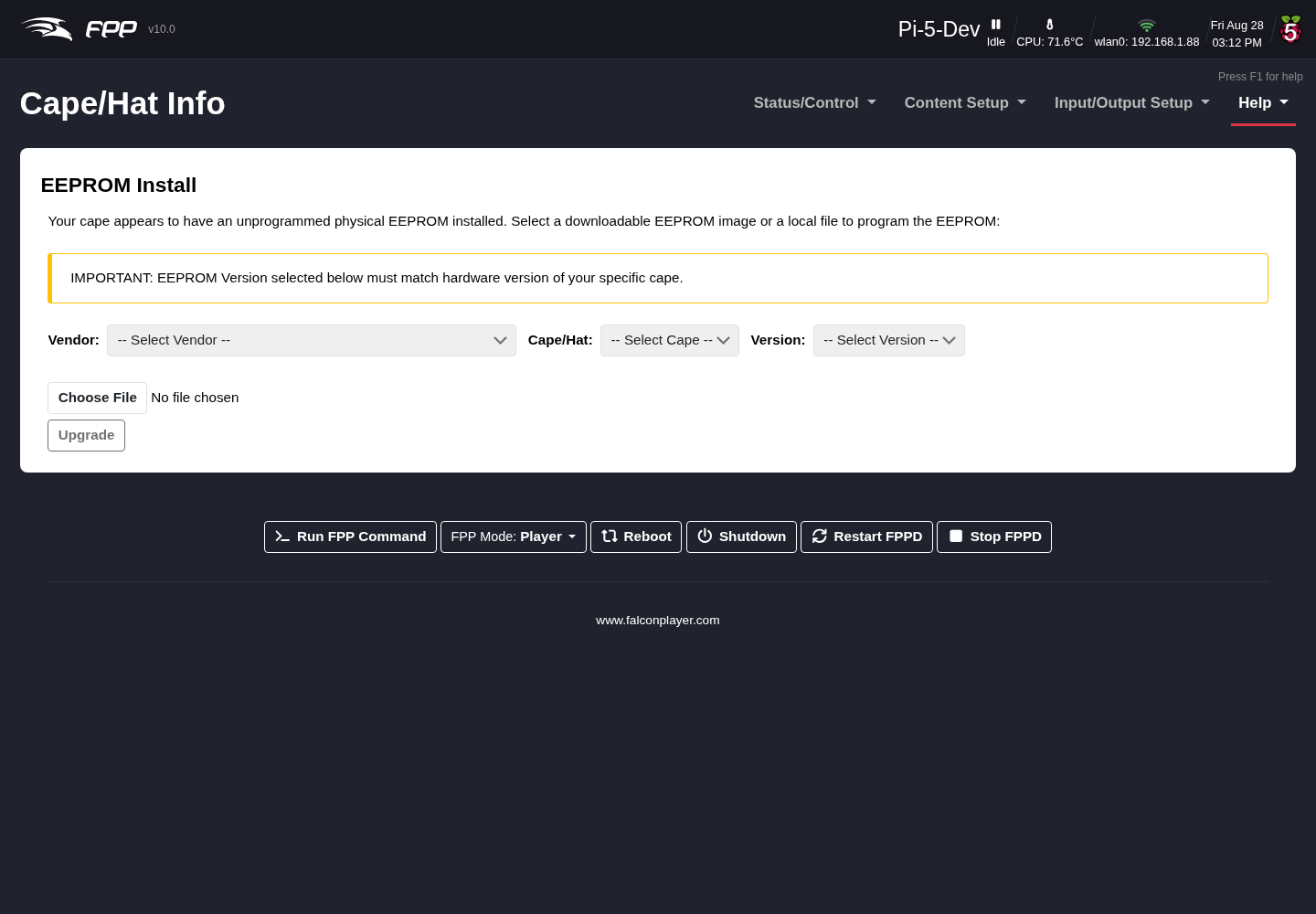
If a cape/hat is installed, Help → Cape Info shows information about it and lets you upgrade or sign the EEPROM.
The page has four tabs:
- About – Name, Version, Serial Number, Designer, Licensed Outputs (and licence status), Output Driver, and Vendor Name/URL/E‑mail.
- EEPROM Signature – sign your EEPROM once you have an Order number and License Key for the pixel‑string outputs (see Pixel Port Licensing). This is also where Off‑Line Signing is done, for a device with no internet access (see Pixel Port Licensing → Off‑Line Signing).
- Voucher Redemption – redeem a voucher from your vendor or shop.falconplayer.com to sign your EEPROM.
- EEPROM Upgrade – upgrade the cape's firmware/EEPROM from a file, or restore it from a previous backup. An option lets you reset the configuration to defaults as part of the restore. FPP streams the progress and keeps the dialog open until the flash finishes.
Warning: Do not power off or reboot the device while a cape firmware flash is running — an interrupted flash can leave the EEPROM unusable.
Note
This page only appears when a cape or hat is detected, so it is absent on a bare device. The fields shown vary with what the cape's EEPROM reports.
Get Help
Help → Get Help provides support resources and API references.
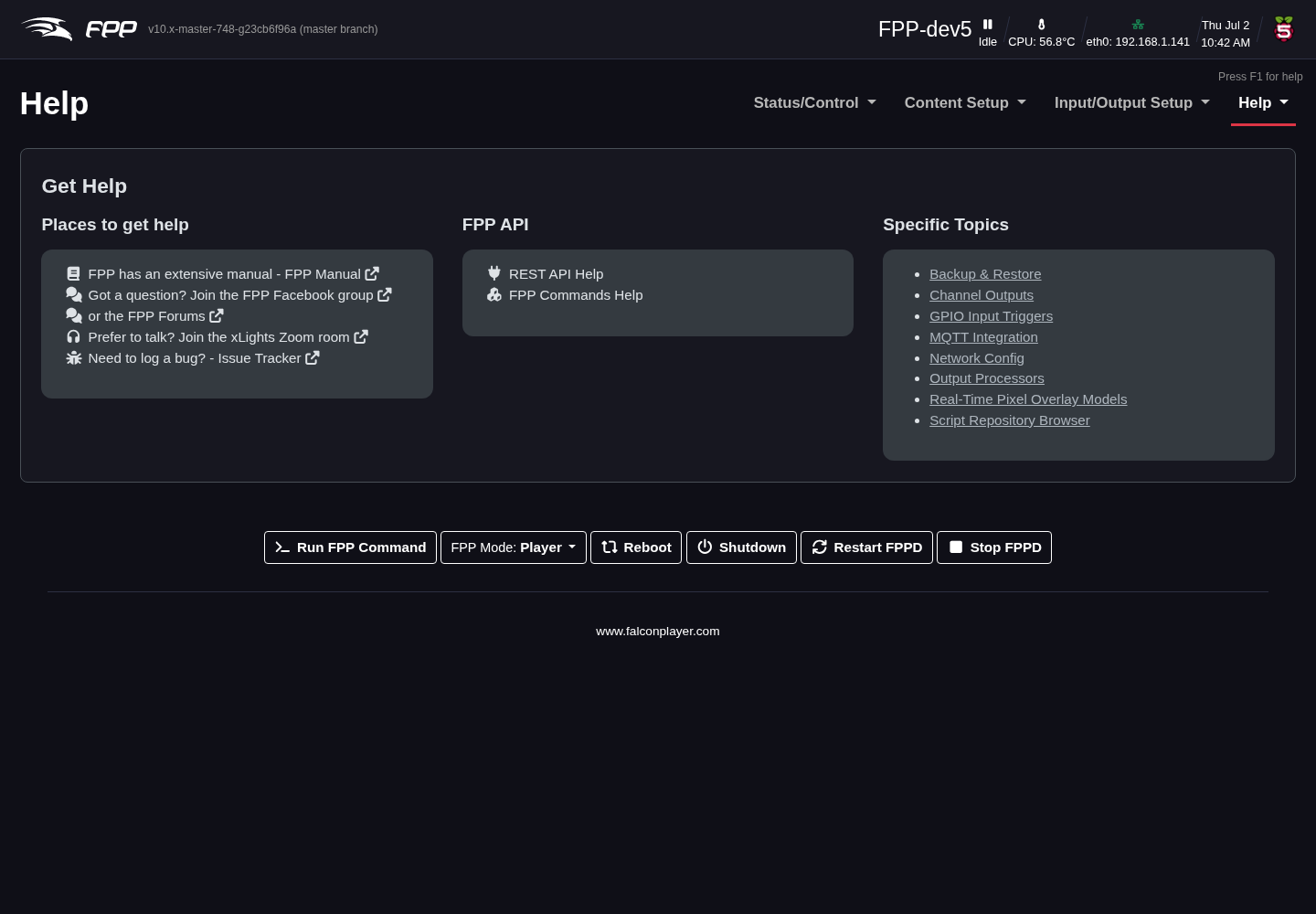
Places to get help:
- FPP Manual – the current manual (offline copy at
https://falconchristmas.github.io/FPP_Manual.pdf). - FPP Facebook Group and the Falcon Christmas Forums – community help.
- xLights Zoom Room – often the fastest way to get any lighting question answered (not just xLights).
- Issue Tracker – log a bug against FPP on GitHub.
- Diagnostic Report – "Something not working?" builds a diagnostic report of this device and helps you send it to the developers — see Diagnostic Report below. The F8 badge is a reminder that the same wizard opens from any page.
Tip
Pressing F1 on any page opens help for that page (and, on the FPP Settings page, for the tab you are on). See Keyboard Shortcuts for the other system keys.
FPP API:
- REST API Help – a list of endpoints with a test facility, for plugin and software developers; click an endpoint to run it and see your device's output.
- FPP Commands Help – three sections: Command Tester, a Command List (all commands with typical arguments), and MQTT Instructions.
Credits and Donate
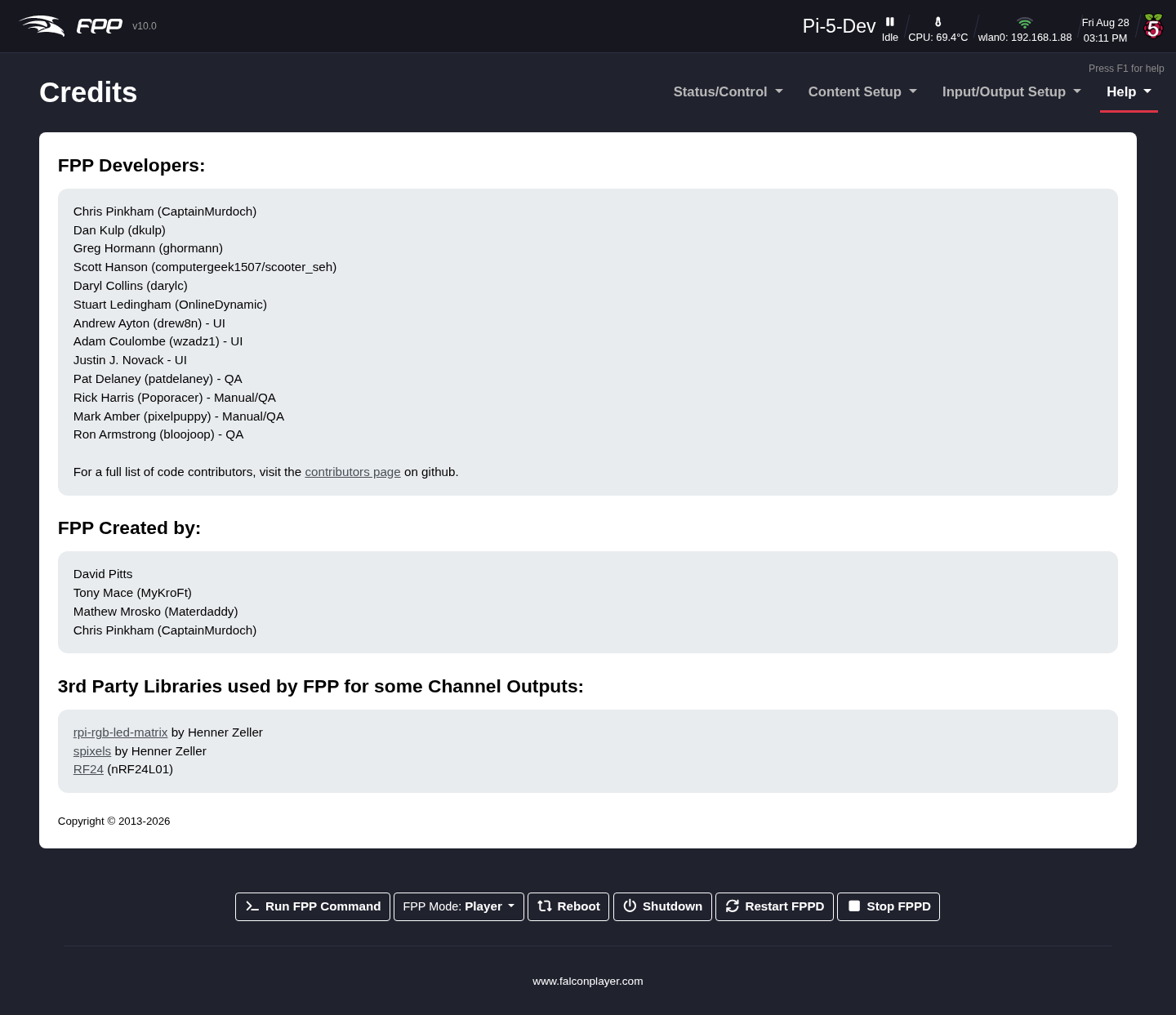
Help → Credits lists the people and projects behind FPP. If FPP has been useful, Donate to FPP links to support the developers.
System Health Check
The System Health Check (Help → System Health Check) is a consolidated dashboard, new in FPP 10, that checks the device and surfaces anything wrong.
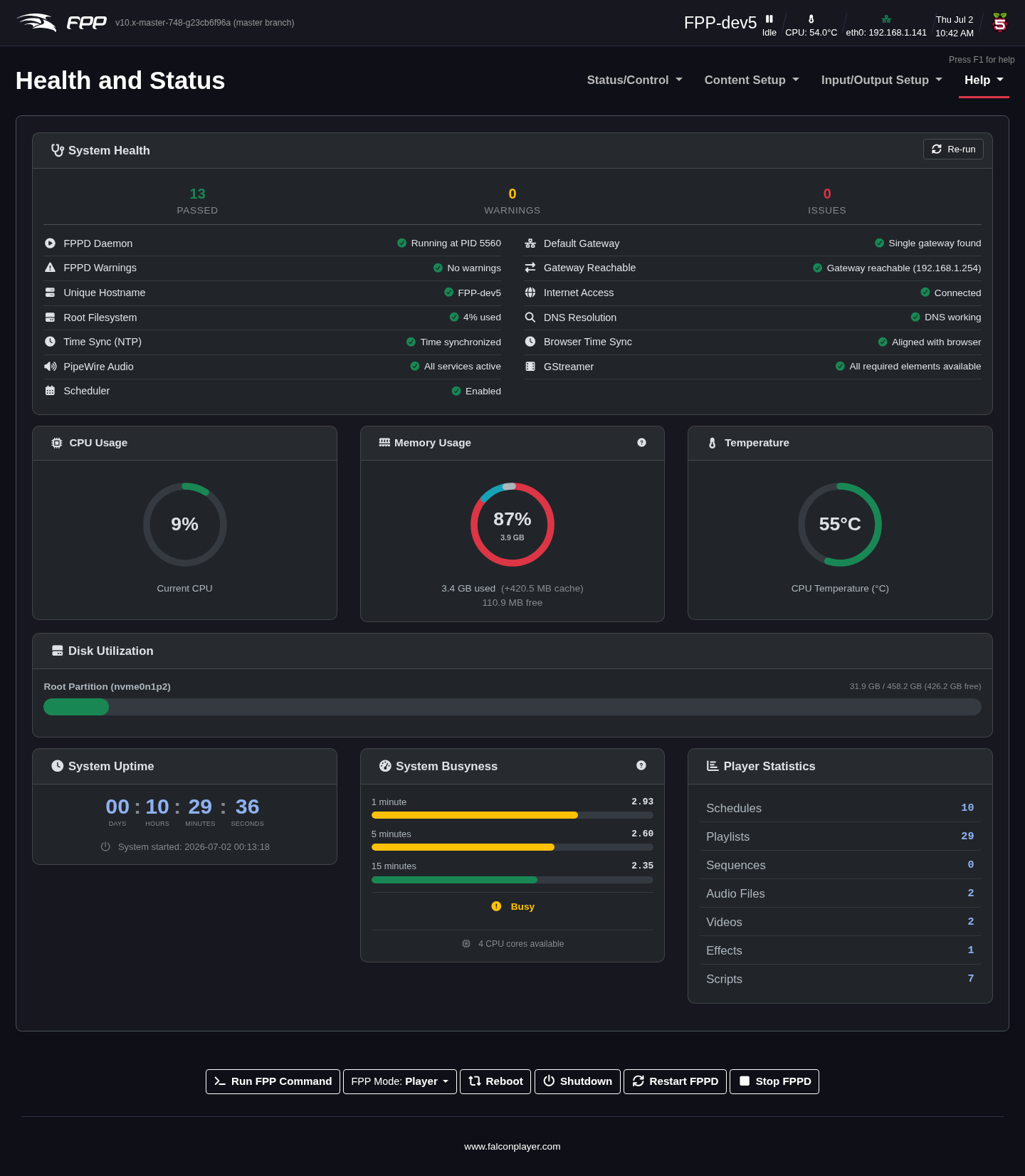
A System Health panel runs checks and summarises them as Passed / Warnings / Issues, including: FPPD Daemon and FPPD Warnings; Unique Hostname and Root Filesystem usage; Time Sync (NTP) and Browser Time Sync; PipeWire Audio and GStreamer; Scheduler; and network checks (Default Gateway, Gateway Reachable, Internet Access, DNS Resolution). Use Re‑run to check again. A few checks only appear when they have something to say: Media Partition, and Unknown Plugins, which fails once a plugin from outside the curated plugin list has been installed and names it. That result stays even after the plugin is uninstalled — an uninstall cannot be trusted to undo everything the install changed — until the next FPPOS upgrade clears it. If the PipeWire or GStreamer check is degraded, a Restart Audio Services (or Restart FPPD) button appears below the checks; it interrupts playback, then re‑checks after a few seconds. Live panels below show CPU Usage, Memory Usage, Temperature, Fan Monitoring (on devices with a controllable fan — see FPP Settings → System), Disk Utilization, System Uptime, System Busyness and Player Statistics.
Tip
This is the first page to open when something is not working — a red Issue or amber Warning usually points straight at the cause.
Troubleshooting Commands
Help → Troubleshooting Commands runs a set of read‑only system commands and shows their output on one page — logs, process/service status, network information and configuration dumps — so you can inspect the device (and copy the output into a support request) without a shell.
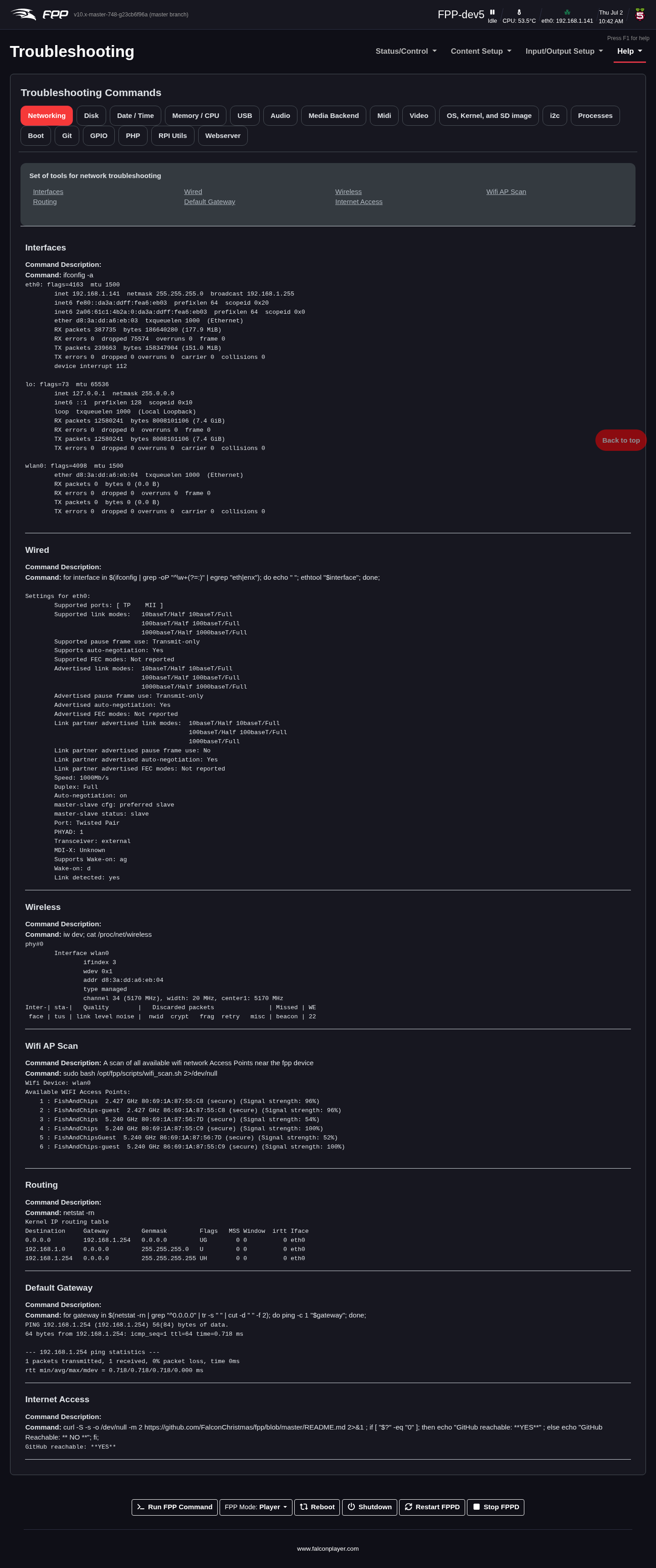
The output is grouped into tabs by subject, so you can go straight to the area you are investigating:
| Tab | What it shows |
|---|---|
| Networking | Interfaces, addresses, routes, DNS and connectivity |
| Disk | Mounted file systems, free space and partition layout |
| Date / Time | System clock, time zone and time-sync (chrony) status |
| Memory / CPU | Memory use, load and processor information |
| PCI | PCI / PCIe devices, drivers, link status and kernel messages — e.g. an NVMe drive on a Pi 5 |
| USB | Connected USB devices — the place to confirm a dongle or adapter was detected |
| Audio | Sound cards, ALSA/PipeWire devices and current audio routing |
| Media Health Checks | Pass / fail checks across the PipeWire, WirePlumber and GStreamer media stack (see below) — start here for any audio or video problem |
| Media Backend | The raw state of the media backend (PipeWire/GStreamer) behind those answers |
| Media Files | A report of what is in your music, video and image folders (see below) |
| Midi | Detected MIDI devices |
| Video | Video outputs, displays and modes |
| OS, Kernel, and SD image | OS release, kernel version and the image FPP was installed from |
| Plugins | The plugin install history, and settings and packages left behind by removed plugins |
| i2c | Devices on the I2C bus — useful for OLED displays and capes |
| Processes | Running processes, including whether fppd is up |
| Boot | Boot configuration and boot-time messages |
| Git | The FPP source checkout's branch and status |
| Dev Tools | NOCC distributed‑compile helpers FPP can see, and the Developer settings in use (Developer UI level only) |
| GPIO | GPIO pin state and configuration |
| PHP | The PHP environment behind the web UI |
| RPI Utils | Raspberry Pi specific tools — throttling, firmware and, on a Pi 5, an RPI Power Supply readout (input voltage, core voltage/current, estimated power, the USB‑C supply's negotiated current limit, under‑voltage flags and the RTC battery voltage) |
| Webserver | Apache configuration and error logs |
Tabs only run their commands the first time you open them. Each tab that has checks shows badges counting failures, warnings and passes, and a row of links at the top of each tab jumps straight to a command. Lines marked [FAIL] are highlighted red and [WARN] amber, with the "what to do" lines beneath them tinted to match.
Note
Every command here is read‑only — opening a tab inspects the device, it does not change anything.
Media Health Checks answer questions rather than print state: service and runtime health, configuration integrity, whether the running audio graph matches the configuration, ALSA hardware and contention, GStreamer elements, network audio and video outputs, video input/output, latency and dropouts, and an end‑to‑end pipeline test. Every failure says what breaks and what to do about it.
Media Files inspects every file in your music, video and image folders. It is meant for finding out why a small device works hard while audio plays. The scan runs only when you open the tab, one file at a time at low priority (a large library can take several minutes on a small device; reload the page to scan again). The report gives:
- the engine rate the audio system actually runs at and the configured rate you chose — they can differ on hardware that cannot clock as low as you asked;
- for each audio file and video soundtrack, whether it plays at the engine rate, is hardware upsampled (a whole multiple, done by the card for free), or is resampled by the CPU every time it plays. Convert resampled files once, ahead of time, to the configured rate;
- summary tables of codecs, sample rates, channels, bit rates, resolutions, aspect ratios and frame rates, and one line per file.
Diagnostic Report
When something isn't working and you would like the developers to look at it, press F8 on any page — or use the Diagnostic Report button on the Get Help page, at the top right of Troubleshooting Commands, or on File Manager → Logs. The Diagnostic Report replaces the older Download Support Bundle / logs‑zip buttons.
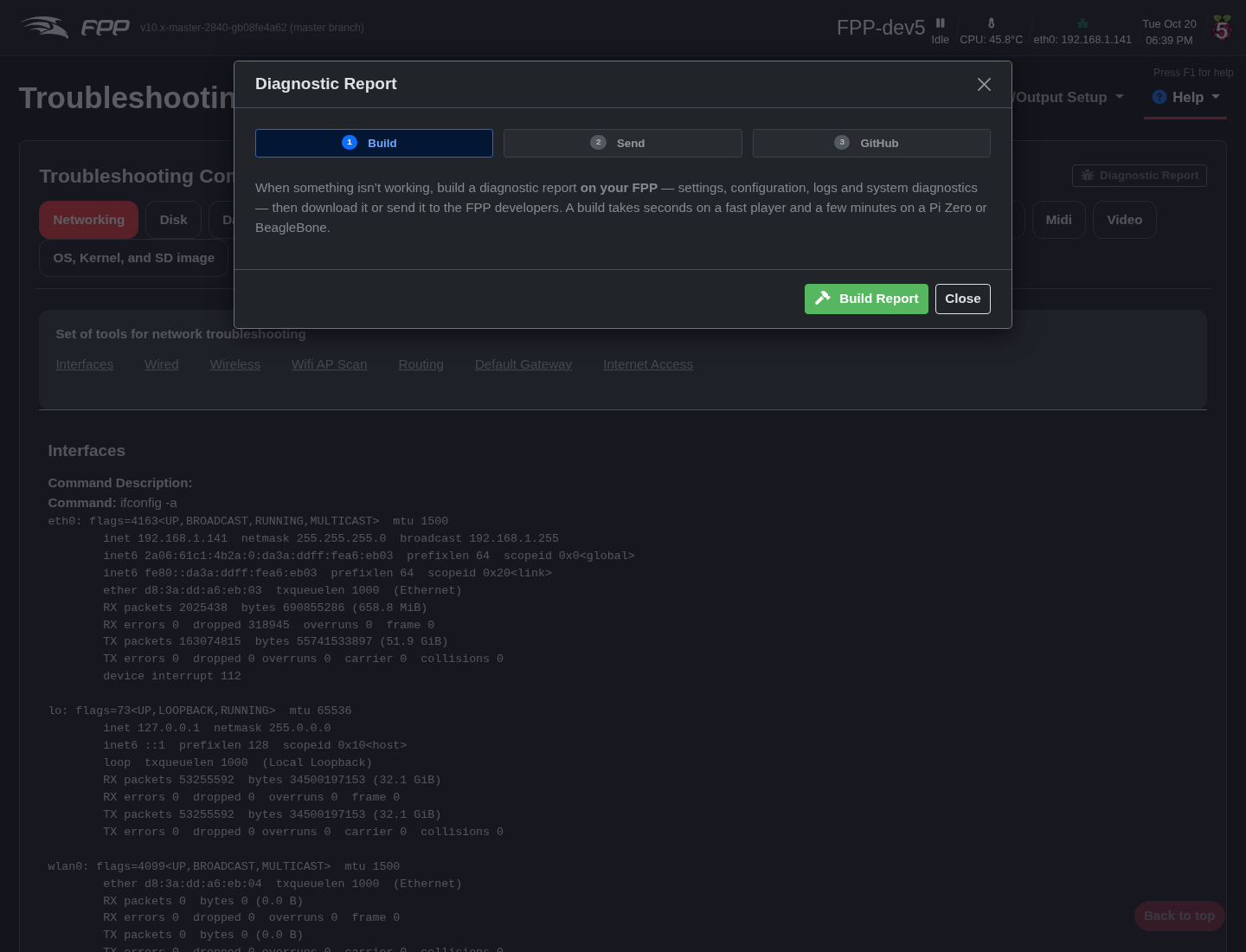
The wizard has three steps, shown as buttons across the top (a finished step gets a green tick and can be revisited); the green button at the bottom moves you on:
- Build Report – FPP builds a
.zipon the device. This takes seconds on a fast player and a few minutes on a Pi Zero or BeagleBone. A download link lets you look inside before sending anything. If you close the window mid‑build the build carries on, and reopening the wizard picks up the finished report. - Review & Send – check the system‑information preview, then Send Report; FPP shows what will be sent and asks you to confirm. If the player has no internet, your browser sends it instead. Once delivery is confirmed the file is deleted from the player.
- GitHub Issue – Open GitHub opens a new FPP issue with the report's file name, FPP version and platform already filled in. Choose Bug report, describe the problem and submit.
The report always contains: system information (FPP version, platform, OS, plugin list, cape info), settings and configuration, your playlists, the main logs (fppd, Apache errors, boot, plugin‑install and upgrade logs, git status), and the Troubleshooting Commands and health‑check output — including hardware and USB serial numbers, network shares and network settings (IP and MAC addresses). Wi‑Fi network names, process command lines and your git identity are left out.
Note
Nothing leaves the device until you review and confirm it. A report
you build but do not send is kept under File Manager → Crash Reports
(names ending in -manual, two at most), where you can download it, send it
with Upload and Delete, or delete it. See Privacy for who
receives reports.
Tip
Building and sending a Diagnostic Report is the single most useful thing you can do when asking for help — it saves a long back‑and‑forth about versions, settings and log contents. Mention the sent file name in your forum post or issue.
SSH Shell
Help → SSH Shell opens a browser‑based shell to the device for advanced users.
General troubleshooting tips
- Raise log levels for the relevant subsystem on FPP Settings → Logging, reproduce the problem, then read the logs from File Manager → Logs.
- No output? Check Channel Outputs are enabled and saved, that FPPD was restarted after changes, and use Display Testing to isolate wiring from configuration.
- Audio/video issues? Check the PipeWire Audio and GStreamer health checks and the Audio/Video settings.
- Sync problems? Confirm Send MultiSync Packets on the player, matching sequences on remotes, and a stable (ideally wired) network.
- Cannot reach FPP? Most often a network/DNS problem — check the address, host name, and the Network settings.