MultiSync
The MultiSync page (Status/Control → MultiSync) is where you set up a MultiSync/Remote layout, but it has evolved into a much more useful interface for all of your FPP devices and most controllers. A MultiSync/Remote layout can eliminate the Ethernet cabling between your FPPs/controllers and allows widespread model placement; one FPP player keeps any number of FPP remotes playing in perfect time by broadcasting small timing packets. You can also view status and system information for every device, and upgrade them all from one interface.
You can use MultiSync on a wired setup too, to save network traffic, though the benefit there is usually small. For deeper background on layout and function, see Networking → Overview.
Note
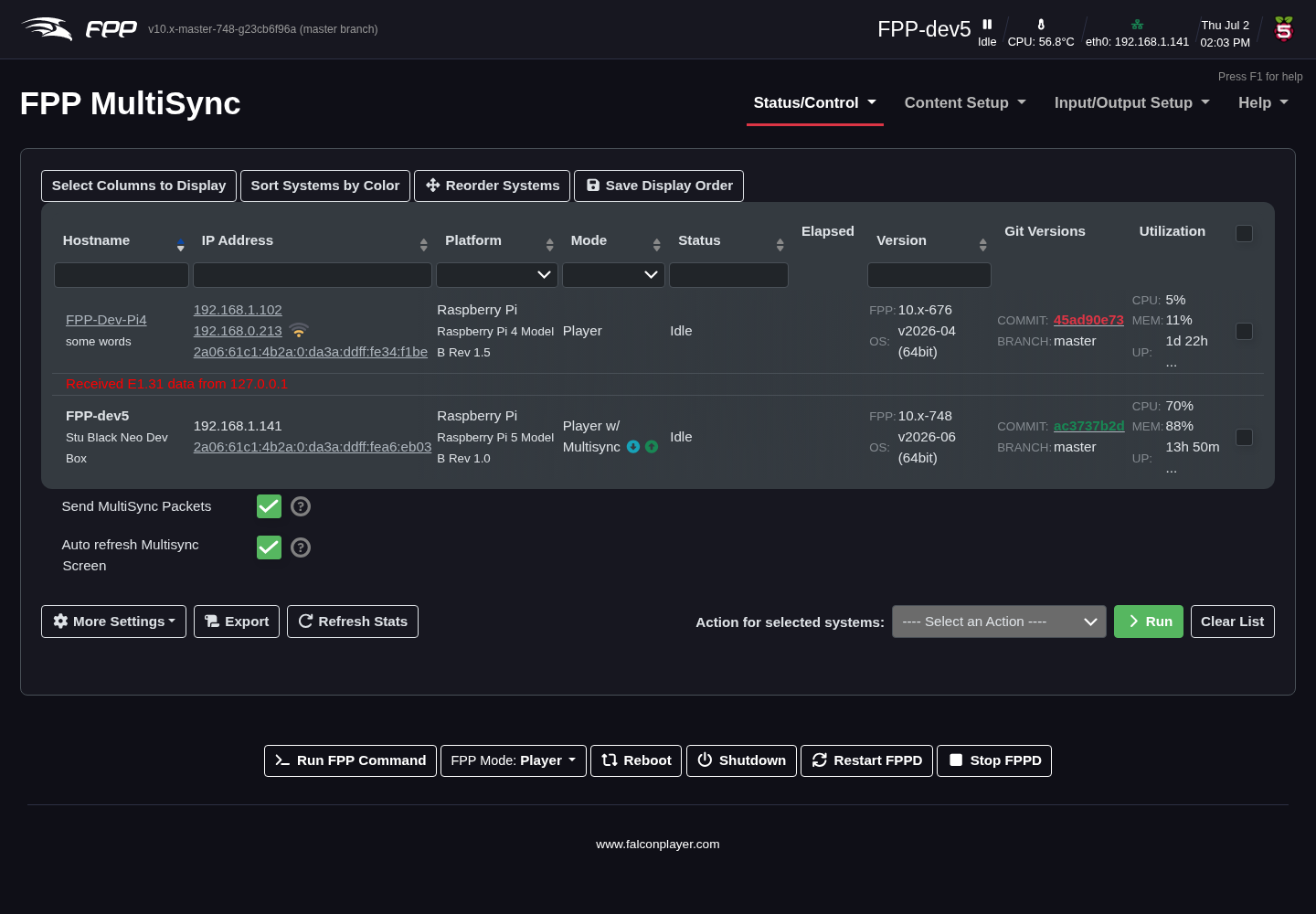
The MultiSync page appears differently depending on your UI Level and the device's mode. It also shows the UI header colours for easy identification. (In the example image, several errors are shown deliberately to illustrate potential problems — this is not normal.)
The systems table
FPP automatically discovers other FPP instances on the network. Use Select Columns to Display to choose columns, Sort Systems by Color to group by header colour, and the header fields/arrows to filter and sort. Columns include:
- Hostname – every discovered device (the current device is in bold). If two devices share a host name the display may be inaccurate.
- IP Address – all configured addresses for each device, as hyperlinks to that device. If a remote has a Wi‑Fi connection, a checkbox appears next to the Wi‑Fi icon to configure it for Unicast Sync. Multicast sync is recommended when your network supports IP Multicast and IGMP Snooping; if it does not, or you get dropped/unreliable connections, set your remotes to Unicast and disable "Send MultiSync to all remotes via Multicast".
- Platform – the SBC model and other information. As well as FPP systems, discovery identifies many controllers by type — Falcon, WLED, Baldrick, SanDevices, AlphaPix, ESPixelStick and Twinkly among them — and learns a stable identity for each, so a controller keeps its row even if its address changes.
- Mode – the FPP mode each device is running.
- Status – the current status; if playing, the sequence name.
- Elapsed – elapsed time of the playing sequence on player and remotes, or an indication that the device is bridging.
- Version – the FPP branch, version and OS installed.
- Git Version – software status: red = an upgrade is available, green = up to date, black = the device could not report (usually a network/DNS configuration error).
- Utilization- This will show the utilization of various system resources like CPU,
- Memory and uptime.
Display and sending options
- Send MultiSync Packets (Player mode) – send MultiSync packets to devices configured as remotes.
- Auto refresh Multisync Screen – refresh the systems table automatically (every 2 seconds) so status, elapsed time and version stay current without reloading the page.
- More Settings – additional display and sending options:
- Send MultiSync to all Remotes via Multicast (Player, with Send enabled) – send via IP Multicast.
- Send MultiSync to all Remotes via Broadcast (Player) – send via network broadcast; helpful on networks without IP Multicast / IGMP Snooping.
- Send MultiSync to ALL KNOWN remotes via Unicast This will send the MultySync packets via unicast.
- MultiSync Unicast Discovery IPs (CSV list) – for instances/controllers not found by normal discovery. (Advanced.)
- HTTP Discovery IPs & subnets – add devices on a different subnet so they appear on the MultiSync page. (Advanced.)
- Hide 10.x.x.x/8, Hide 172.16.x.x/12 and Hide 192.168.x.x/16 Subnets – three separate toggles that hide those private ranges from the systems list, useful when a device sits on both a show network and your home network and you only want to see one of them.
- External IP Address For MultiSync Packets – the address other hosts see for this FPP instance. Leave blank unless NAT or a router means this device is reached on a different address from the one it knows about.
- Export – download a spreadsheet of all connected devices and their stats at the time of export.
Important
FPP 10 defaults new installs to Unicast, not Multicast. Multicast needs both IP Multicast and IGMP Snooping to be working across your network, which many home switches and access points do not handle well, so unicast is the more reliable starting point. If you upgraded an existing device — whether by an FPP upgrade or an FPPOS upgrade — your previous multicast setting is preserved, so nothing changes underneath a working show.
Tip
In FPP 10 a change to the sync destinations is applied without restarting FPPD, so you can switch between unicast and multicast and see the effect immediately.
Note
At the time of writing, Falcon controllers in remote mode do not support Multicast (expected in a future controller update), and not all home networking equipment supports Multicast.
Actions on selected systems
Tick one or more devices in the right‑hand column, choose an Action, and click Run to apply it to all of them at once:
- Upgrade FPP – upgrade software on any or all devices simultaneously (red = out of date, green = up to date, black = could not determine, usually a DNS problem). A progress screen is shown; afterwards you can Reboot or Restart FPPD. While a remote is updating its Status shows Upgrading — click it to open that remote's live update log, which follows each stage and keeps going while the remote restarts or reboots.
- Restart FPPD – restart the FPP software without a full OS reboot.
- Reboot / Shutdown – full OS reboot or shutdown of the selected devices.
- Copy Show Files – copy show files from this device to others. You cannot
pick individual files; all files of the selected type are copied. Tick the
types to include: Copy Sequences, Copy Music, Copy Videos, Copy
Images, Copy Effects, Copy Scripts and Copy Events.
- Compress files during copy to Remotes – compress files before sending, mainly useful for older V1 FSEQ files. Newer xLights versions already write a compressed FSEQ format, so for those this option can actually slow the transfer down as FPP tries to recompress already-compressed data.
Warning
Take care when copying sequences. Newer xLights versions
create host-specific .fseq files containing only the channels each
individual FPP instance needs — so the .fseq sitting on your player may not
hold all the channel data a remote requires to play correctly. Where you use
host-specific files, upload to each device from xLights instead of copying
them between devices here.
Note
rsync must be enabled on any remote you send files to.
- Copy OS Upgrade Files – copy
.fpposOS‑upgrade files to other devices; only files appropriate to each platform are copied (Pi files won't go to BB systems, and vice versa).rsyncmust be enabled on the target. - Set to Player / Set to Remote – change the mode of the selected devices.
- Add as Proxy – configure this device to act as a Proxy Host for the selected device (see Proxy Settings).
Upgrades, OS upgrades, file copies and branch changes share one connection to this FPP however many systems are selected, so other pages stay usable while they run. At most ten systems are worked on at once (the rest show Queued until a slot frees), and once started an action runs to completion even if you leave the page. If an action fails on a system — for example it never answers — its log offers Retry, which runs that one system again.
Note
FPP Connect in xLights is a more robust way to upload files to your FPP devices — it can upload in a sparse format that greatly reduces file size, and can also configure inputs, outputs and other settings.