Status Page
Player Status Page
There are several sections on the Player Status page.
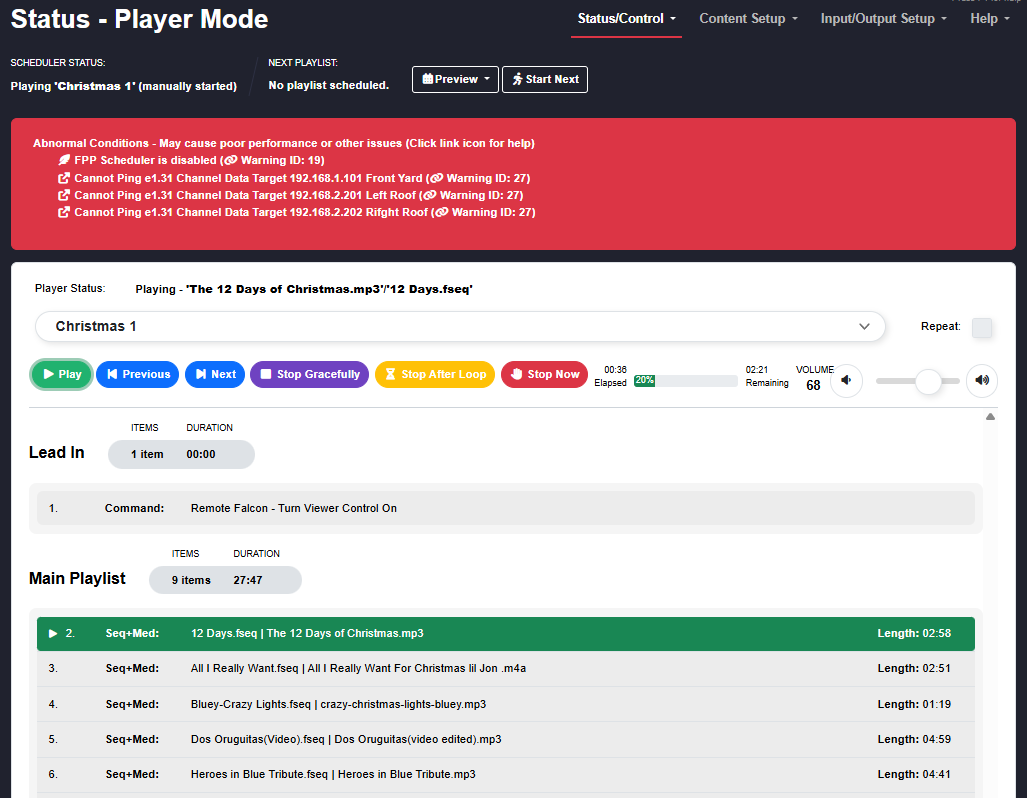
Scheduler Status
This section shows the status of your Scheduler and options to control a playlist that is playing. Note: This screenshot is showing Abnormal Conditions and this is not a normal status. You should remedy any abnormal conditions.
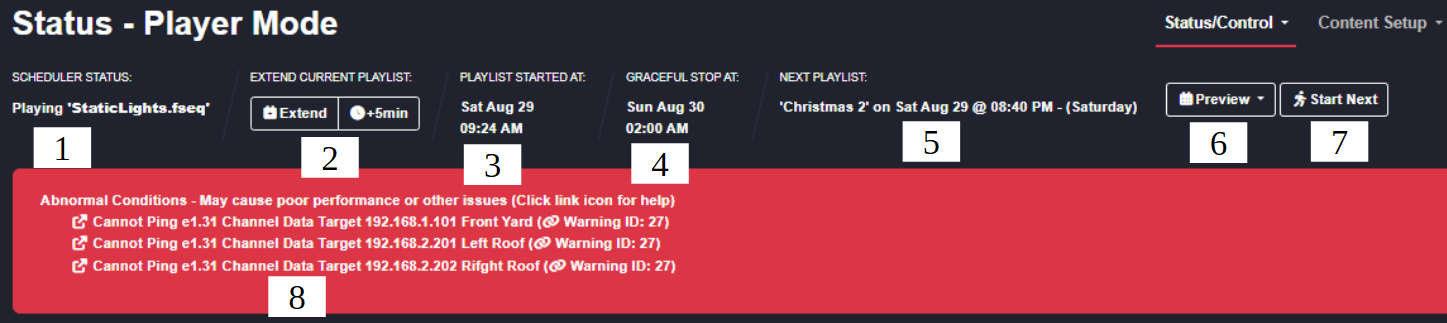
- Current Playlist – shows the currently playing playlist. If nothing is playing it shows Idle. If the playlist was started by hand it shows (Manually Started) after the name.
- Playlist time extension – you can manually extend (or reduce) a scheduled playlist that is running. Click Extend to change the scheduled end time in minutes (use a negative number to shorten it); a second button extends in 5‑minute increments. You can extend the end time by at most 720 minutes (12 hours) or reduce it by 360 minutes (3 hours). Once a playlist has reached its scheduled end time this option is no longer available, even if a song is still finishing (a graceful shutdown).
- Playlist Started at – the time the scheduled show started.
- Stop Type – the stop strategy for the scheduled playlist that is currently playing, and the time it is scheduled to stop.
- Next Playlist – the next scheduled playlist, with the start time and day it will begin.
- Preview – shows a graphical representation of your schedule for the next 4 weeks (extendable via an advanced setting in FPP Settings). This is a drop‑down with a Table View or Calendar View option. (see the Scheduler chapter).
- Start Next – ends the current playlist immediately and starts the next scheduled playlist. That playlist still ends at its normally scheduled time.
- Abnormal Conditions – if FPP detects conditions that can affect performance, the messages are listed here. These almost always need to be remedied for your show to run properly; see the Help and Troubleshooting chapter for common messages and fixes.
Note
The status shown on this page is pushed to your browser over a WebSocket as it changes, rather than the browser polling for it every second. The page reacts faster and puts less load on the device; if the connection drops it reconnects on its own.
Player Status

- Player Status – lists the sequence/song currently playing. It also shows a "breadcrumb" when an inserted playlist is playing — for example when using Remote Falcon, or an FPP Command such as a push‑button that inserts a playlist into your normal playlist.
- Playlist / Sequence Selector – shows the playlist that is playing; otherwise use it to select a playlist, an individual sequence, or an individual media file to play manually.
- Repeat – if ticked when you manually start a playlist or sequence, it keeps playing until stopped manually.
- Player controls – control the currently queued playlist: a. Play – play the queued playlist from the selected element. If Repeat is ticked it keeps playing until stopped manually or a scheduled playlist starts. b. Previous – step to the previous playlist item. c. Next – step to the next playlist item. d. Stop Gracefully – finish the current song, then stop. e. Stop After Loop – stop when the end of the current playlist loop is reached. f. Stop Now – stop immediately.
- Song Status – shows how long the current song has been playing and how much time remains; it also indicates if the playlist is set to random order.
- Volume – controls the output volume for the currently playing sequence. Useful for setting the level fed to an FM transmitter or external speakers. The scale is perceptual: 70 is about −9 dB and 50 about −18 dB. In PipeWire (Advanced) mode a Mixer button (sliders icon) beside it opens the Audio Mixer, with faders and live meters for every stream, output group and input in the audio graph.
If nothing is playing the status is Idle. It also indicates when a playlist is shutting down gracefully (finishing the song, then stopping).
Playlist Details
This section shows the details of the currently selected/playing playlist (see the Playlists chapter for more).
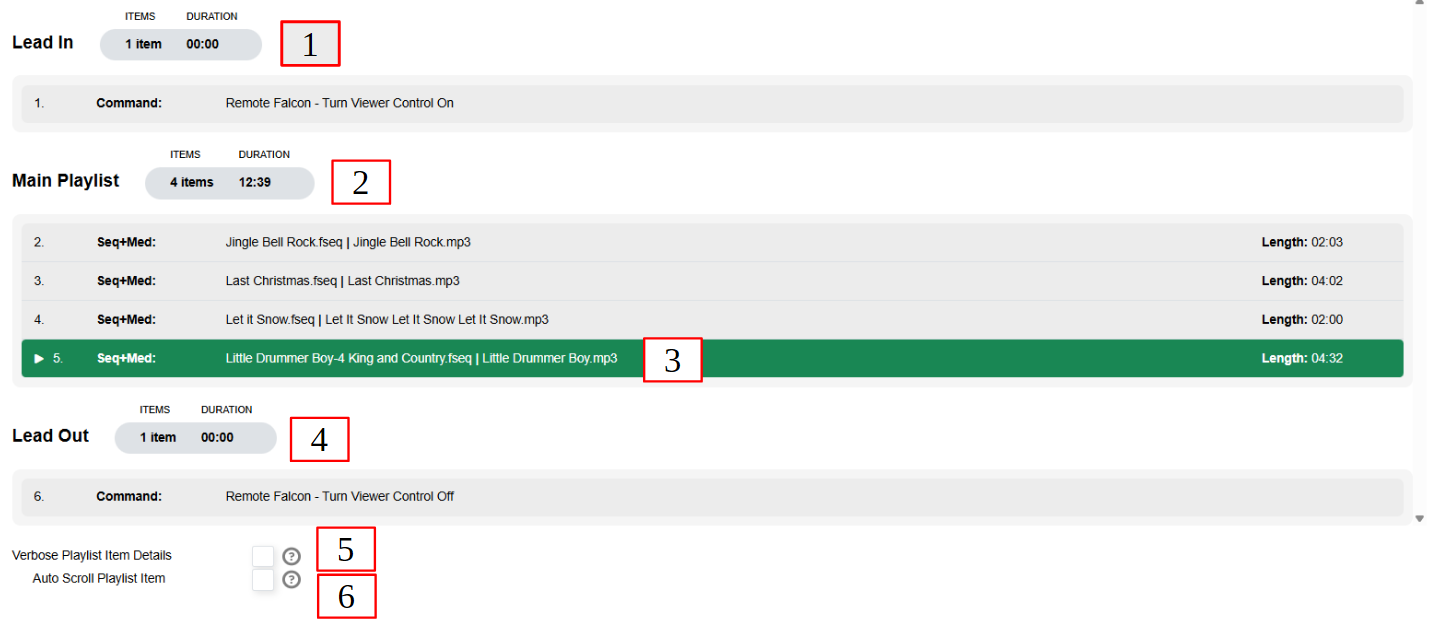
- Lead In – any Lead In items, with total items and per‑item durations. If there are no Lead In items, this section is not shown.
- Main Playlist – an overview of the Main playlist: number of items and total duration.
- Playlist Details – every item in the Main playlist, showing sequence name and associated audio file; the currently playing item is highlighted.
- Lead Out – any Lead Out items, with total items and per‑item durations. If there are no Lead out items, this section is not shown.
- Verbose Playlist Item Details – shows much more information for each playlist item (helpful for seeing all the arguments of scripts or FPP Commands).
- Auto Scroll Playlist Item – If your playlist has several items, this will keep the currently playing item visible in the window.
Remote Mode Status Page
When FPP Mode is set to Remote, the Status page instead reflects synchronisation with a player:
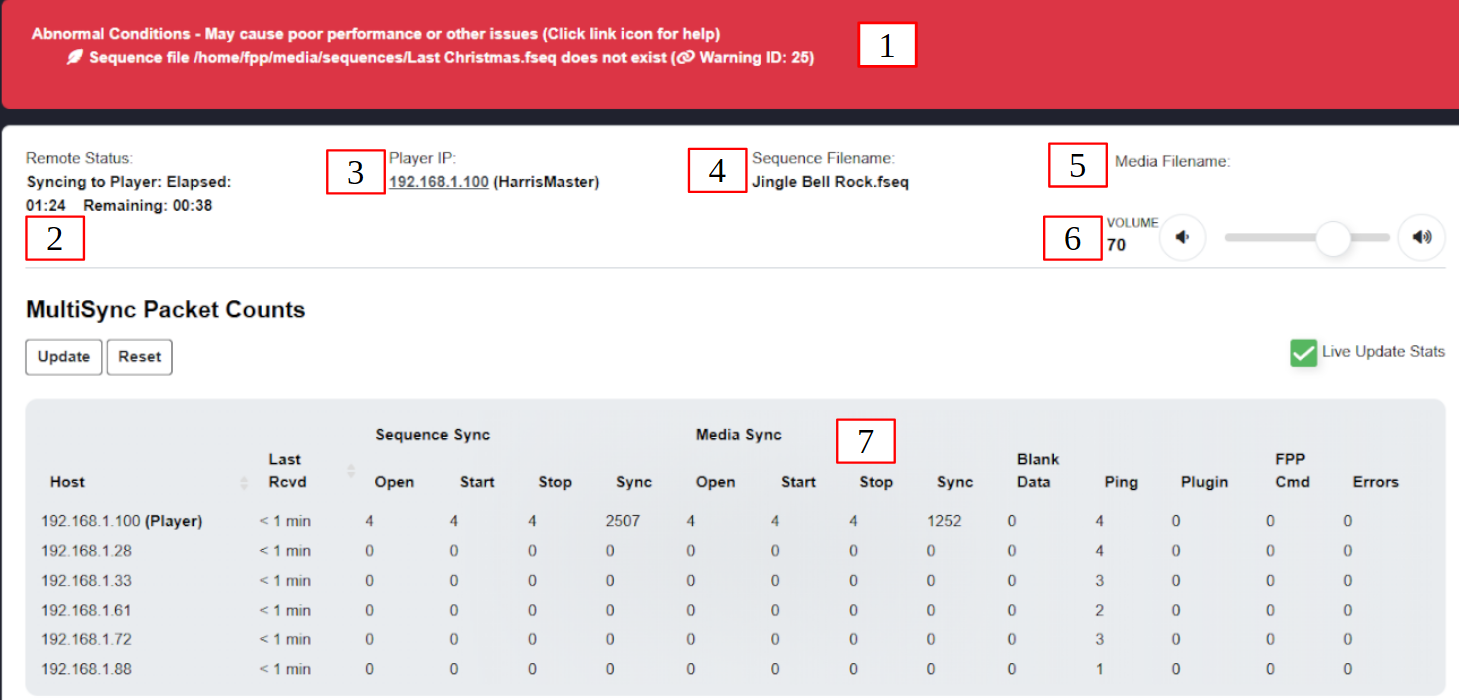
- Abnormal Conditions – as above, any conditions that need remedying.
- Remote Status – the Remote‑mode sync status: whether it is actively syncing to a player, elapsed time for the current sequence, and time remaining.
- Player IP – which device is sending the sync packets, with its IP address (a hyperlink to that device) and host name.
- Sequence Filename – the currently playing sequence.
- Media Filename – the media (audio/video) file being played, if any.
- Volume – controls the volume of media played on this remote.
- MultiSync Packet Counts – all of the sync messages received from other devices.
- Live Update Stats refreshes every second.
- Update refreshes once.
- Reset clears the history. Columns include:
- a. Host – IP addresses of devices that have communicated with this one.
- b. Last Received – the last day/time communication was received.
- c. Sequence Sync / Media Sync – stats for sequence and media sync messages.
- d. Blank Data – stats for blanking data received.
- e. Ping – devices that have pinged this remote.
- f. Plugin / FPP Cmd – stats for plugin and FPP‑command messages.
- g. Errors – any errors encountered.
Channel Inputs Status Section
If you have Channel Inputs enabled (see the Channel Inputs chapter) and FPP has received input data, an additional panel appears in the lower part of the Status page
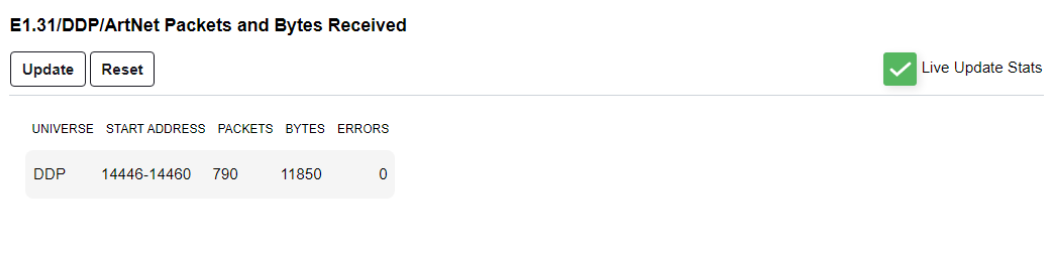
It shows the configured universes / DDP data and packet statistics per row: Universe, Start Address, Packets, Bytes and Errors.
Live Update Stats refreshes every second.
Update refreshes once.
Reset clears the counters.
Note
When a change requires it, a banner appears prompting you to Restart FPPD or Reboot. Output does not resume until the requested action is done.
Note
A playlist you started manually (that is, one the scheduler did not start) is resumed after FPPD restarts, rather than leaving the device idle. Scheduled playlists continue to be governed by the schedule.