Variables
FPP 10 can store named Variables and act on them, so a show can remember things between commands — a counter of how many times a button has been pressed, a value fetched from a web service, a mode you set at the start of the night. The related Recurring Tasks page works alongside this one. Both appear once your UI Level is Advanced or higher (see FPP Settings → UI).
Note
These pages were introduced during FPP 10 and were briefly at the Experimental UI level; they are now Advanced. If you cannot see them, raise your UI Level, or use the temporary Advanced button on FPP Settings → UI.
The Variables page
Open Content Setup → Variables.
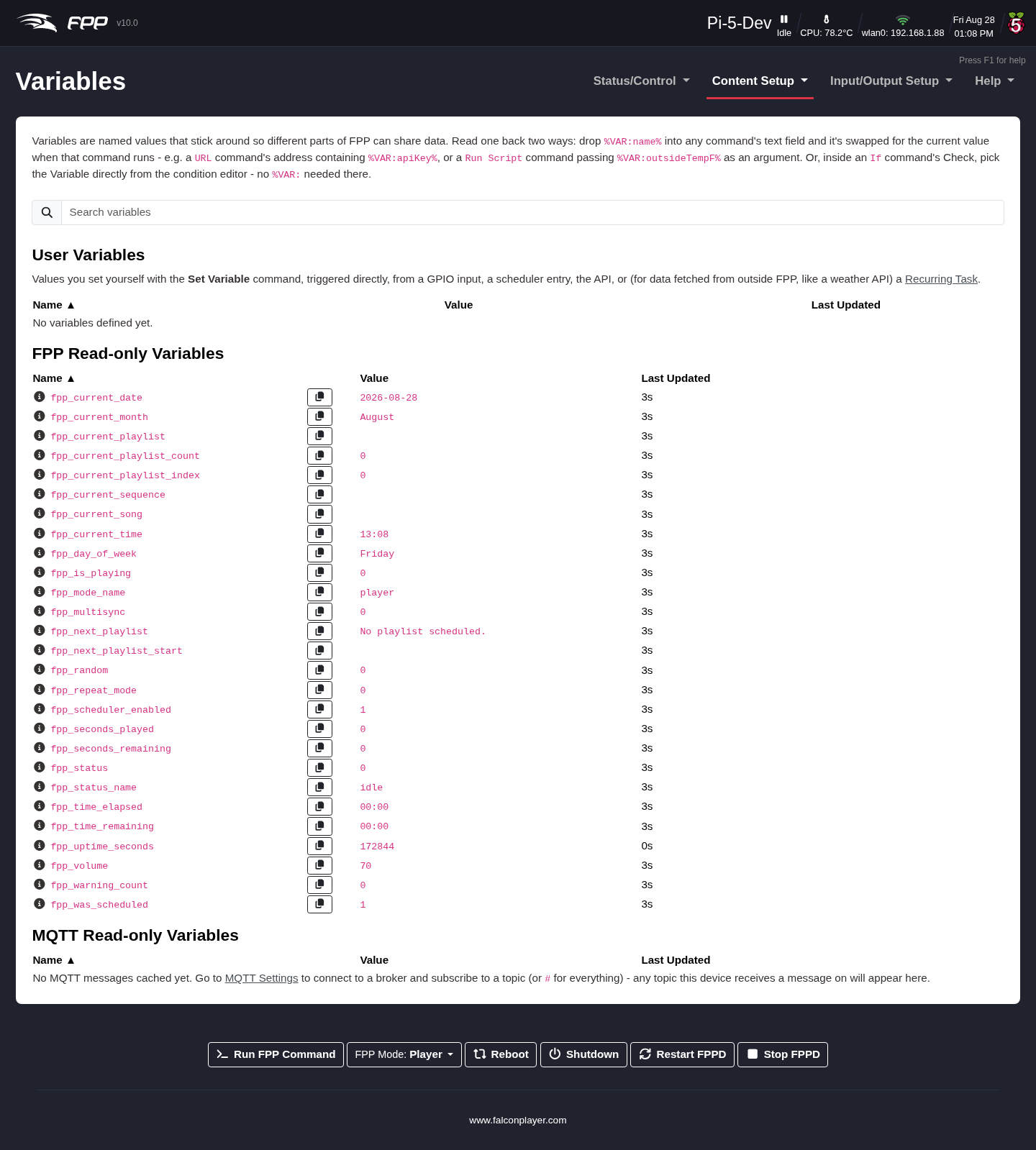
The page is a live view of every variable FPP currently knows about, each listed with its Name, Value and Last Updated time, and a Search variables box to filter a long list. It is a monitor, not an editor — variables are created and changed by the Set Variable command (below), by Recurring Tasks, by plugins, and by FPP itself. The page is split into three sections:
- User Variables – the ones you set yourself with the Set Variable command, whether triggered directly, from a GPIO input, a scheduler entry, the API, or a Recurring Task. These are the only variables you can write to.
- FPP Read‑only Variables – values FPP maintains about itself, updated
continuously. They include
fpp_status_name,fpp_current_playlist,fpp_current_playlist_index,fpp_current_playlist_count,fpp_current_sequence,fpp_current_song,fpp_seconds_played,fpp_seconds_remaining,fpp_time_elapsed,fpp_time_remaining,fpp_volume,fpp_is_playing,fpp_repeat_mode,fpp_next_playlist,fpp_next_playlist_start,fpp_scheduler_enabled,fpp_was_scheduled,fpp_mode_name,fpp_multisync,fpp_current_date,fpp_current_month,fpp_current_time,fpp_day_of_week,fpp_uptime_seconds,fpp_warning_count,fpp_statusandfpp_random. Each has an i icon explaining it and a copy button that copies its%VAR:…%reference to the clipboard. - MQTT Read‑only Variables – values from MQTT topics this device has received
messages on. Nothing appears until you connect to a broker and subscribe to a
topic (use
#to subscribe to everything) — see FPP Settings → MQTT.
Using a variable
Anywhere a command takes a text field, you can substitute a variable by writing
%VAR:name% — for example a Text Overlay command with the message
Now playing: %VAR:fpp_current_song%. In an If command you pick the variable
directly from the Check list rather than typing it.
The Set Variable command
Set Variable is an FPP Command (category Events, Advanced UI level), so it can be used anywhere commands are — a Command Preset, a playlist entry, a GPIO input, the scheduler, or the API. Its arguments are:
- Variable Name – the name the value is stored and looked up under.
- Set To – how the value is produced:
- Value – store the text or number you type, as‑is.
- Increment – add Amount to the variable's current value each time the command runs (use a negative amount to count down). Handy for counters.
- Random – pick a whole number between Minimum and Maximum.
- Expression – calculate the value from a formula. The formula must start
with
=and may reference other variables by name — for example=2+3*4, or=temp*1.8+32to convert a temperature to Fahrenheit, or=fpp_volume+10.
- Persist – if ticked, the value is written to disk and reloaded when FPP starts, so it survives a restart or reboot. Unticked (the default), the variable lives only in memory and is unset again after every restart.
The If command
If (category Events, Advanced UI level) branches on one or more conditions, letting a single trigger do different things depending on the state of the show.
- Check – what to test. Build one condition, or add more and choose whether ALL or ANY of them must be true. The AND/OR choice only appears once there are two or more conditions, so the simple case stays simple.
- Then Run – the commands to run when the check is True, plus an Order toggle: Sequential waits for each command to finish before starting the next; Parallel fires them all at once without waiting.
- Otherwise Run – the commands to run when the check is False, with the same Order toggle. Leave it empty to do nothing.
Tip
Combine the two — a Set Variable with Increment to count button presses, and an If that checks the counter and plays a different playlist on every third press.