Backup and Restore
FPP Backup
FPP has several backup options. You can save just your configuration files (the JSON Configuration Backup), or your configuration and all relevant files (the File Copy Backup). FPP also creates a backup of your configuration every time you make a system change. Open Status/Control → FPP Backup.
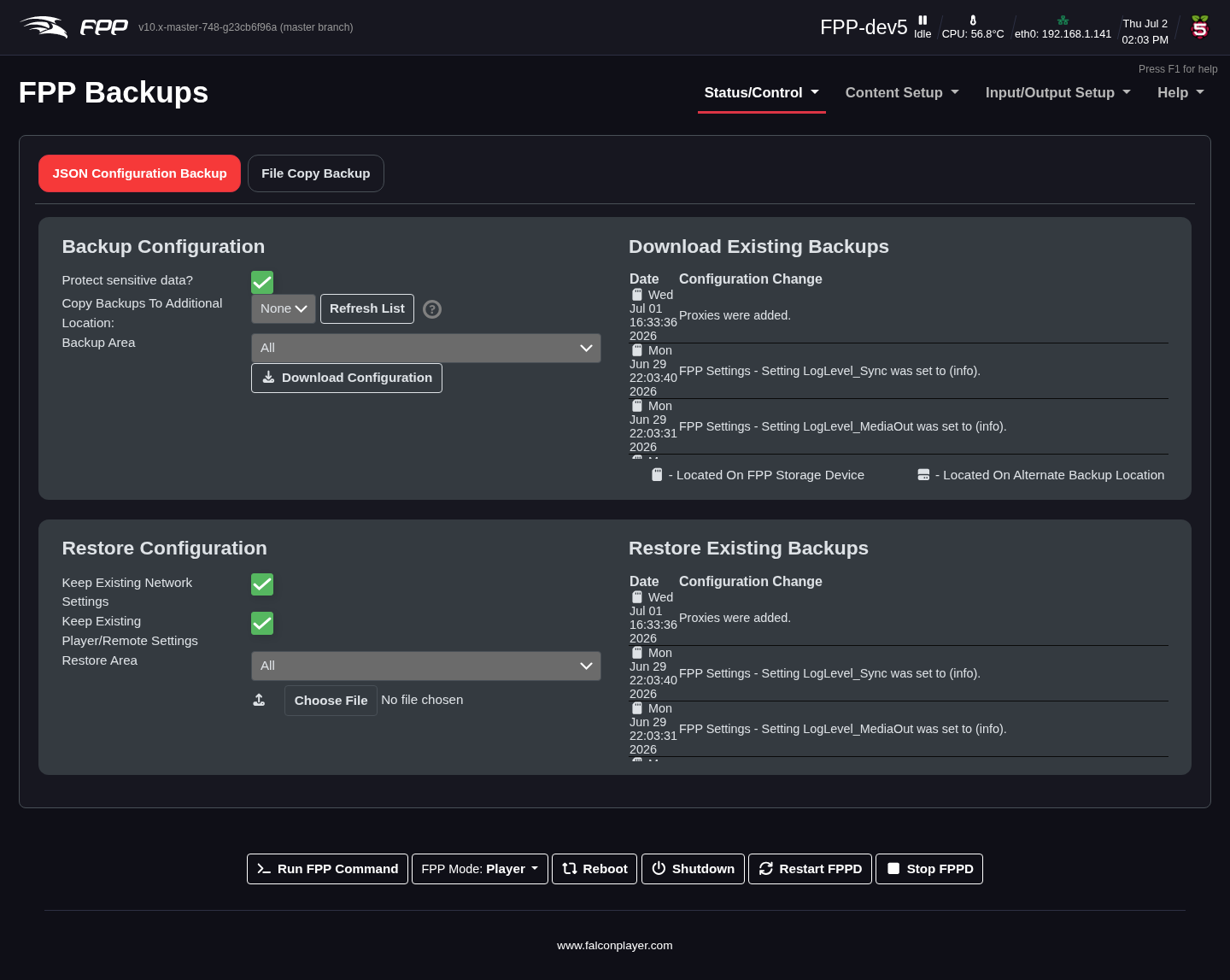
JSON Configuration Backup
This saves all or part of your settings to your computer to restore later. It saves only the selected configuration files — not sequences, audio or video.
Warning
A configuration backup contains everything needed to restore this player — including passwords, the Wi‑Fi passphrase and access tokens, in plain text. Treat the file as you would the passwords themselves: do not attach it to a forum post or bug report (use a Diagnostic Report instead). The old Protect sensitive data option has been removed, because it protected far less than it claimed.
Backup Configuration (creating a backup):
- Backup area – which portion of the configuration to save; normally select all, or choose individual sections.
- Download Configuration – save the configuration to your computer. The file is named with the device name and a timestamp so you can identify the newest.
- Download Existing Backups – FPP keeps a backup after every system change; download any of them here. Repeated backups share large sections that have not changed between them, so keeping many automatic backups uses little extra space.
- Additional storage device – optionally name a USB device that every new configuration backup is also copied to, so a second copy stays with the show. Remember that the copy is plain text and a USB stick is not encrypted.
Backups now also include plugins' JSON and XML configuration files, alongside their other settings.
Note
This does not save media files such as sequences, music or videos.
Restore Configuration:
- Keep Existing Network Settings – if selected, the device's saved network settings are not overwritten by the backup.
- Keep Existing Player/Remote Settings – if selected, the Player/Remote settings are not overwritten.
- Restore Area – restore only a specific area; other settings are left alone.
- Choose File – select the backup file to restore from (check you have the right one if you keep several).
- Restore Configuration – restore the selected areas from the chosen file.
- Restore Existing Backups – restore from one of FPP's automatic backups.
Note
A backup this player made itself restores completely. A backup from a different player restores everything except that player's privacy answers, its identity and its logins (web UI and OS passwords, and the address it sent mail to), so restoring someone else's file cannot lock you out of the device in front of you. A backup that does not record which player made it (from an older FPP) keeps your logins but not the privacy answers, so the device asks the privacy questions again.
File Copy Backup
The File Copy Backup copies every item stored on the device except the operating system — useful for keeping full copies of your FPP devices. You can save to several locations.
Note
If you plug in a USB drive after the device has booted, press Refresh List to detect it.
- Copy Type – the operation to perform:
- Backup To USB / Restore From USB – copy selected items to/from a USB drive on this device. (Restore overwrites existing files.)
- Backup To / Restore From Local FPP Backups Directory – copy to/from a backup folder on this device's SD card.
- Backup To / Restore From Remote FPP Backups Directory – copy to/from a backup folder on another FPP device on your show network (you enter its host name or IP).
- USB Device – appears for USB options; pick the drive (use Refresh List if it is not shown).
- Hostname/IP – appears for remote options; the remote device's address.
- Backup Path – for Copy To, defaults to this device's host name (change with care); for Copy From, lists the available backup directories.
- What to copy – the items to include.
- Delete extras – on restore, delete any files on the device before restoring from the backup folder.
Note
There is no advance warning if there is not enough space for a backup;
during the process you will see an rsync ... No space left on device error. An
incomplete backup will not restore completely.