File Manager
The File Manager is where you manage the personalized files on your FPP — uploading, downloading and, in some cases, editing them. Open Content Setup → File Manager.

Note
The available options depend on the FPP mode (Player or Remote).
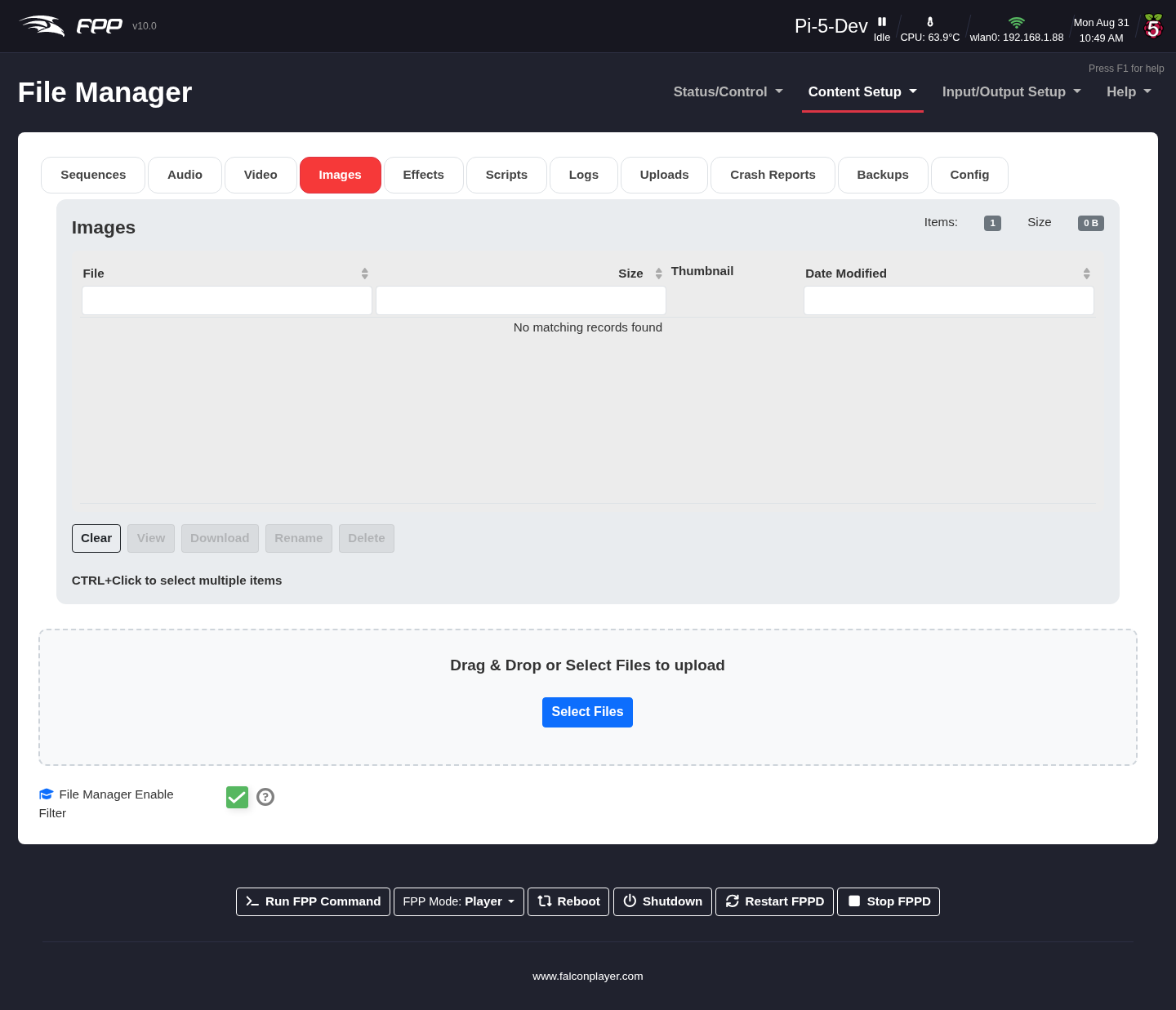
The upper‑right of the screen shows the number of items of the file type you are viewing and total size of those files. Tabs with no files in them can be hidden with Hide Empty Tabs; that switch and Enable Filter are repeated at the bottom of the page (and live on FPP Settings → UI). You can sort the columns by clicking on the up or down arrows above the column or you can filter the list entering the search criteria in the boxes above the columns.
File categories
Files are grouped into tabs. Most tabs share Clear, Download, Rename and Delete; the type‑specific options are noted below. You can multi-select files using shift-click or cmd/ctrl-click. Clear will clear your selection.
- Sequences – your
.fseqfiles. Additional options include: - Play / Play Here (Player mode only) both will start the sequence.
- Sequence info (version, compression, frame rate, etc,).
- Add To Playlist appends to the selected playlist without checking for duplicates.
- Audio – audio files. Additional options include:
- Listen plays the file on your computer.
- MP3Gain normalizes the levels of the selected files
- Add To Playlist appends to the selected playlist without checking for duplicates.
- Video – video files. Additional options include:
- View plays the file on your computer.
- Video info shows codec, aspect ratio, duration, etc.
- Add To Playlist appends to the selected playlist without checking for duplicates.
- Images – image files. This will also display a thumbnail of the image and animated gifs will be animated. Additional options include:
- View this will allow you to see the image with an option to view full size.
- Effects – effect sequences (
.eseq), Additional options include: - Sequence info (version, compression, frame rate, etc,).
- Scripts – shell scripts, Additional options include:
- View allows you to view the script text
- Run useful for testing
- Edit edit the code in the browser
- Copy duplicate the script under a new name
- Add To Playlist.
Note
Scripts will be deprecated in v11
- Logs – system logs for troubleshooting. Additional options include:
- Diagnostic Report opens the Diagnostic Report wizard, which builds a report of settings, configuration, the main logs and system diagnostics that you can download or send. (It replaces the old Zip button; to keep a copy of one log, select it and use Download.)
- View shows the log.
- Tail shows just the last 50 lines.
- Tail Follow shows the last 50 lines and a live update as entries are added.
- Uploads – files that do not fit the standard formats, including
.fpposupgrade files; Additional options include: - Copy duplicate the file under a new name
- Crash Reports – crash reports FPP has generated, plus any
Diagnostic Report you built but did not send (their names
end in
-manual). FPP keeps crash reports on the device even when you have chosen not to send crash data to the developers (see FPP Settings → Privacy), so you can inspect one yourself. Additional options include: - Upload and Delete sends the selected reports to the developers, then removes them from the player. The confirmation shows who receives them and what they contain.
- Delete discards reports without sending them.
- Backups – any manual backups you have created (see Backup and Restore).
- Config – FPP's own configuration files. Additional options include:
- View shows the file.
- Edit opens it in an in‑browser editor to change and save directly. This is the same content the JSON configuration backup captures.
Warning
Editing configuration files by hand bypasses every check the normal settings pages make, and a malformed file can cause catastrophic results. Take an FPP Backup first.
Uploading files
Upload files by dragging them from your computer's file manager onto the Drag & Drop or Select Files to upload area. FPP shows each file on the tab appropriate to its type; anything that does not match a standard type appears on the Uploads tab.
Tip
xLights FPP Connect is a more efficient method to upload sequences since is supports the sparse format. and media directly, so for everyday sequencing you often will not need the File Manager by hand.
Tip
Watch free space (shown in the header warnings and on FPP Settings → Storage). Large video files and many sequences can fill smaller SD cards.