Recurring Tasks
A recurring task runs a Command Preset, or any single FPP Command, over and over on a fixed interval — no schedule entry or playlist required. This page appears once your UI Level is Advanced or higher (see FPP Settings → UI), alongside the related Variables page.
Open Content Setup → Recurring Tasks.
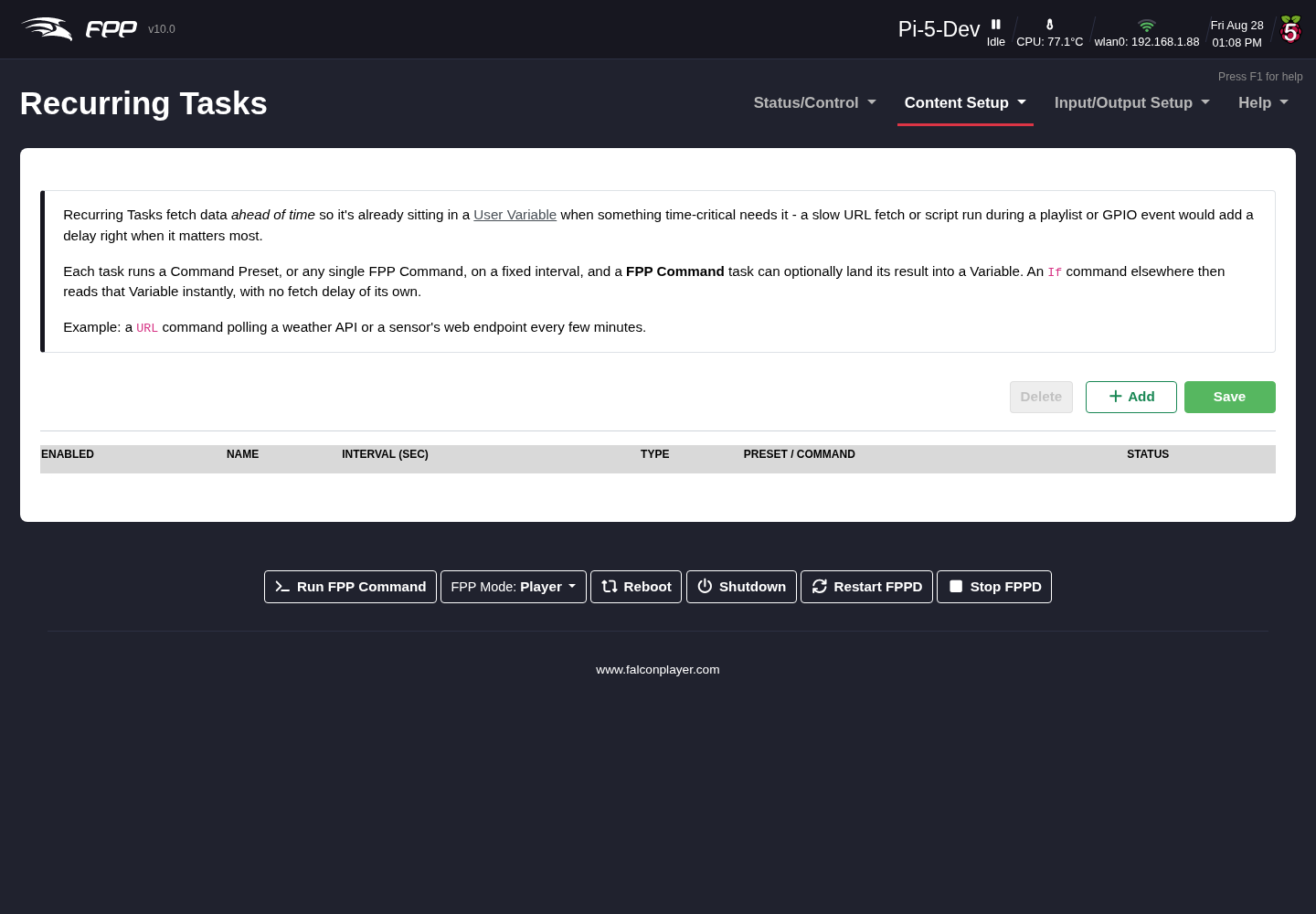
The point is to fetch data ahead of time, so it is already sitting in a
variable when something time‑critical needs it. A slow URL fetch or script run
performed in the middle of a playlist or from a GPIO event would add a delay at
exactly the wrong moment; a recurring task does that work in the background, and
an If command elsewhere reads the resulting variable instantly. The classic
example is a URL command polling a weather API or a sensor's web endpoint every
few minutes.
Each row in the table has:
- Enabled – run this task, or leave it defined but idle.
- Name – a label for the task.
- Interval (sec) – how often to run it.
- Type – run a saved Command Preset, or an FPP Command chosen directly.
- Preset / Command – which preset or command to run, and its arguments.
- Status – the outcome of the last run, so you can see at a glance whether the task is working.
Use Add to create a row, Delete to remove selected rows, and Save to store your changes — as elsewhere in FPP, nothing takes effect until you save.
Capturing the result into a variable
An FPP Command task can store what its command returns into a variable, using the Result Variable / Filter fields:
- Result Variable – the variable name to store the result under, and a Persist option that behaves exactly as it does for Set Variable (saved to disk and reloaded at startup, versus memory‑only).
- Filter – how to extract the value you want from the raw result:
- None (use raw result) – store the whole response.
- JSON Field – pull a single named field out of a JSON response.
- Between Markers – keep the text between two marker strings, which is a simple way to scrape a value out of plain text or HTML. Leave the first marker blank to start at the beginning, or the second blank to keep everything to the end.
- Regex (advanced) – extract the value with a regular expression.
Tip
A short interval on a task that calls out to the internet will hammer the remote service and can slow FPP down. Poll no faster than you actually need — for most data (weather, sunset, a thermostat) minutes are plenty, not seconds.
Note
Recurring tasks run continuously while FPPD is running, whether or not
a show is playing. If a task's command depends on a playlist being active, guard
it with an If command that checks fpp_is_playing.