Port Status
If your FPP device has eFuses (electronic fuses) and supports current‑monitoring, a Port Status entry is available under Status/Control.
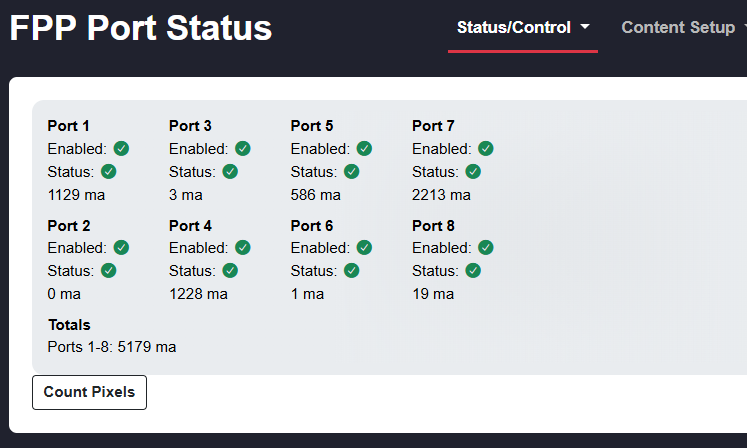
This will list all of the ports along with the status and current being passed through the fuses. - Enabled- The icon next to this will indicate the state of that port. - Green circle with check mark- Port is enabled and outputting voltage - Blue circle with x- The port is disabled and not outputting voltage - Red circle with x- this indicates that the port is disabled due to an eFuse overload. - Status- The icon next to this will indicate the state of the eFuse on that port. - Green circle with check mark- eFuse is normal - Red circle with x- this indicates that the eFuse is in a tripped state. - ma- This will indicate the number of milliamps the fuse is monitoring.
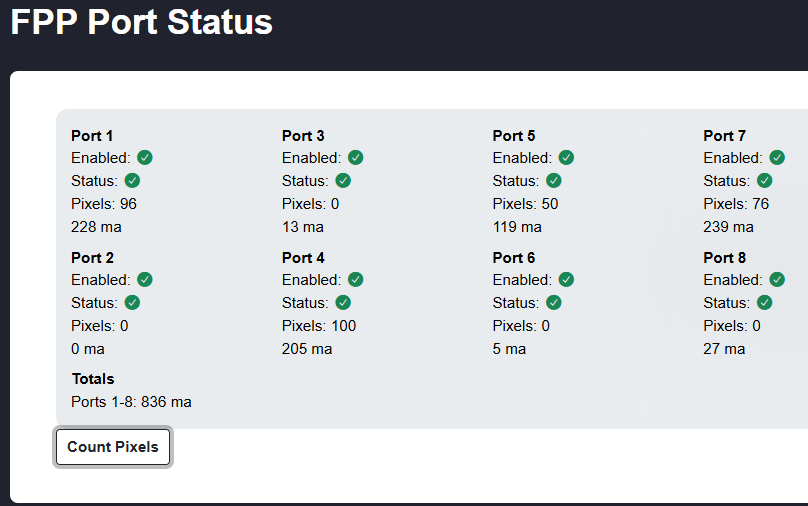
Count Pixels- Clicking this button will send a test pattern to the pixel string on each port and count how many pixels are connected to that port and then leave the last identified pixel lit white. If you have a bad pixel in the string or using power injection, the pixel count could be incorrect. With some of the newer low current draw pixels, the counting might be a little bit off.
Note
This page was called Current Monitor in earlier releases; it was renamed to Port Status in FPP 10. The entry only appears if the fitted cape advertises current monitoring, so on many devices it is not in the menu at all.