Packages
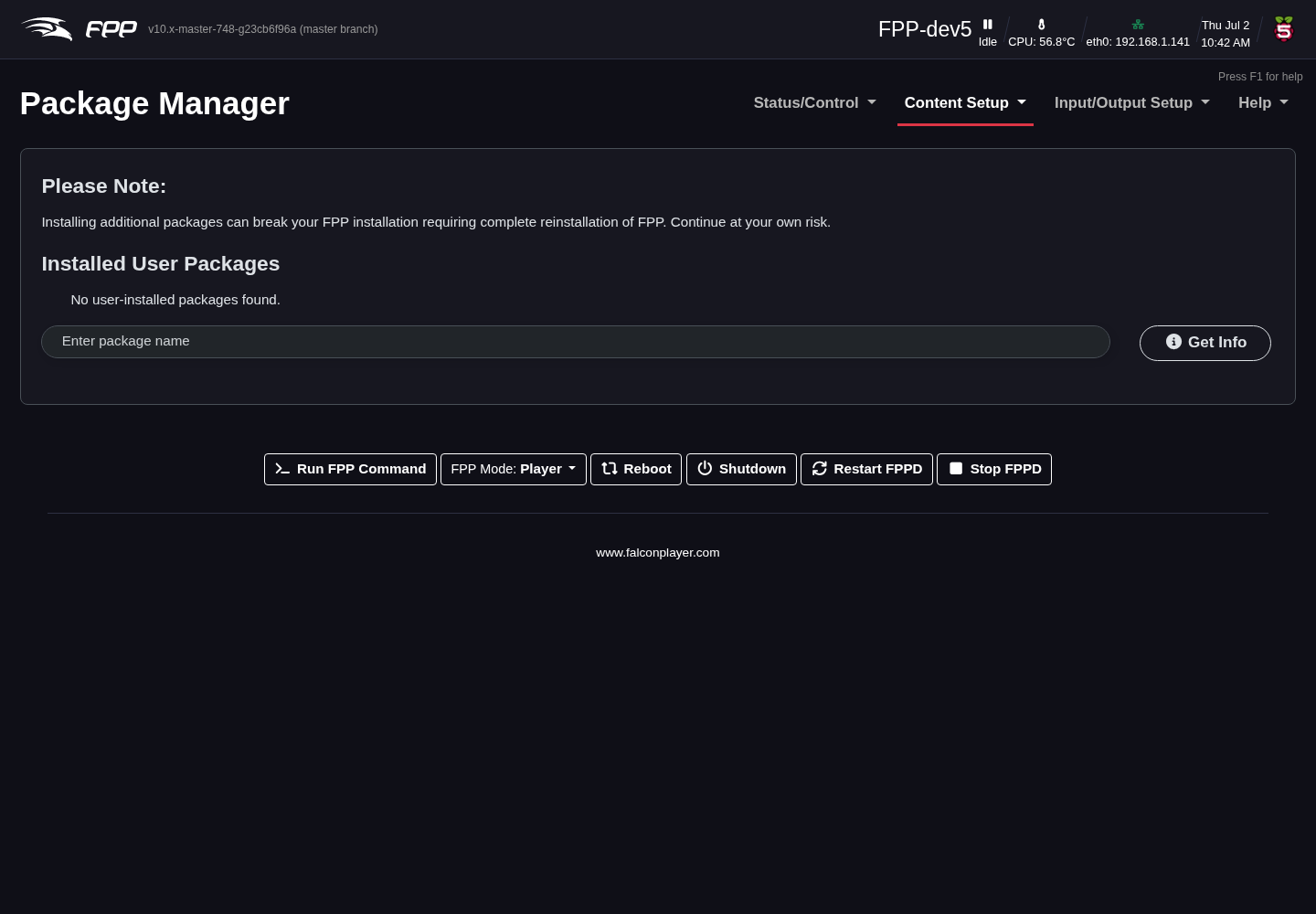
The Packages page (Content Setup → Packages) installs optional operating‑system software that some workflows need but that is not part of the base image. This keeps the base image lean while still allowing advanced setups to add what they require.
Warning
Installing or removing operating‑system packages can break your FPP installation badly enough to need a re‑image. Only use this page when a plugin's instructions, or a specific need, tells you to install a package such as a font, codec, library or utility.
Installed User Packages
The top of the page lists every package that has been requested through this page or by a plugin, with its status (Installed or Missing), who requires it (you, or the plugin that depends on it) and its actions:
- Reinstall – put back a package that is reported installed but broken, or is missing.
- Uninstall – remove a package you installed, together with the dependencies its install pulled in. Packages owned by a plugin are greyed out (hover for the reason) — uninstall the plugin instead. FPP refuses a removal that would take other packages with it.
- Install All Missing – shown when one or more listed packages are missing (typically after an FPPOS upgrade, which replaces the operating system). It shows how many there are, asks you to confirm, and installs them all in one go.
Packages an install pulled in as dependencies are counted on their parent's row as +N dependencies; at the Developer UI level they are listed indented under it, each marked dependency of …. A package that was already part of the FPP image when it was requested is not listed: FPP did not install it, so FPP never removes it.
Install a Package
Start typing a Debian package name (for example fonts-dejavu) and pick from the
suggestions, then click Get Info. FPP shows the package's description and the
other packages it will also install, with an Install Package button (or
Reinstall Package if it is already installed). Install, reinstall and uninstall
all show the package manager's output live in a progress window.
Tip
Use Get Info first, so you know what else will be pulled in, and keep the device on reliable power and network while a package installs.