Effects
Effects (effect sequences) are used where you want part of your show to run
independently of, or in parallel with, the main show sequences. Effect sequences
(.eseq files) are normally created for a single model in your sequencing
software, though you can use a full .fseq file as an effect (uncommon). Open
Status/Control → Effects to start or stop effects manually.
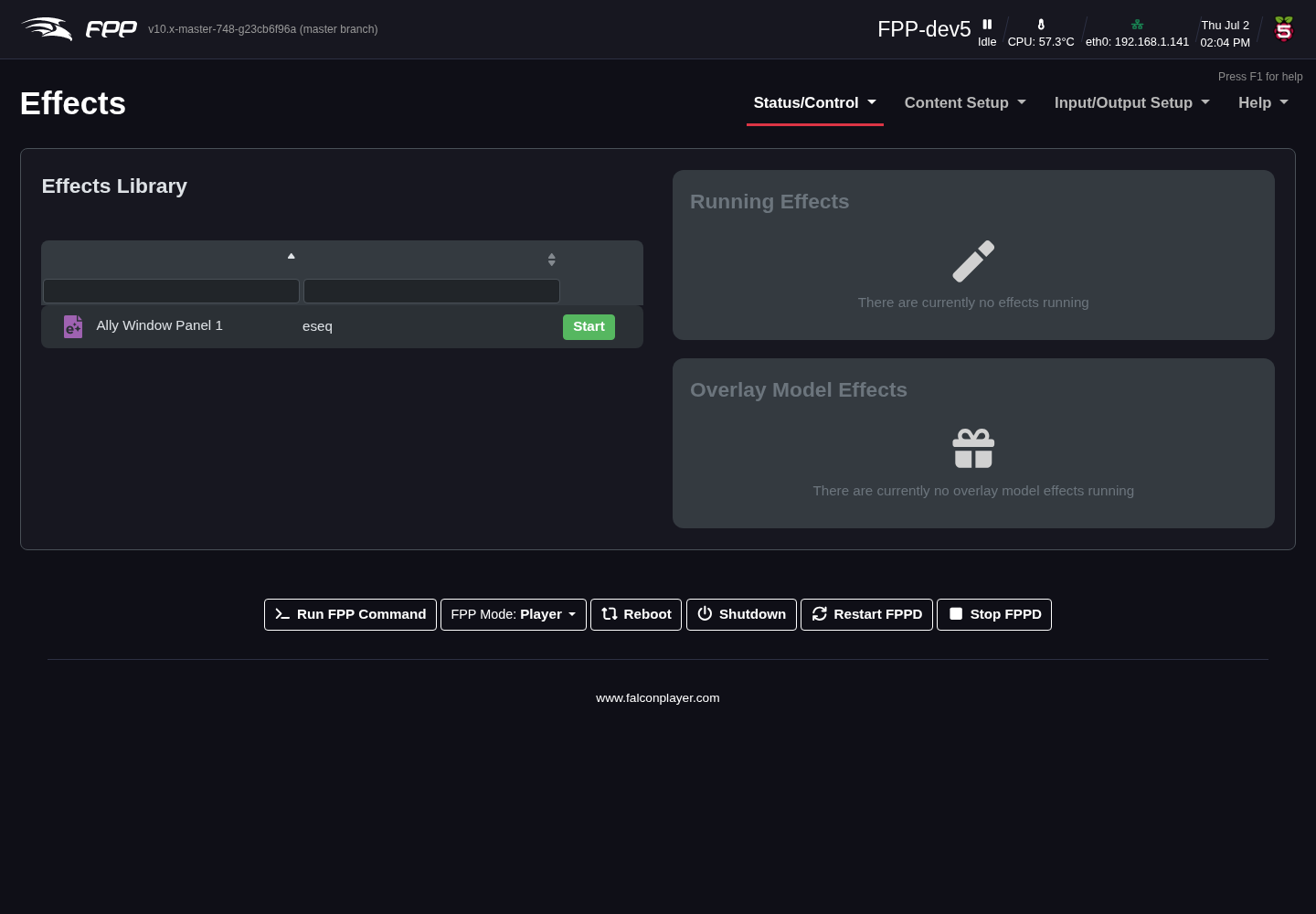
The Effects Library on the left lists every .eseq and .fseq on the device
with a Start button; Running Effects and Overlay Model Effects on the
right show what is currently playing, so you can stop them again.
Clicking Start opens a small dialog with the options for that effect:
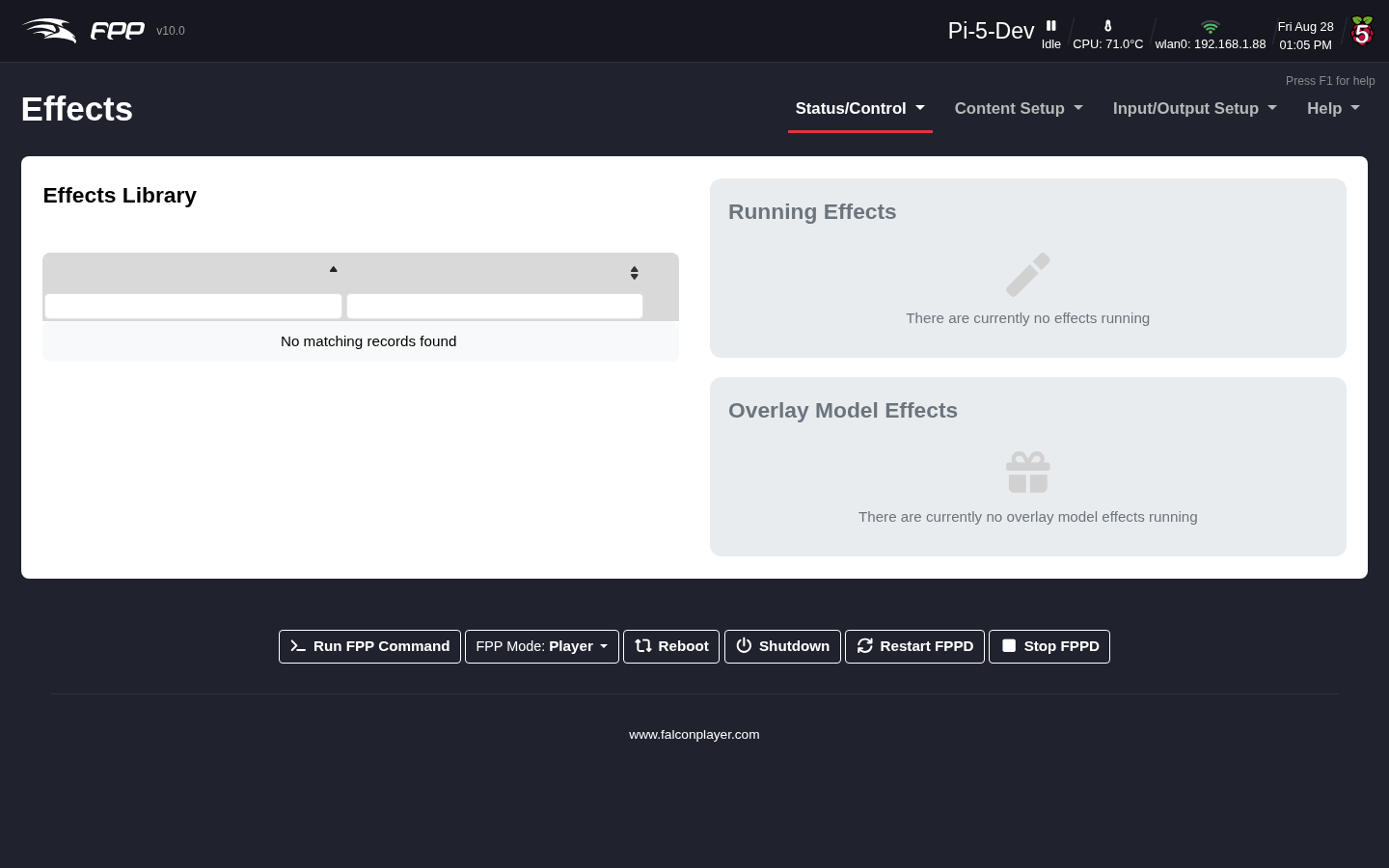
- Loop Effect – repeat the effect until it is stopped, instead of playing once.
- Run in Background – let the effect keep running underneath a playlist, so it resumes when the playlist finishes rather than being cut off.
- Start Channel Override – play the effect at a different start channel from the one it was saved with, which is how you point an effect built for one model at another (see Redirecting an effect to another model).
A special use is a Background Effect: if you name an effect background.eseq,
FPP plays it whenever it is not receiving sequence data. (Whether a background
effect is paused during FSEQ playback is controlled on FPP Settings → Playback.)
Creating an effect sequence (in xLights)
- In xLights, open the model you want the effect for. To use all effects on that model, right‑click it and choose Model → Render and Export. To use only some, select those effects first and choose Model → Render and Export Selected Model Effects.
- Choose FPP Compressed Sub Sequence and save it somewhere memorable.
- Upload the resulting
.eseqto the FPP device that will play it (see File Manager).
Triggering an effect from within a sequence
- In the xLights Sequencer, open the sequence.
- Right‑click the Timing Tracks area, choose Add Timing Track, and select FPP Effects (the default name is fine).
- With only the FPP Effects timing track selected, click the waveform where you want to trigger the effect and press t to add a timing mark; click slightly to the right and press t again to close the slot.
- Enter the effect name into the slot (Shift+double‑click or double‑click the slot, depending on your xLights configuration) — using the exact name of your effect (e.g. Thank You). A yellow box with the effect name appears on the timeline.
Redirecting an effect to another model
You can play an effect on a different model with the same attributes by supplying a channel offset — the absolute start channel of the target model. For example, if an effect was built on a mini‑tree starting at channel 1326 and you want it on an identical mini‑tree starting at 1842, select the effect from the Effects Library, enter 1842 in the Start Channel Override, and click Play Effect.