Help and Troubleshooting
The Help menu gathers FPP's information, upgrade, support and diagnostic tools.
System Upgrade (About)
The About page (Help → System Upgrade) shows the current FPP version and statistics about the running system, and is where you perform a manual update.
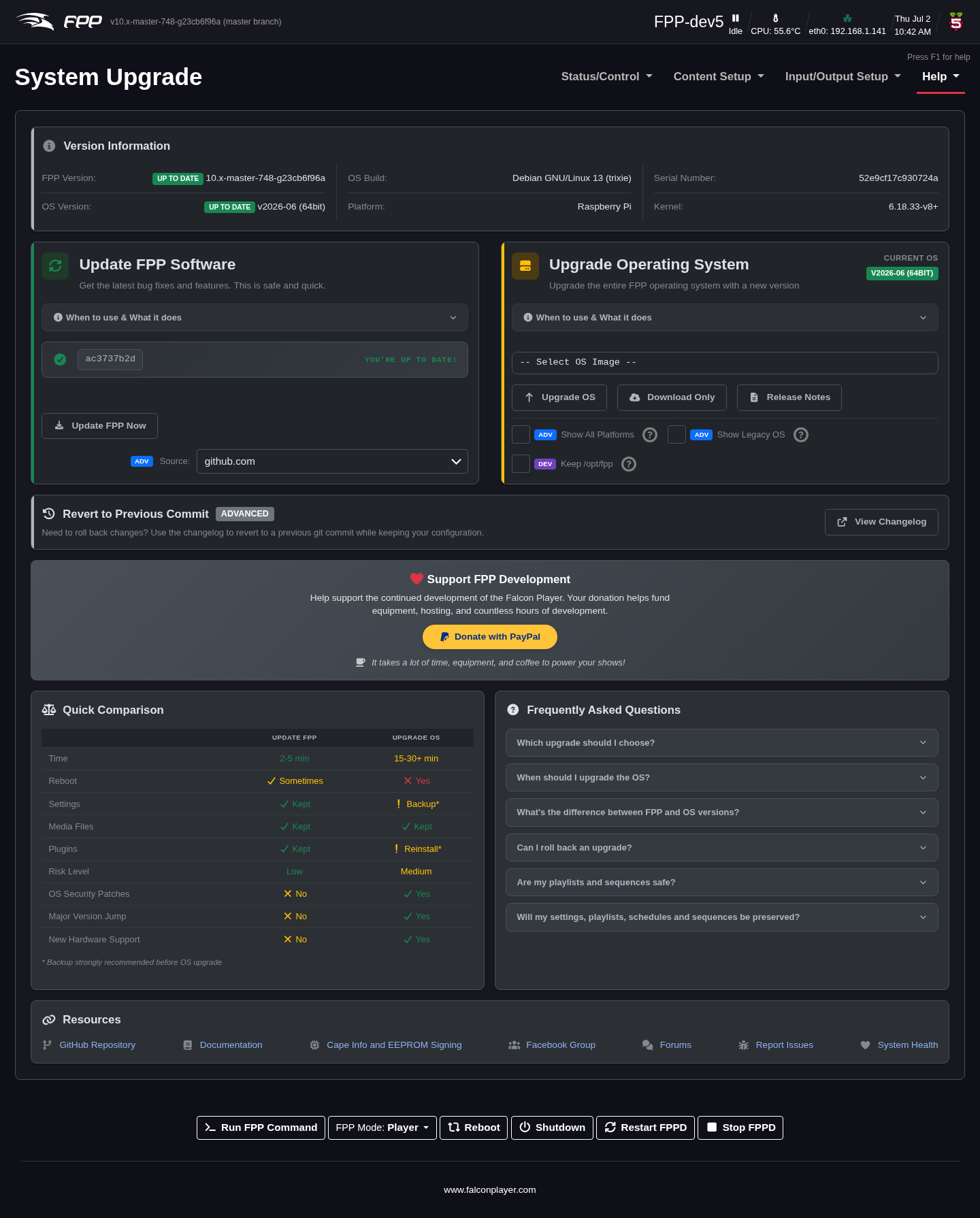
Version Info
- FPP Version – the current FPP version.
- Platform – the SBC platform of this device.
- FPP OS Build – the current OS build. The OS should match the requirement for the FPP version (see the release notes or the Upgrade OS drop‑down).
- OS Version – the SBC base OS version; some capabilities need the OS upgraded to match the build.
- Hardware Serial Number / Kernel Version – device identifiers.
- System Boot Time / fppd Uptime – when the device booted and how long the daemon has run (restarting fppd resets this).
- Local Git Version – the installed version (with a ChangeLog link and an update indicator).
- Remote Git Version – the latest available version; Unknown means no internet (often a network/DNS problem). A Preview Changes link shows what an update provides.
Upgrade FPP
A minor update (same branch) is indicated on the Local Git Version and by an icon in the header; click Upgrade FPP to install it. A major upgrade requires an OS update. Options include:
- FPP Upgrade Source – upgrade from GitHub or from another of your FPP devices (useful when some devices have no internet); the chosen source is also used for upgrades launched from the MultiSync page. (Advanced.)
- Upgrade OS – select an FPPOS version to download (or download and upgrade). With internet access the list includes the currently supported FPPOS files.
- Show All Platforms – view/download files for other platforms, e.g. to act as an upgrade source for Pi and BB devices. (Advanced.)
- Show Legacy OS's – show older, deprecated versions.
- Preserve /opt/fpp – when already on master and newer than the fppos image, upgrade the OS without downgrading FPP from master. (Developer.)
Upgrade methods: from GitHub (updates to the newest version of the current
branch), from another FPP (matches another device's FPP version, not the OS;
Advanced), or from FPPOS (an in‑place upgrade of both FPP and OS without
re‑imaging — download the appropriate .fppos and upload it; requires being on at
least 5.5‑24 first). Major branch/OS changes otherwise require a re‑image.
Warning
Always take an FPP Backup before upgrading.
Below Version Info the page also shows System Utilization, Player Stats and Disk Utilization for the device.
Cape Info
If a cape/hat is installed, Help → Cape Info shows information about it and lets you upgrade or sign the EEPROM.
- About – Name, Version, Serial Number, Designer, Licensed Outputs (and licence status), Output Driver, and Vendor Name/URL/E‑mail.
- EEPROM Signature – sign your EEPROM once you have an Order number and License Key for the pixel‑string outputs (see Pixel Port Licensing).
- Voucher Redemption – redeem a voucher from your vendor or shop.falconplayer.com to sign your EEPROM.
- Off‑Line Signing – sign the EEPROM when the device has no internet (see Pixel Port Licensing → Off‑Line Signing).
- EEPROM Upgrade – upgrade the EEPROM from a file, or restore it from a previous backup.
Screenshots pending — cape hardware required
This page only appears when a cape is detected; it will be captured on a cape‑enabled system.
Get Help
Help → Get Help provides support resources and API references.
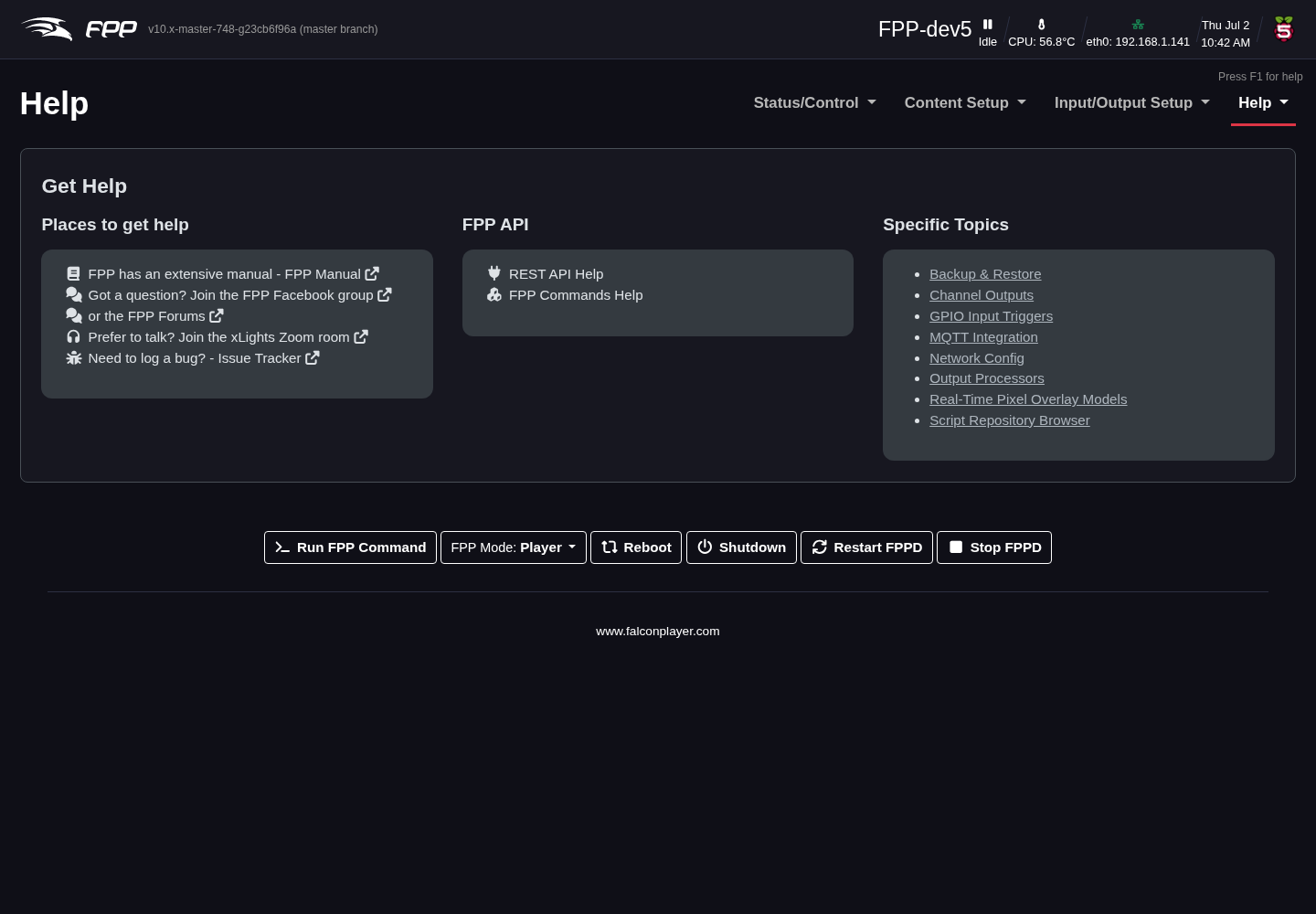
Places to get help:
- FPP Manual – the current manual (offline copy at
https://falconchristmas.github.io/FPP_Manual.pdf). - FPP Facebook Group and the Falcon Christmas Forums – community help.
- xLights Zoom Room – often the fastest way to get any lighting question answered (not just xLights).
FPP API:
- REST API Help – a list of endpoints with a test facility, for plugin and software developers; click an endpoint to run it and see your device's output.
- FPP Commands Help – three sections: Command Tester, a Command List (all commands with typical arguments), and MQTT Instructions.
Credits and Donate
Help → Credits lists the people and projects behind FPP. If FPP has been useful, Donate to FPP links to support the developers.
System Health Check
The System Health Check (Help → System Health Check) is a consolidated dashboard, new in FPP 10, that checks the device and surfaces anything wrong.
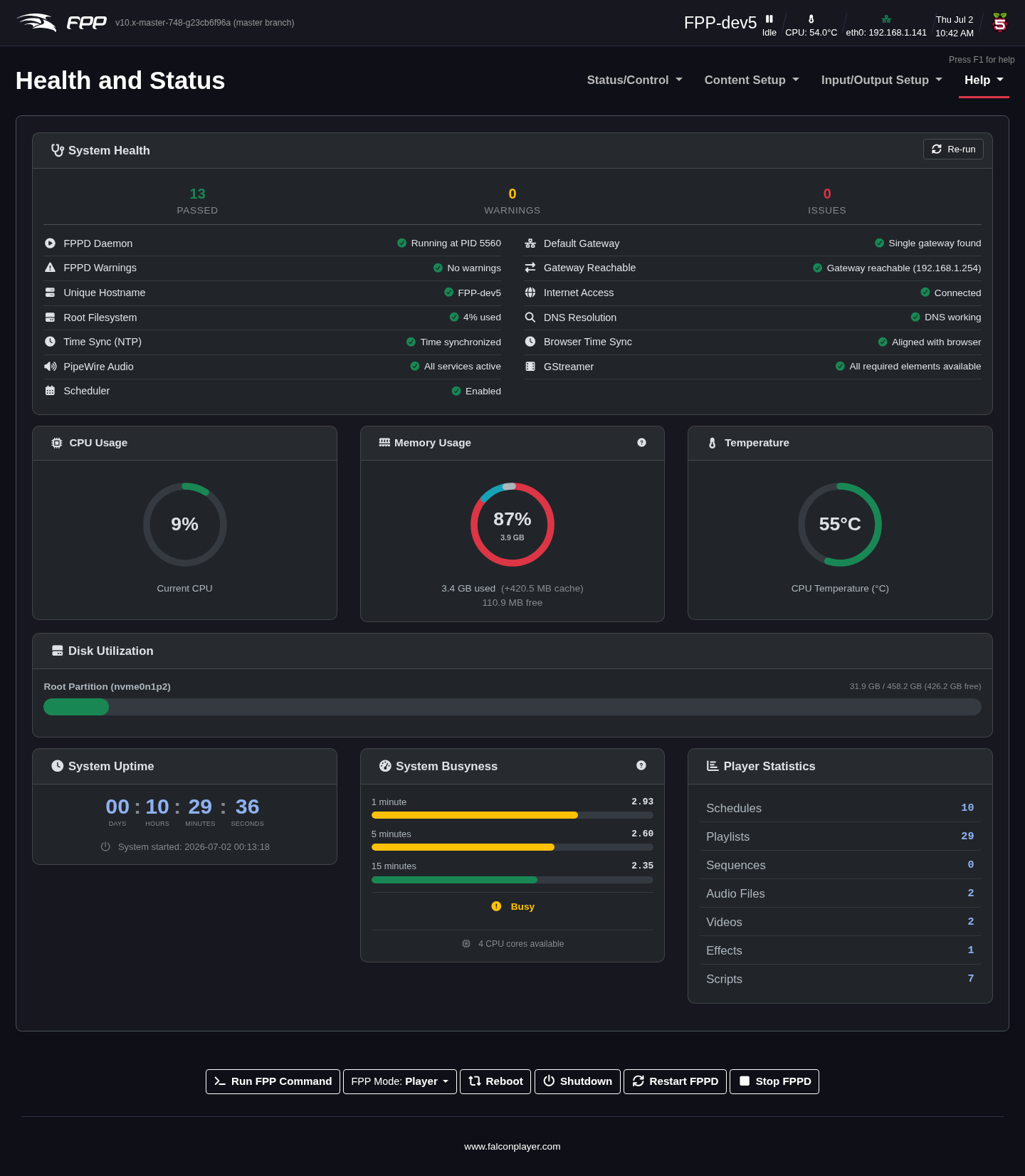
A System Health panel runs checks and summarises them as Passed / Warnings / Issues, including: FPPD Daemon and FPPD Warnings; Unique Hostname and Root Filesystem usage; Time Sync (NTP) and Browser Time Sync; PipeWire Audio and GStreamer; Scheduler; and network checks (Default Gateway, Gateway Reachable, Internet Access, DNS Resolution). Use Re‑run to check again. Live panels below show CPU Usage, Memory Usage, Temperature, Disk Utilization, System Uptime, System Busyness and Player Statistics.
Tip
This is the first page to open when something is not working — a red Issue or amber Warning usually points straight at the cause.
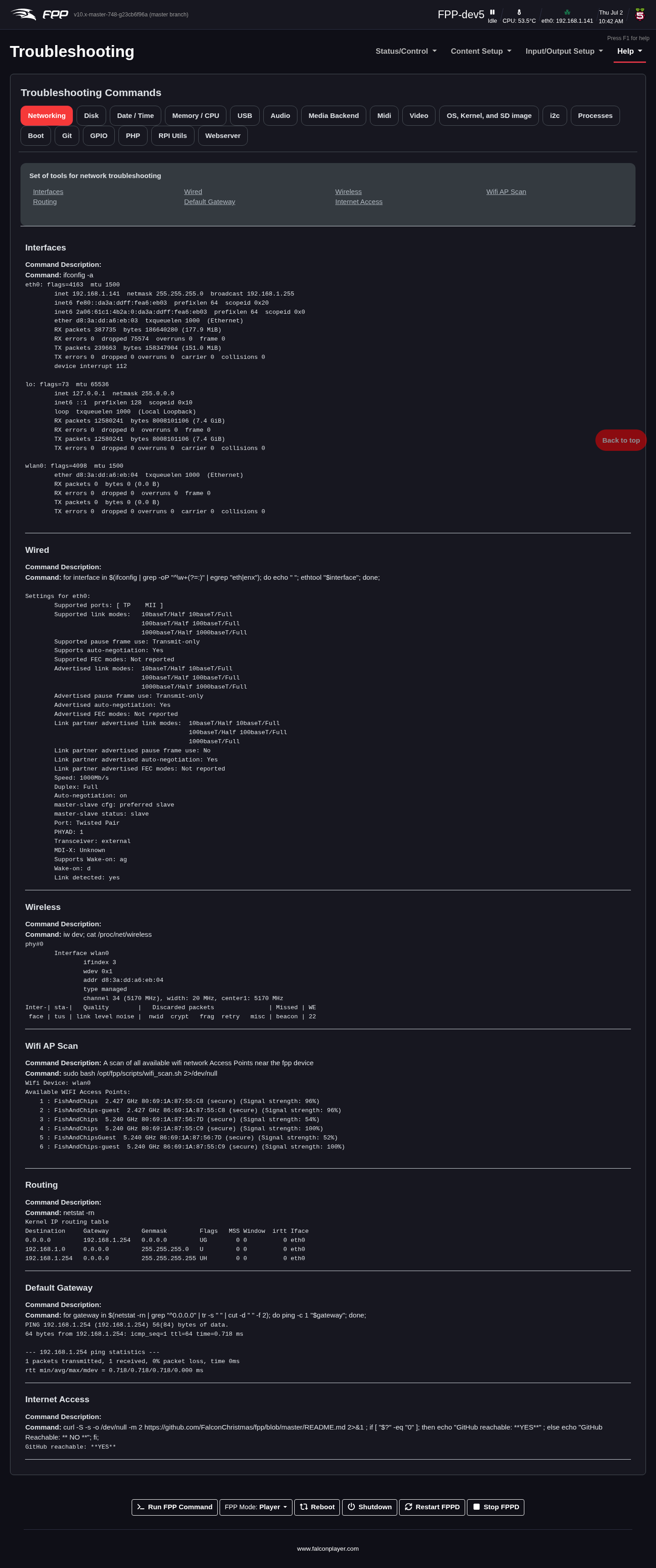
Troubleshooting Commands
Help → Troubleshooting Commands runs a set of read‑only system commands and shows their output on one page — logs, process/service status, network information and configuration dumps — so you can inspect the device (and copy the output into a support request) without a shell.
SSH Shell
Help → SSH Shell opens a browser‑based shell to the device for advanced users.
General troubleshooting tips
- Raise log levels for the relevant subsystem on FPP Settings → Logging, reproduce the problem, then read the logs from File Manager → Logs.
- No output? Check Channel Outputs are enabled and saved, that FPPD was restarted after changes, and use Display Testing to isolate wiring from configuration.
- Audio/video issues? Check the PipeWire Audio and GStreamer health checks and the Audio/Video settings.
- Sync problems? Confirm Send MultiSync Packets on the player, matching sequences on remotes, and a stable (ideally wired) network.
- Cannot reach FPP? Most often a network/DNS problem — check the address, host name, and the Network settings.