Scheduler
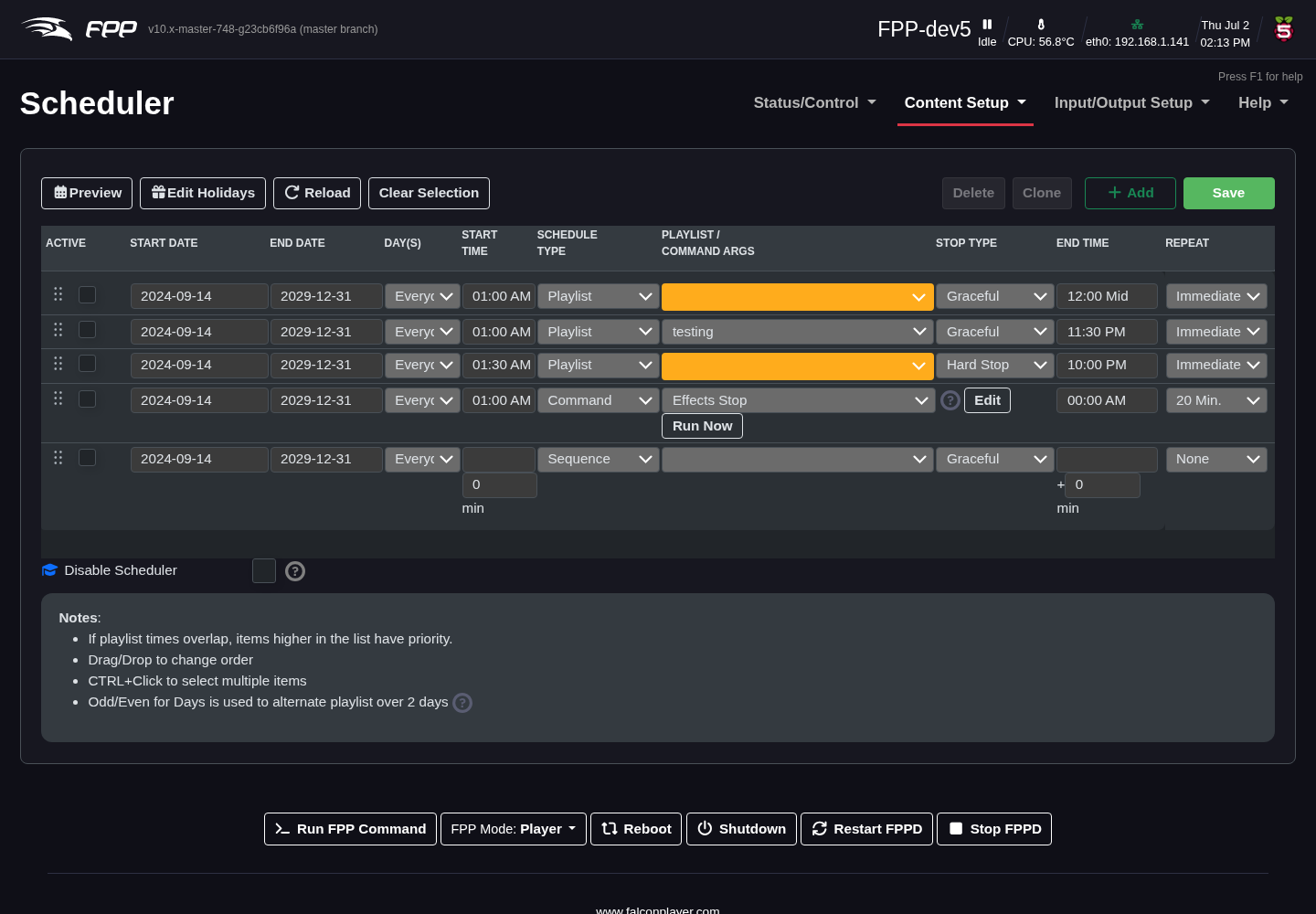
The Scheduler runs predefined playlists (or FPP Commands, or single sequences) automatically on a preset schedule — the heart of an unattended show. Open Content Setup → Scheduler.
Note
The scheduler is normally used only on a device in Player mode, not on remotes (which take their instructions from a player) — though you can schedule FPP Commands only on a remote for special cases.
You can have multiple playlists for different days, holidays, or even different times of the same day. The scheduler supports priority scheduling: an entry higher in the list has a higher priority and preempts lower ones.
Important
For schedules to start at the right time, your time settings must be correct — including Latitude/Longitude for sun‑based times (see FPP Settings → Localization).
Understanding the schedule (Preview)
Preview shows a graphical view of the saved schedule for the week, which helps identify problems. Each entry is colour‑coded by start/stop time and stop mode. If the colours are not in pairs it may indicate a problem — but not always, if you are using priorities. Items skipped due to a priority conflict are marked in red; if a higher‑priority schedule ends while a lower‑priority one should still be playing, the lower‑priority schedule starts when the higher one finishes. Hover over a question mark for a summary of that entry.
Page controls
- Reload – reload the saved schedule (discarding unsaved changes).
- Clear Selection – deselect any selected rows.
- Delete – delete selected rows (not final until you Save).
- Clone – copy selected rows to the bottom of the list.
- Edit Holidays – define holidays used by the Holidays day option.
- Save – must be clicked to store any additions or changes.
- Add – create a new entry, then fill in its columns.
Schedule entry fields
- Active – enable or disable the entry (e.g. prepare a future entry without running it yet).
- Start Date – when the playlist begins playing; can be far in the past (it plays at the next matching time/day). With a Locale configured you can pick holidays by name.
- End Date – the last day it plays (it still starts on this date); can be far in the future. Holidays by name are supported here too.
- Day(s) – any combination of days; common combinations are in the drop‑down, or choose Day Mask and tick specific days.
- Start Time – when to begin, in your configured time format (defaults to 24‑hour). Half‑hour times are suggested, but you can enter any time. You can also choose Dawn, Sunrise, Sunset or Dusk to follow local daylight (requires Latitude/Longitude).
- Schedule Type – Playlist, a single Sequence, or an FPP Command.
- Playlist/Command Args – the playlist or command to run. (An FPP Command has no end time unless set to repeat — it simply triggers at the start time.)
- End Time – when to end; a playing sequence ends according to the Stop Type. Sun‑based end times are supported. If the schedule runs past midnight, set the end time you want and FPP will understand it is on the next day.
- Repeat – three types:
- None – play once.
- Immediate – restart the Main playlist from the beginning each time it finishes, repeating until the end date/time. Useful when a previous playlist might still be finishing (e.g. a Graceful Stop) when this one is due to start.
- Timed – run once every X minutes (each iteration includes Lead In, Main and Lead Out). The preview shows multiple instances from the start time, every X minutes, up to the end time.
Stop Type
Each entry's Stop Type controls how a running item ends at the end time — Graceful (finish the current item), Graceful after loop, or Hard Stop (stop immediately).
Tip
A common pattern is a nightly entry from Sunset to a fixed time with a Graceful stop (so songs are not cut off), plus a Command entry a few minutes earlier to switch on power or run a pre‑show.