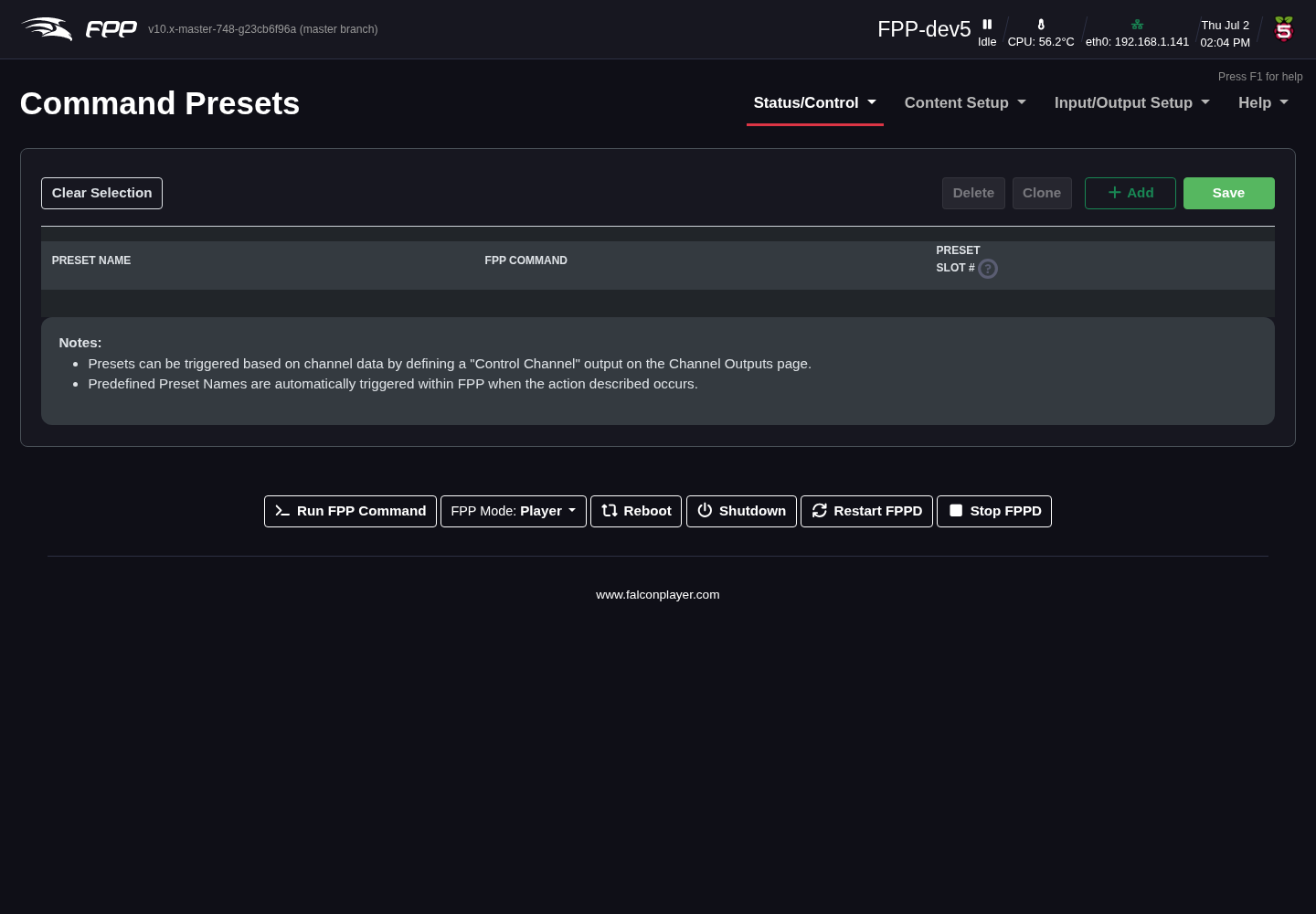
Command Presets
Command Presets replace the earlier Events feature (greatly enhanced). A preset is a saved way to run an FPP Command. Because FPP Commands can now be used directly in playlists and on GPIO inputs, you no longer need to create a preset first — but if you will use the same command in more than one place, a preset makes it easier to reuse. Open Status/Control → Command Presets.
How presets are triggered
A Command Preset can be triggered in four ways:
- Playlist – as a playlist entry (e.g. a Lead In item that switches on a relay for a radio or prop at the start of the show, and off at the end).
- Sequence – in the middle of a sequence (e.g. triggering a countdown on a matrix at set points).
- GPIO Input – from a GPIO pin (e.g. a push button that starts your show).
- Manual Trigger – from the Command Presets page itself (useful for testing).
Creating a preset
- Preset Name – use a clear name that describes what it does, e.g.
StartMainPlaylistorStartOvernightPlaylist. - FPP Command – choose from the many built‑in commands (plugins can add more).
Available FPP Commands (selection)
The command list is extensive; commonly used commands include:
- All Lights Off – turn all lights off.
- Effect Start / Effect Stop / Effects Stop – start a saved effect, stop one, or stop all.
- Extend Schedule – extend (or, with a negative number, shorten) the currently playing scheduled playlist by a number of minutes.
- FSEQ Effect Start / Stop – start or stop any stored
.fseqfile; can loop, and can run in the Background (resuming after a playlist finishes). - GPIO – set GPIO pins on or off.
- Insert Playlist After Current – queue a playlist to run after the current one finishes (with optional start/stop items), then resume.
- Insert Playlist Immediate – start a playlist immediately, stopping the current one, then resume it afterwards.
- Insert Random Item From Playlist – insert a random item (immediately or after the current song).
- Next / Prev / Restart Playlist Item – navigate within a playing playlist.
- Outputs On / Off – turn outputs on/off (on capable devices).
- Overlay Model Clear / Fill / State – clear an overlay model, fill it with a colour, or set its state (Enabled, Disabled, Transparent, Transparent RGB).
- Overlay Model Effect – apply an effect to an overlay model: Bars, Blink, Color Fade, Text, WLED Effects (some sound‑reactive, marked with a musical note), or Stop Effects.
- Pause / Resume Playlist – pause or resume the current playlist.
- Play Media – play a media file (optionally onto an overlay model).
- Remote Effect / FSEQ / Playlist / Script / Command Preset – trigger effects, sequences, playlists, scripts or presets stored on a remote device (enter the name/slot exactly as stored on the remote).
- Run Script – run a script stored on this device.
- Start Playlist – start a stored playlist (also available directly in playlist entries and GPIO inputs).
Each command opens the FPP Command Editor, where you fill in its arguments (for example choosing the playlist for Start Playlist).
Preset Slot – a number from 1–255 that identifies the preset, so it can be triggered by slot (from GPIO, a remote, the API, etc.).
Worked example — a push button that starts a playlist
To make a GPIO button start a "Thank You" playlist:
- On the Command Presets page click + Add to add a new preset.
- Give it a Preset Name (e.g. Start Thank You Playlist).
- Choose the Start Playlist command; in the FPP Command Editor select the Thank You playlist and click Accept Changes.
- Enter a Preset Slot (1–255) — say 5.
- Go to Input/Output Setup → GPIO Inputs.
- Tick En. (Enabled) next to the pin you are using (check a pinout chart for valid GPIO pins) — e.g. HDR pin P8‑04.
- Set Pull Up/Down to match your wiring (e.g. internal Pull Down, or None/External if you fit your own resistor).
- For the Rising or Falling trigger you are using, select Trigger Command Preset slot and choose slot 5 (e.g. Rising Edge).
- Click Save, then Restart FPPD at the top of the page.
Note
Because Start Playlist is itself an FPP Command, you could also enter it directly on the GPIO Inputs page and skip creating a preset — the preset is worth it when you reuse the same command in several places.