Plugins, Packages and Scripts
FPP can be extended beyond its built‑in features with plugins, optional software packages, and user scripts.
Plugin Manager
Plugins are additional components — developed by the FPP developers or by others — that add functionality within FPP, for more complex operations than scripts. You can install a plugin from the list, install a third‑party plugin, or develop your own. Open Content Setup → Plugin Manager.

The page has five sections:
- Retrieve Plugin Info – enter the URL of a plugin that is not part of the
official release; FPP downloads its details. The URL must point to the plugin's
pluginInfo.json— without a valid one, the plugin will not install. Once a valid address is entered, use Get Plugin Info. - Installed Plugins – plugins you have installed. Each shows whether an update is available (with an update button), an uninstall option, and links to the plugin's home page, source code, and bug reporting.
- Available Plugins – plugins available directly through the FPP interface but not yet installed; click the install icon to add one.
- Template Plugin – helps plugin authors with the structure required for an FPP plugin (see Advanced Options → Plugin Development).
- Incompatible Plugins – plugins with compatibility issues with your installed FPP version; you can view the code on the developer's site and possibly fix it.
Note
Most plugins require some configuration before they work correctly. The plugin author chooses which menu heading the plugin appears under; its configuration pages appear at the bottom of that menu drop‑down (there may be more than one). Refer to the plugin's home/help page for setup, and only install plugins you trust, as they run with full access to the device.
Packages
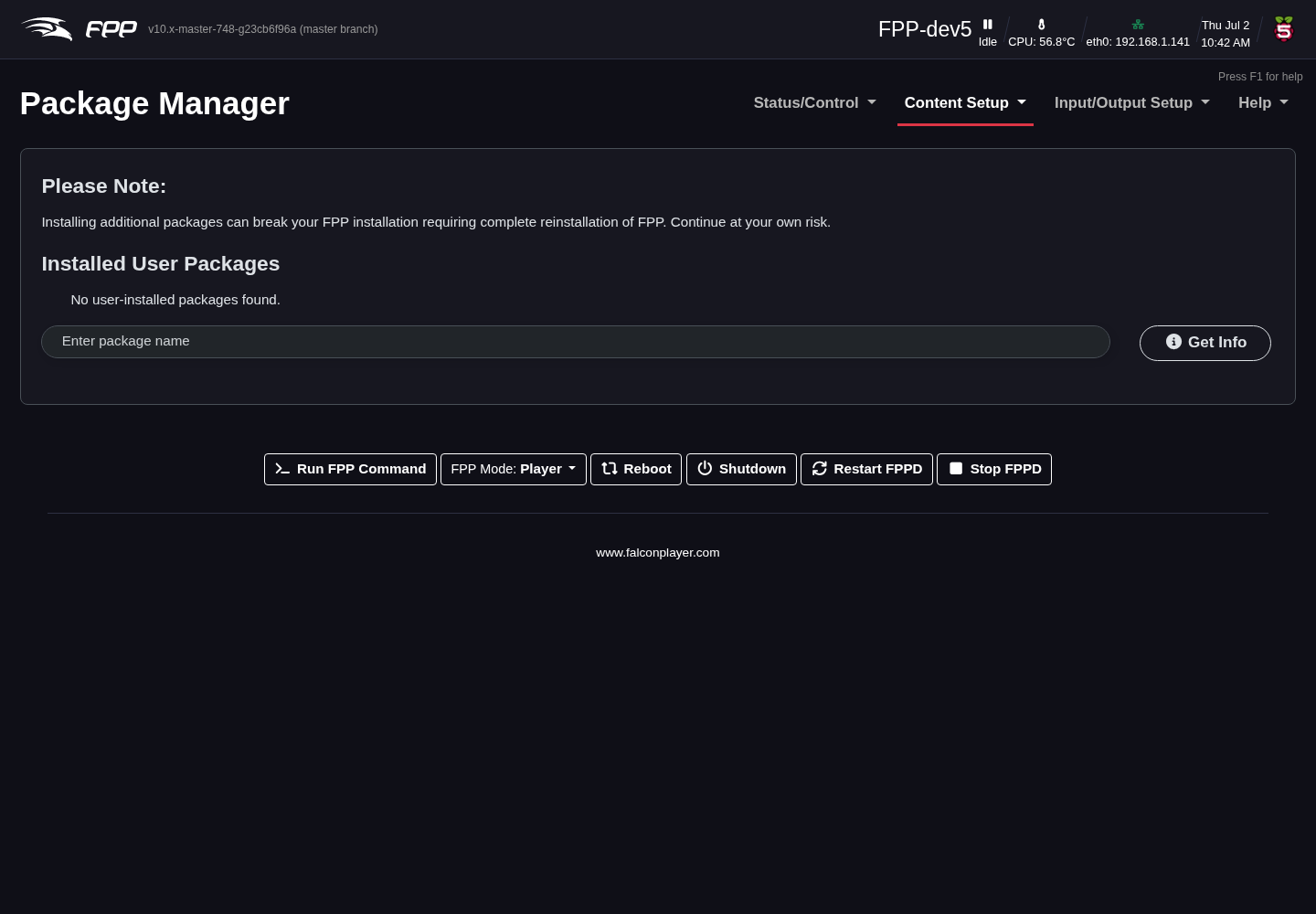
The Packages page (Content Setup → Packages) installs optional operating‑system software that some workflows need but that is not part of the base image. This keeps the base image lean while still allowing advanced setups to add what they require.
Script Repository Browser
Scripts are small programs that perform specific functions. Several are available from FPP, or you can write your own. They can be used within a playlist or as part of a plugin. Open Content Setup → Script Repository Browser.

The repository lists scripts by category. From here you can view a script's code or install it; once installed, it is managed from the File Manager (Scripts tab) and can be run from Commands, the Scheduler, GPIO inputs and playlist entries. Some scripts must be edited to work — for example, the remote control example scripts need the IP address of the remote FPP you want to control.
Note
Many repository scripts are older and may not work. Your DNS settings must be configured and working to view the Script Repository. As with plugins, scripts run on the device, so only install scripts you trust.
Tip
Take an FPP Backup before installing plugins, packages or scripts, so you can roll back if something misbehaves.