The PipeWire Audio & Video Pipeline
FPP 10 replaces the simple audio/video handling of the 9.x series with a flexible pipeline built on PipeWire (the audio/video graph), WirePlumber (which links the graph together) and GStreamer (which decodes media and handles network streaming). This lets FPP route one audio or video source to multiple simultaneous outputs, each with its own volume, delay, equalisation and format — and to send and receive audio and video over the network.
Everything in this chapter is reached from the buttons on FPP Settings → Audio/Video (with Media Backend set to PipeWire (Advanced)). Each page runs live against the PipeWire graph; most have Save and Save & Apply buttons (Apply regenerates the pipeline and re‑links it).
Key concepts. An output group is a "combine sink" that fans one signal out to several destinations. An input group / mix bus collects one or more sources and routes them to output groups. The routing matrix connects inputs to outputs. These apply to both audio and video.
Sound Card Aliases
Audio/Video → Configure Sound Card Aliases.
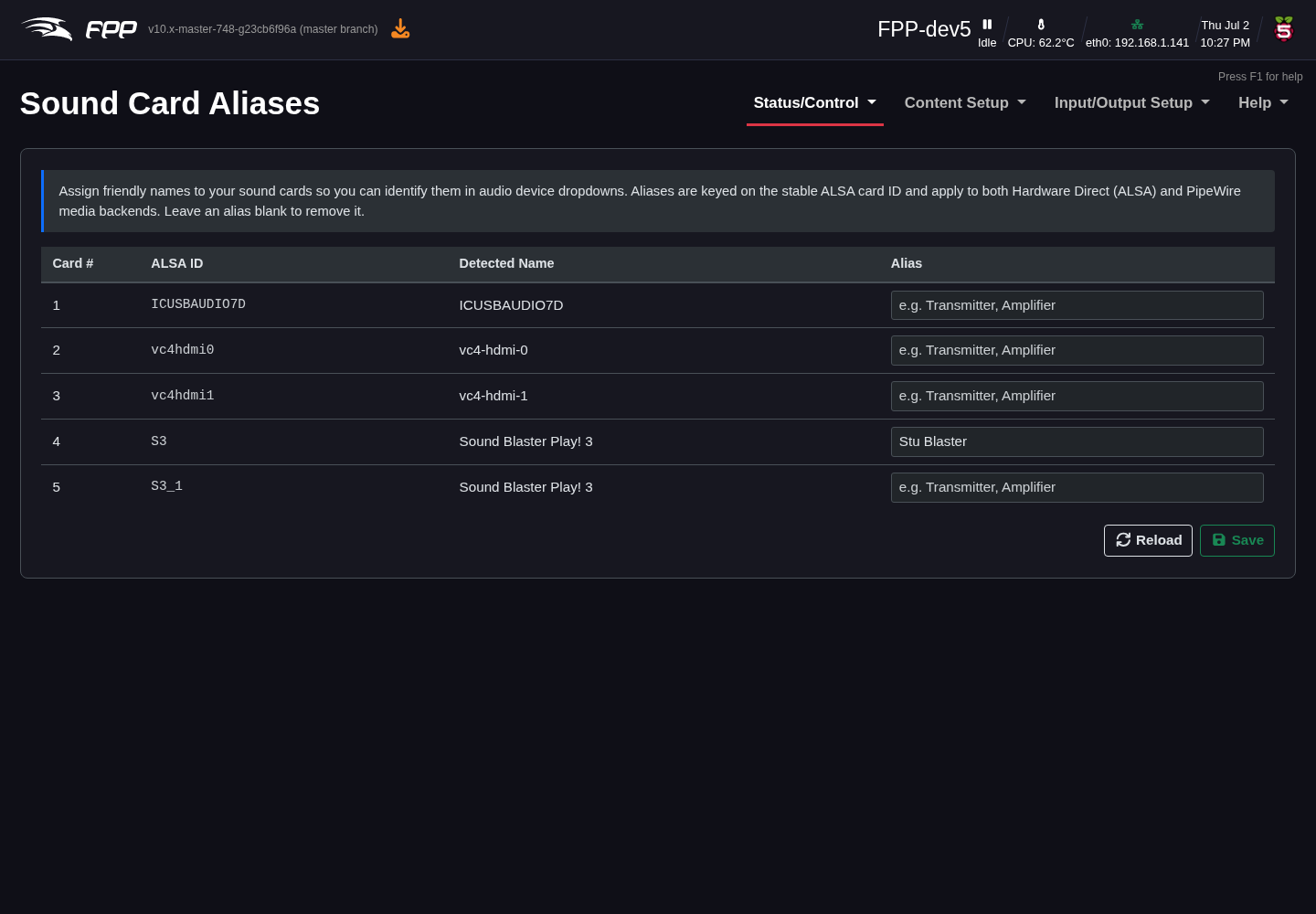
Audio devices have long, cryptic system names (for example
usb-Creative_Technology_Ltd_Sound_Blaster_Play__3...). This page lets you give
each card a short, friendly alias (e.g. "Stu Blaster") that is then used
throughout the audio pages, making groups much easier to configure.
Audio Output Groups
Audio/Video → Configure Output Audio Groups.
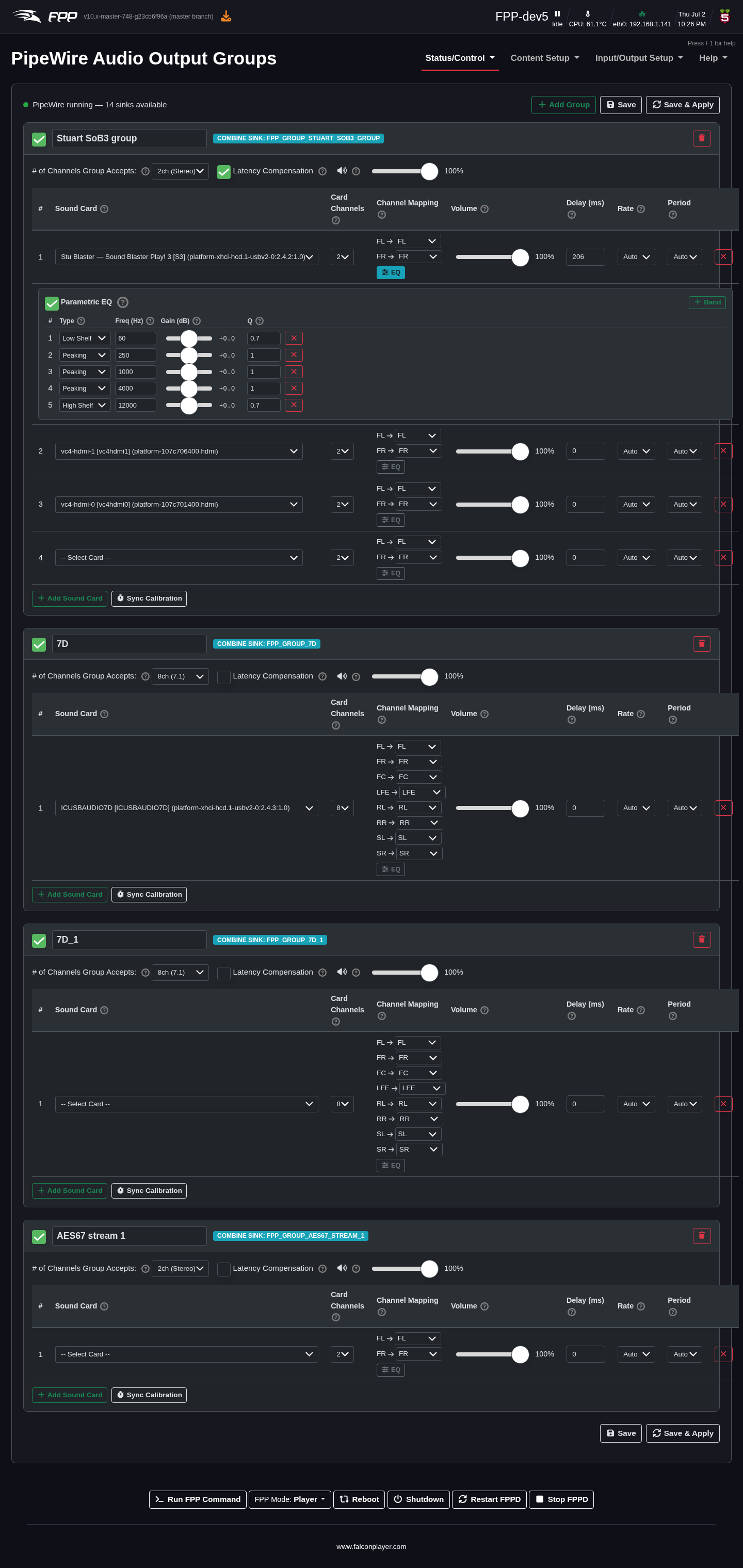
An audio output group is a virtual sink that plays the same audio through several sound cards at once. Click Add Group, name it, and add the sound cards that belong to it. For the group you set:
- # of Channels Group Accepts – e.g. 2ch (Stereo) or 8ch (7.1).
- Latency Compensation – align outputs that have different latencies.
- A group volume.
For each sound card in the group:
- Sound Card – chosen by its alias.
- Card Channels – how many channels the card provides.
- Channel Mapping – map each group channel to a card channel (e.g.
FL → FL,FR → FR,LFE → LFE), so you can send, say, only the left channel to one card. - Volume, Delay (ms) – per‑card level and delay (delay is very useful to time‑align distant speakers or compensate for network/receiver latency).
- Rate / Period – sample‑rate and buffer period (usually Auto).
- Parametric EQ – enable per‑card EQ and + Band to add bands, each with a Type (Low Shelf, Peaking, High Shelf), Frequency (Hz), Gain (dB) and Q.
Add Sound Card adds another member; Sync Calibration helps measure and set the per‑card delays.
Input Mixing (Mix Buses)
Audio/Video → Configure Input Mixing.
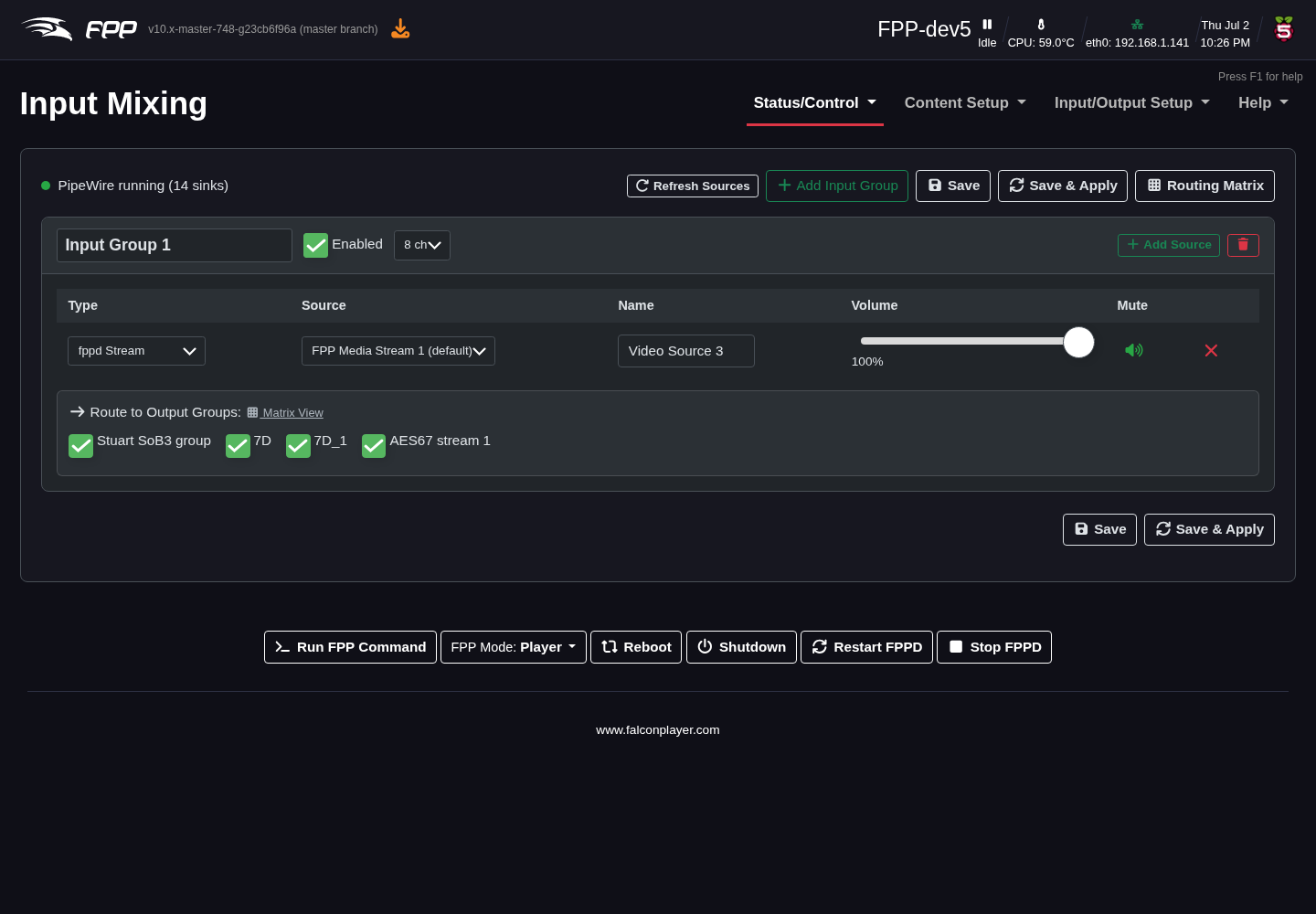
An input group (mix bus) gathers one or more audio sources and routes them to output groups. For each input group you set its name, whether it is Enabled, and its channel count, then add sources. Each source has a Type (e.g. fppd Stream), a Source (e.g. FPP Media Stream 1), a Name, a Volume and a Mute control. Tick the Route to Output Groups boxes to send the mixed result to the chosen output groups (or open the Routing Matrix for a grid view).
Routing Matrix
Audio/Video → Open Routing Matrix.
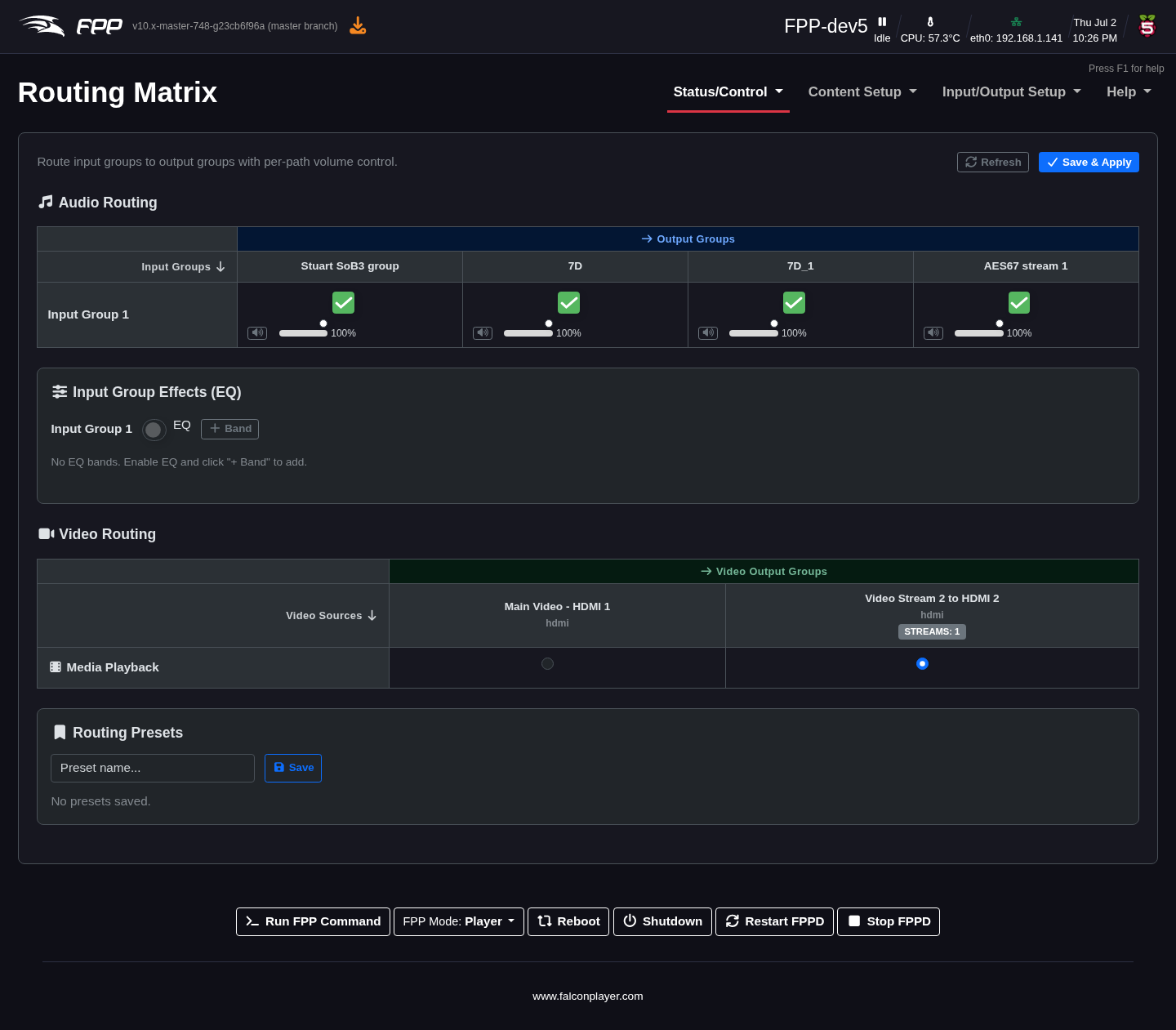
The Routing Matrix is the single place to connect everything:
- Audio Routing – a grid of Input Groups (rows) against Output Groups (columns). Tick a cell to route that input to that output, with a per‑path volume slider for each connection.
- Input Group Effects (EQ) – enable EQ on an input group and add bands.
- Video Routing – a grid of Video Sources against Video Output Groups; select which source feeds each video group.
- Routing Presets – save a complete routing configuration (audio and video assignments) by name and reload it later.
Click Save & Apply to activate the routing.
Pipeline Graph
Audio/Video → Visualise Current Pipeline.
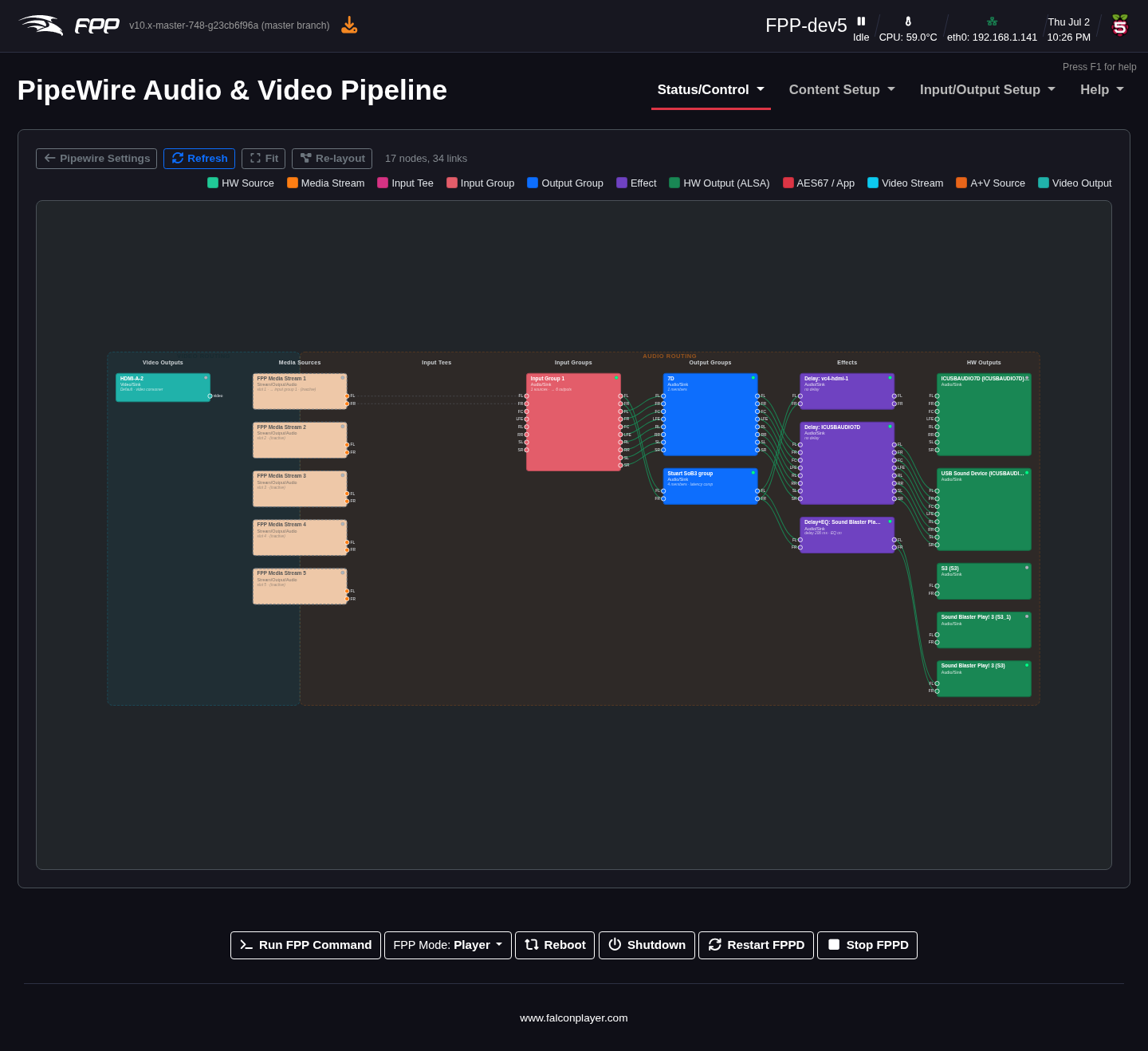
This page draws the live PipeWire graph — the media streams, combine sinks, filter chains (delay/EQ), sound cards and video nodes, and the links between them. Producers and consumers are colour‑coded. It is a valuable troubleshooting view for confirming that audio and video are flowing where you expect.
AES67 Audio‑over‑IP
Audio/Video → Configure AES67 Instances.
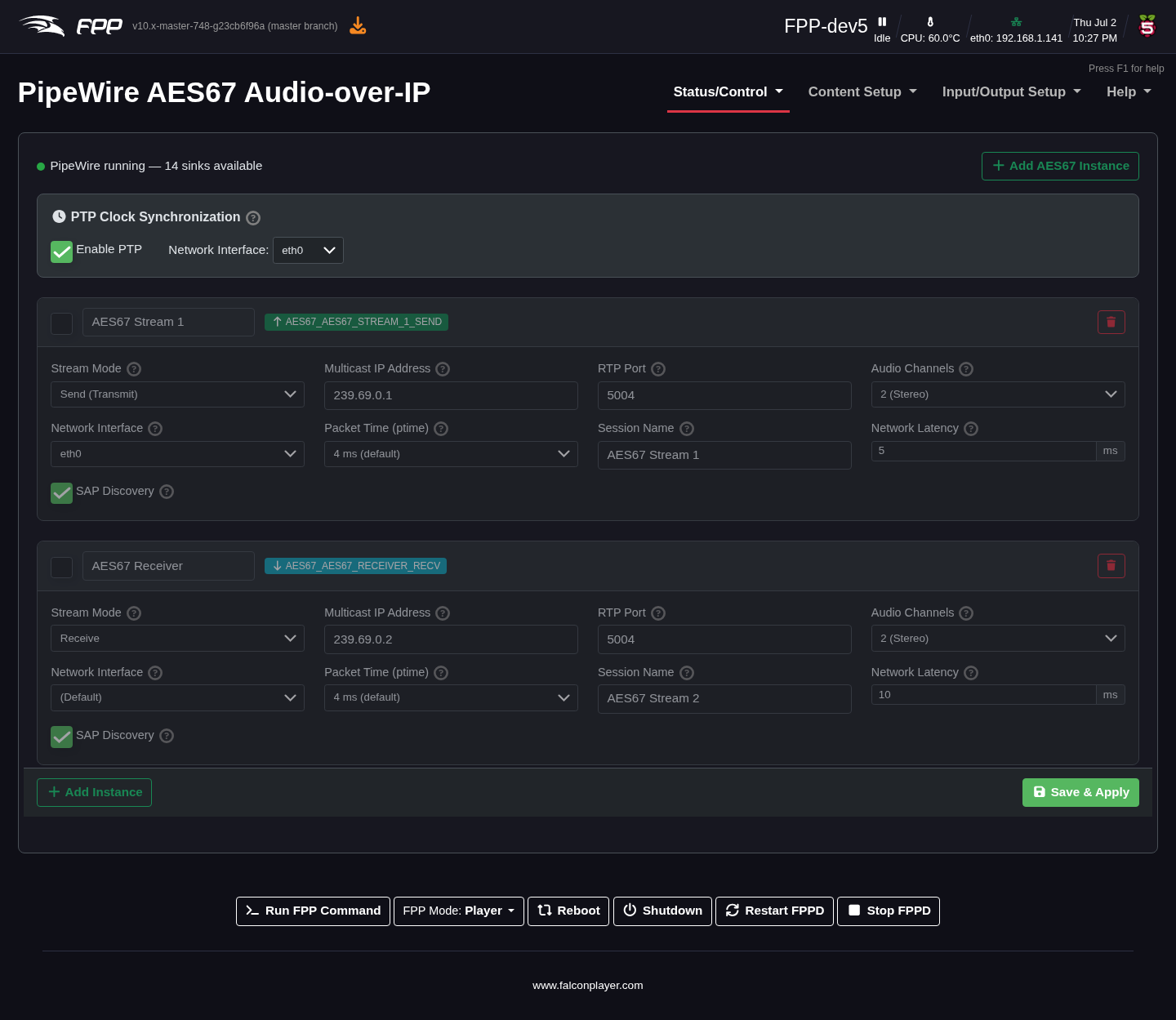
AES67 streams uncompressed, PTP‑synchronised audio over the network as
multicast RTP — the professional standard used by many audio devices. Each AES67
instance you define appears as a virtual sink you can add to an audio output
group (so per‑card delay and EQ apply to it too). FPP announces streams via SAP
and derives RTP timestamps from a PTP clock, so compliant receivers discover and
lock to them automatically. Typical settings per instance are the multicast
address and port (default 239.69.0.x:5004), channel count and format.
Opus RTP Audio Streaming
Audio/Video → Configure Opus RTP Instances.
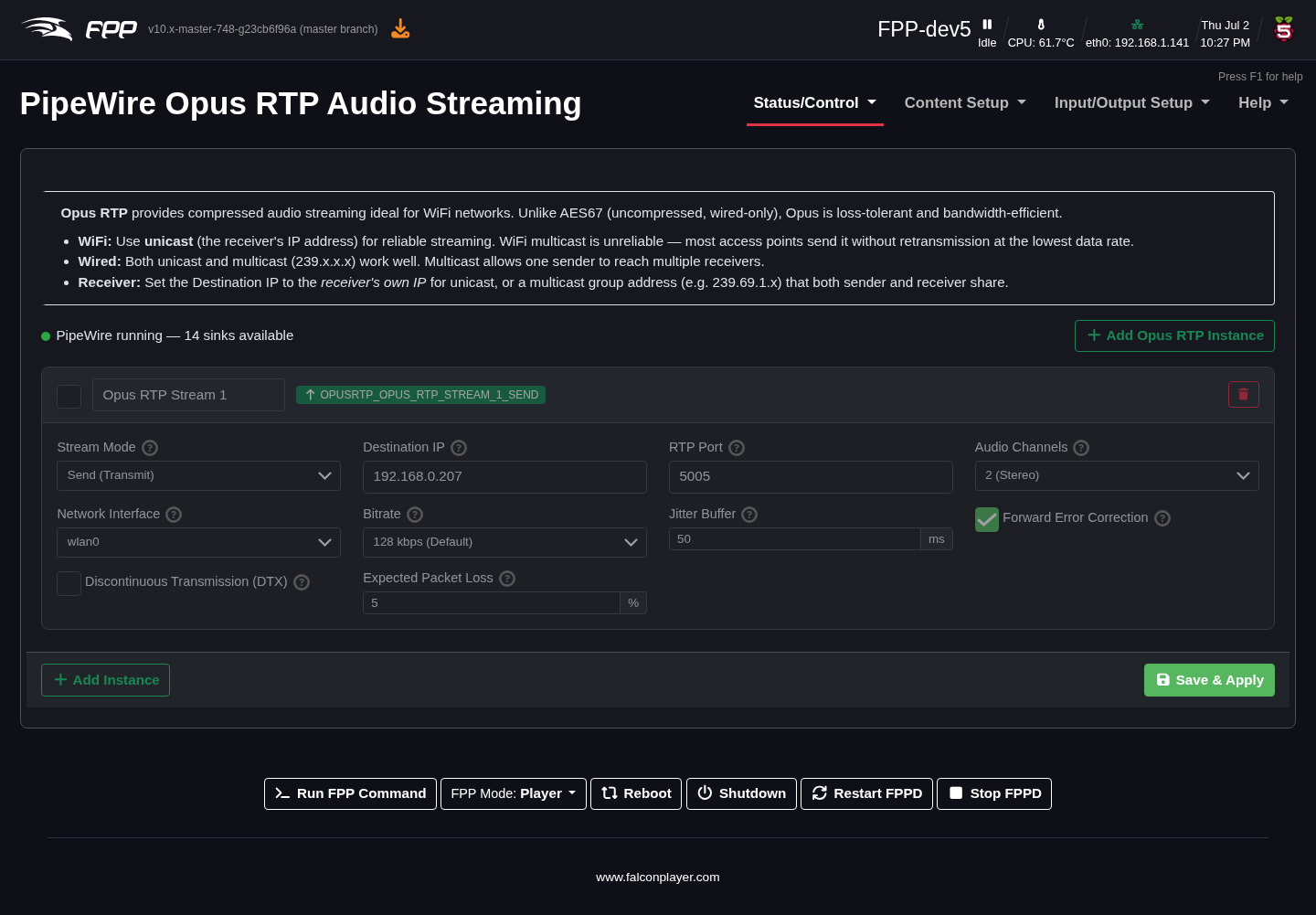
Opus RTP streams compressed (Opus‑encoded) audio over the network — lower bandwidth than AES67, useful for distributing audio to remote players or listeners where bandwidth is limited. As with AES67, each instance is configured with its network address/port and appears in the audio routing.
Video Output Groups
Audio/Video → Configure Video Output Groups.
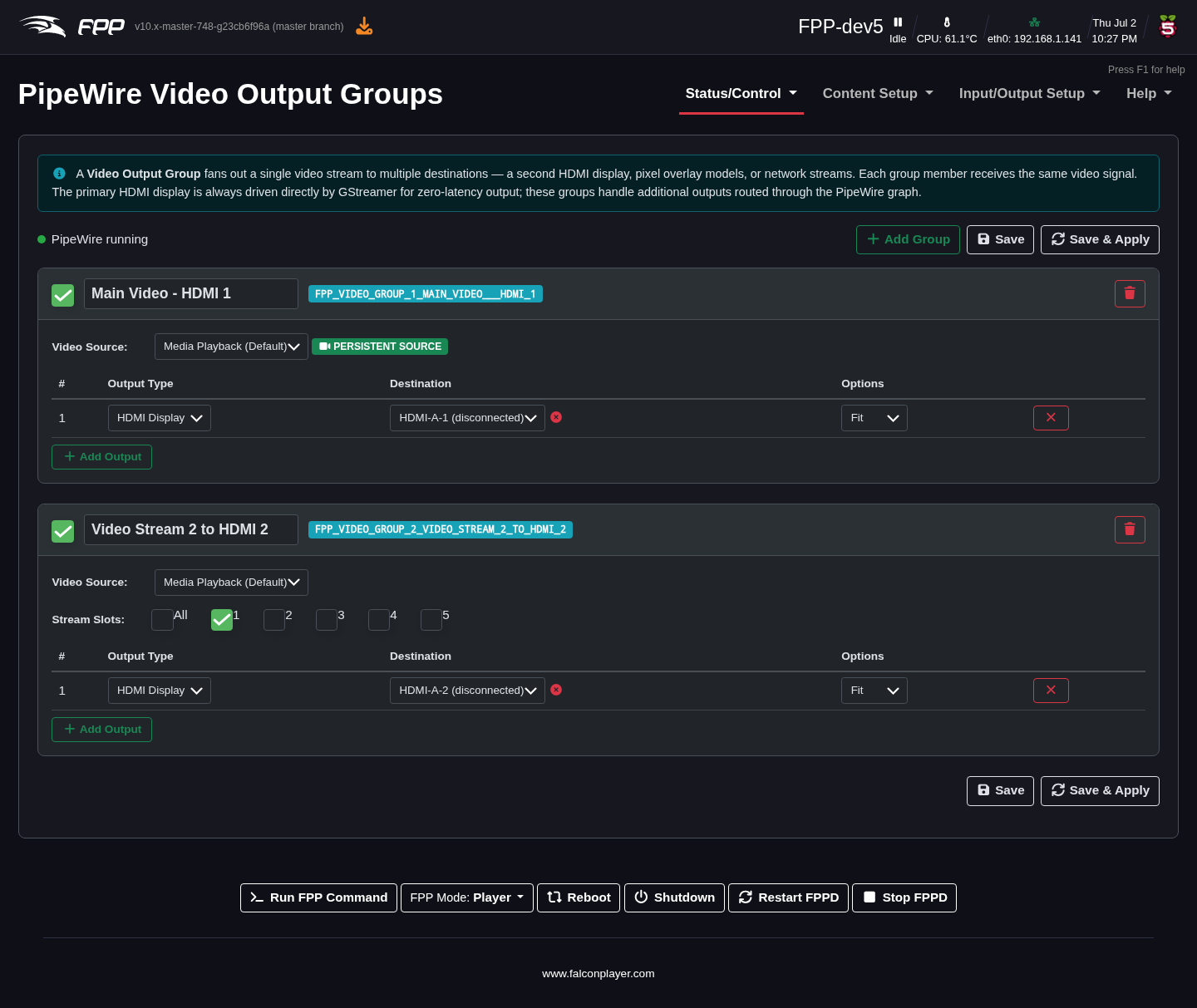
A video output group fans a single video stream out to several destinations at once. (The primary HDMI display is always driven directly by GStreamer for zero‑latency output; these groups handle additional outputs routed through the PipeWire graph.) For each group set a name, the Video Source (Media Playback, or a persistent input source), optionally which Stream Slots (1–5) it uses, then add outputs. Each output has:
- Output Type – HDMI Display, a Pixel Overlay model, or a network (RTP) stream.
- Destination – the specific HDMI connector, overlay model, or network address.
- Options – scaling such as Fit.
This is how you drive a second HDMI screen, mirror video onto an LED matrix (via an overlay model), and stream video over the network — all from one playing video.
Video Input Sources
Audio/Video → Configure Video Input Sources.
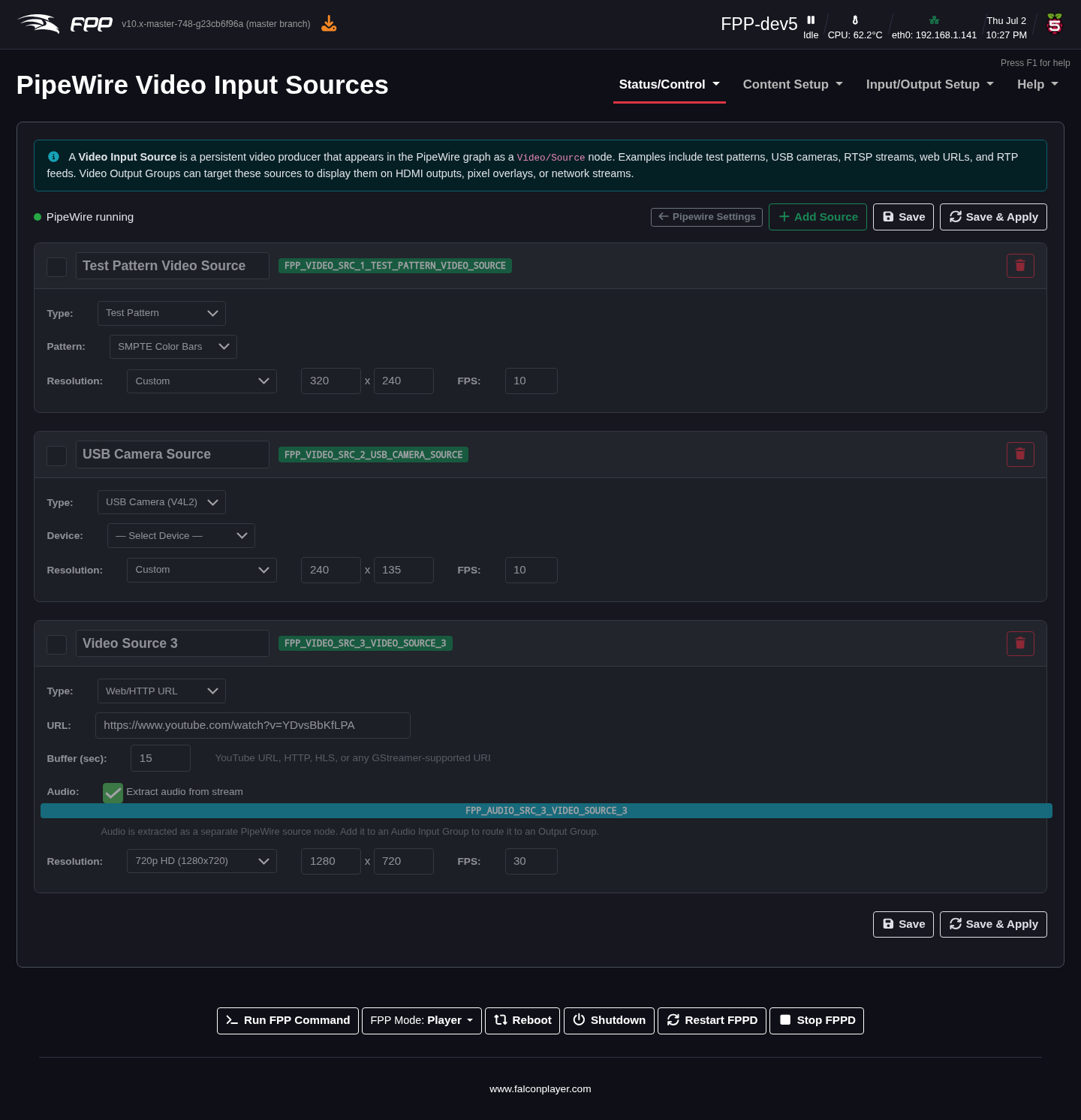
Video input sources are persistent video producers that video output groups can route from (they survive consumers connecting and disconnecting). Supported types include:
- Test Pattern (
videotestsrc) – e.g. SMPTE bars at a chosen size/frame rate. - USB Camera (
v4l2src) – a connected camera device (/dev/video0, …). - IP Camera (
rtspsrc) – an RTSP stream from a network camera.
Define a source here, then select it as the Video Source of a video output group to send a live camera or test pattern to HDMI, an overlay model, or the network.
A note on remote synchronisation
When FPP runs as a remote, the GStreamer pipeline continuously fine‑adjusts its playback rate to converge on the player's position, keeping audio and video frame‑accurate over long shows. This is automatic; the remoteIgnoreSync setting disables it if ever needed. See the MultiSync chapter for the player/remote setup.
Note
This chapter covers the configuration UI. The full technical
architecture (services, WirePlumber linking, GStreamer pipelines, diagnostics)
is documented in the FPP repository under docs/FPP_Audio_Architecture.md,
docs/PipeWire_Video_Routing.md and docs/GStreamer_PipeWire_Clock_and_Sync.md.