Channel Inputs
The Input/Output Setup section defines the channel/universe configuration of the controllers connected to FPP, and other input/output settings. The Channel Inputs page identifies incoming data this FPP should "listen to" — turning FPP into a bridge. Open Input/Output Setup → Channel Inputs.
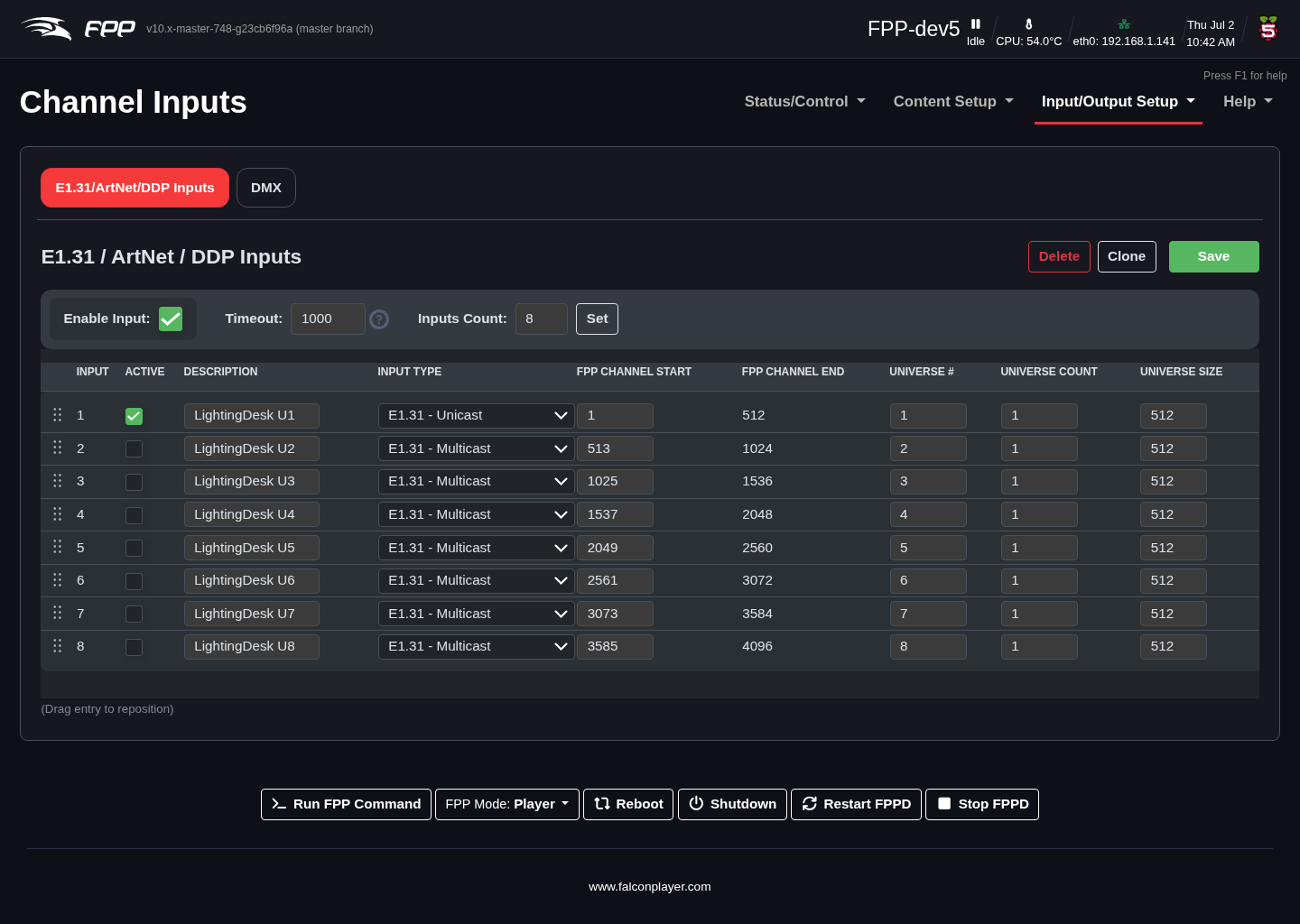
Configuring inputs lets you control your lights/props directly from xLights, xSchedule or other software, and is useful for testing from xLights. If you will not send pixel data from an outside device, you do not need to configure inputs.
To pass incoming E1.31/ArtNet/DDP data through to a connected controller or other device, enable the input (and, for E1.31/ArtNet, configure it). Any events or output processes triggered by channel data are still processed.
Note
For DDP you do not need to configure inputs — just enable the input, and FPP receives and recognises DDP packets automatically. Do not enter E1.31/ArtNet universes that other FPPs are already using.
Settings
- Enable Input – allow FPP to process incoming channel data.
- Timeout – seconds after which, if no E1.31/DDP/ArtNet signal is received, a blanking signal is sent out.
- Inputs Count – the number of input lines to configure; press Set to populate the table.
For each line:
- Input – a reference number for the line.
- Active – make the line's universes active (untick to disable).
- Description – identify the controller these universes are assigned to.
- Input Type – the type being received; E1.31 Unicast is usually best.
- FPP Channel Start – the start channel for these universes (typically 1 for a single controller; otherwise determined from your xLights setup).
- FPP Channel End – calculated automatically.
- Universe # – the first universe number (1–63999; need not start at 1).
- Universe Count – how many universes to assign. Universes do not map directly to ports; define them per controller and only as many as you need.
- Universe Size – channels per universe; commonly 512 or 510 (both work equally well). Use the same numbering and sizes everywhere for this device (xLights, the controller, etc.).
Your universes, FPP start channels and sizes must match your sequencer, show player and controller.
Important
If you change the FPP Start Channel, Universe #, Universe Count or Universe Size after configuring, adjust the other universe lines too — FPP does not auto‑correct them.
Adding E1.31/ArtNet inputs
Normally enter 1 for Inputs Count, click Set, and fill in the fields. The Clone button copies a selected line's settings (Universe #, Count, Size, Type) to lines below it, incrementing the universe number on each (you specify how many to clone; there must be enough lines below). Delete removes a selected line.
Important
Click Save after any change, then Restart FPPD when prompted for it to take effect.
Tip
For testing from xLights you only need to enable the inputs, since xLights sends DDP, which needs no configuration. Bridge mode is independent of playing local sequences — a common workflow is to bridge during sequencing, then switch to Player mode to run the show from uploaded FSEQ files.