Final Configuration and Updating
Reconnecting after the network change
Once the device is connected to your network using the settings you entered, open its web page at the new address — the page currently on your screen may no longer reach it. Browse to the host name or IP address you configured (or, if you used DHCP, the address your router assigned). If you cannot reach the FPP page, see the Help and Troubleshooting chapter.
In most configurations FPP has internet access and will keep the correct time automatically. If your device will not have internet access and has a Real‑Time Clock (RTC) installed, see FPP Settings → Localization → Time Config.
Updating the software
You should update to the current version of the software. Open Help → System Upgrade (the About page).
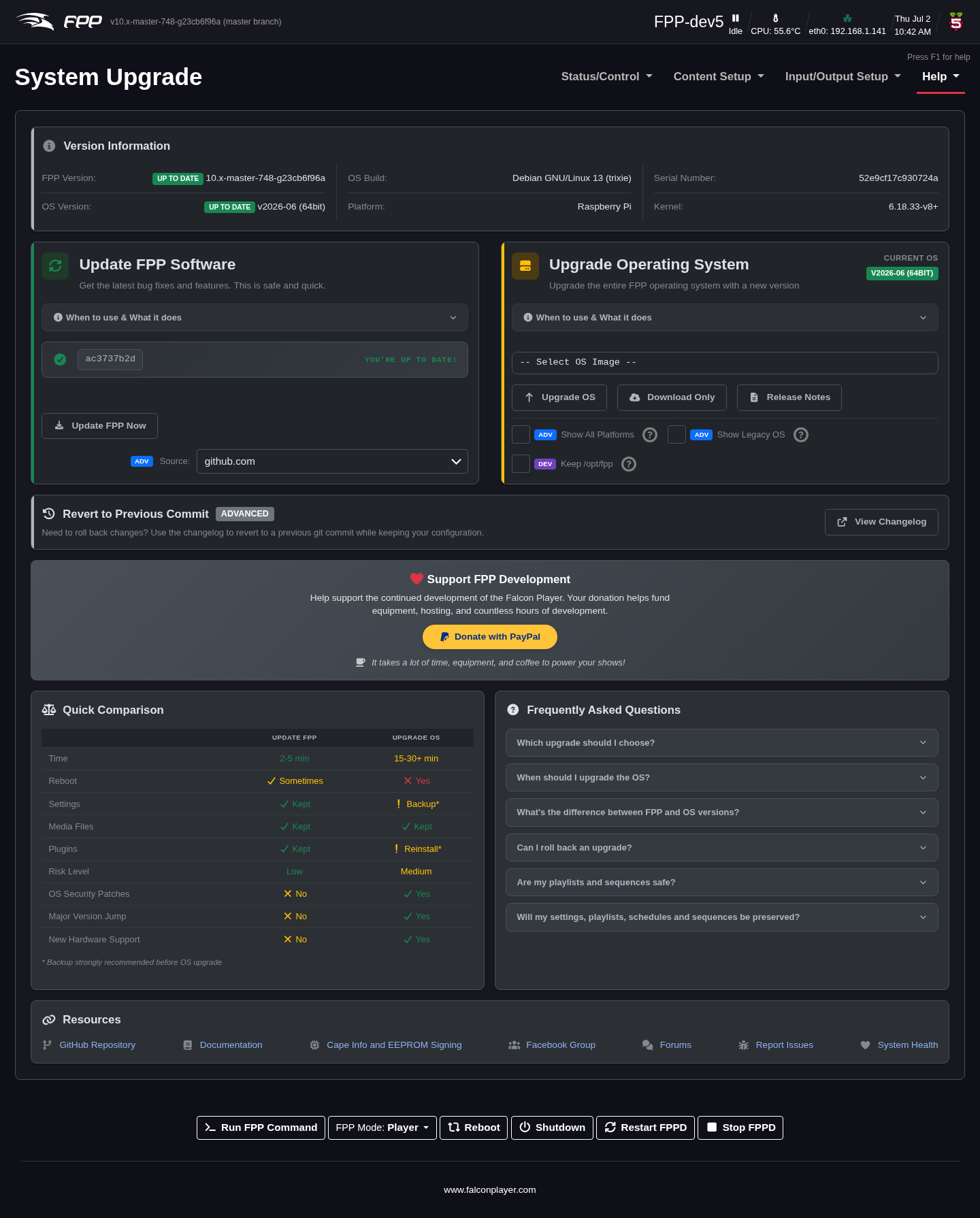
This screen shows the FPP version you are running and, if an update is available, a notice. Click Upgrade FPP.
Note
If the Remote Git Version shows Unknown, FPP usually cannot reach the internet — most often a network/DNS configuration problem. See the Help and Troubleshooting chapter.
You will get a progress screen; the update can take several minutes. When it finishes, click Close at the bottom.
Sometimes an additional major update is offered — if so, click Upgrade. You will usually see a Release Notes page; some updates need a matching Operating System (OS) update to gain full functionality, and that will be noted there.
Note
If the release notes indicate an FPPOS upgrade may be required, clicking Upgrade will not upgrade the OS — that is a separate step. See Help → System Upgrade for details.
Confirm any prompts and let the update run, then click Close. When complete, the screen returns to the About page and you can verify the version. When fully up to date, the Local Git Version matches the Remote Git Version.
Your FPP software is now installed and up to date. There are many ways to use FPP, and the settings needed to run your show vary with your particular setup — refer to the appropriate chapters that follow for details.
Tip
Always take an FPP Backup (see the Backup, Restore and Proxies chapter) before a major upgrade, so you can roll back if needed.